Excel Tips: How to Highlight the Active Cell and Selected Cells Easily ✨
Learn simple tricks to highlight the active cell or selected cells in Excel. Boost your spreadsheet efficiency with this quick guide!
RabiGurungXybernetics
4 views • Aug 11, 2025
About this video
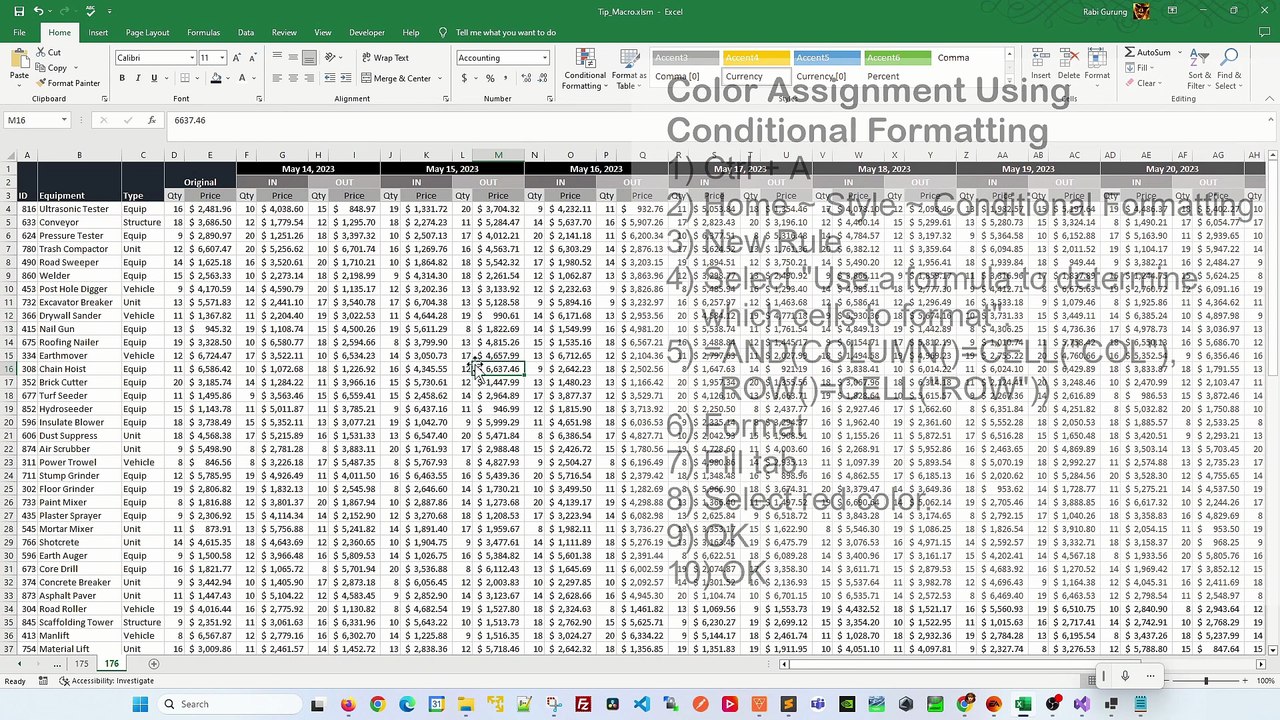
Discover how to highlight active cell in Excel, or otherwise asked as how do I highlight only selected cells in Excel? This tip and trick will also answer how do you highlight the color of selected cells in Excel? It can also answers questions around how to change cell color when cell is clicked or selected in Excel? But can you highlight the active cell in Excel? <br /><br />Here are the steps outlined in the video. <br /><br />Conditional Formatting <br />1) Ctrl + A <br />2) Home ~ Style ~ Conditional Formatting <br />3) New Rule <br />4) Select "Use a formula to determine which cells to format". <br />5) =AND(COLUMN()=CELL("COL"), ROW()=CELL("ROW")) <br />6) Format <br />7) Fill tab. <br />8) Select red color. <br />9) OK <br />10) OK <br /><br />Animation <br />1) Right-click sheet. View Code. <br />2) Select Worksheet <br />3) Enter these in Worksheet_SelectionChange() <br /> Target.Calculate <br />4) Ctrl+S to save <br />5) Close Code Editor <br /><br />How do I highlight only selected cells in Excel?,Can you highlight the active cell in Excel?,How do you highlight the color of selected cells in Excel?,How to change cell color when cell is clicked or selected in Excel?,
Video Information
Views
4
Duration
1:37
Published
Aug 11, 2025
Related Trending Topics
LIVE TRENDSRelated trending topics. Click any trend to explore more videos.
No specific trending topics match this video yet.
Explore All Trends