Windows 10 Clean Install Guide 🚀
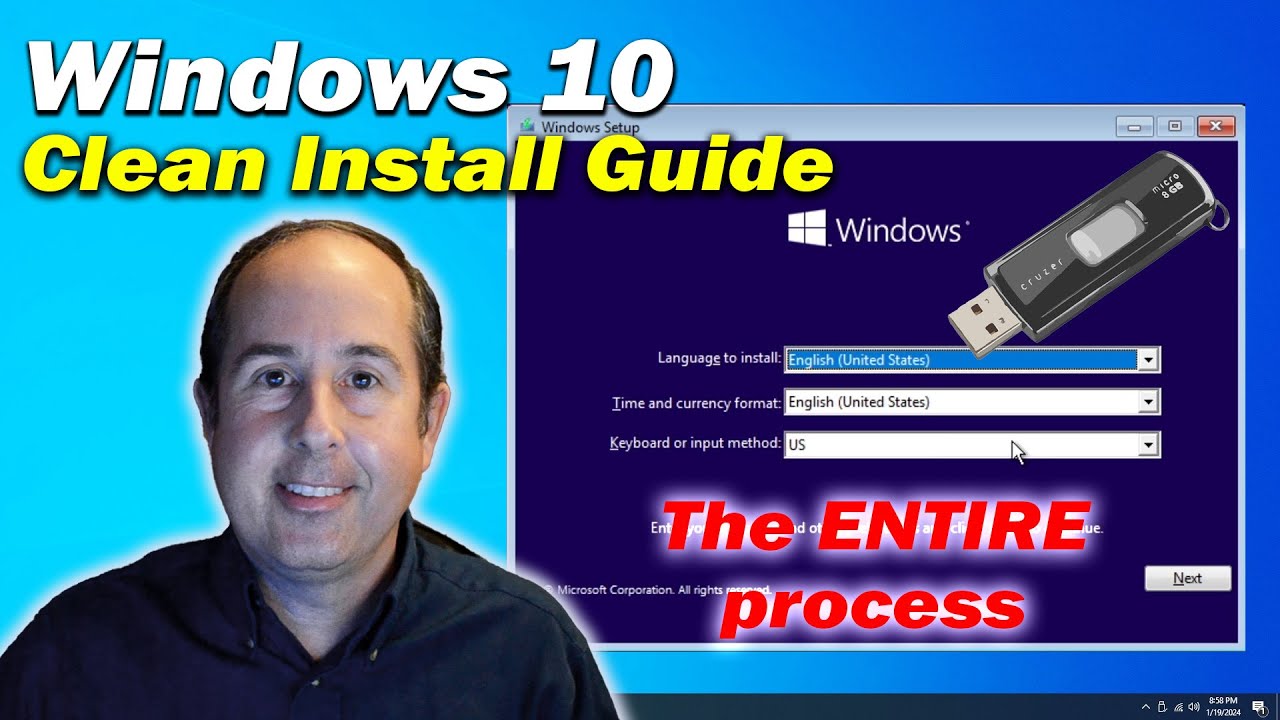
Step-by-step instructions to clean install Windows 10 from download to setup, using a USB drive.

Jason Bagnell
548.1K views • Jan 24, 2024
About this video
This Windows 10 clean install guide will show you, step by step, how to install Windows 10 by downloading the latest copy from the Microsoft Website to a USB flash drive. You'll end up with a fresh/clean copy of Windows 10 on your PC. I'll show you the entire process without leaving any of the steps out. Sometimes a fresh start is the best way to go!
* This video assumes that you have already backed up all of your data and it assumes that you want to completely erase the PC's hard drive to get a fresh start. I'll use fast-forwarding to zip through the boring parts. Follow this guide for a hassle-free Windows 10 setup.
-------
READ THIS! -- If you are unable to skip connecting to a network and entering a Microsoft Account, there are 2 EASY options available during the Windows 10/11 setup. I made a short video about one of them here: https://youtu.be/UdyP_bHSUlE
Essentially, when the Windows Setup program asks you to join a network and/or enter a Microsoft Account, you press Shift-F10 (or Shift-FN-F10 if you're on a laptop) and then type the following command in the command prompt window and press Enter: OOBE\BYPASSNRO
Another command that also works if OOBE\BYPASSNRO doesn't is: start ms-cxh:localonly
You only need to run one or the other. Both will allow you to create a "Local Account" and the Windows Setup program will continue without Internet access. If you don't want to be bothered with creating account security questions, don't enter a password and it will continue forward without them.
I wish I could add a new segment to my YT video but that is not allowed. Hopefully the people who need this information will find the answer here.
-------
FLASH DRIVE: https://amzn.to/4jVpXhB
If you need to buy a new Flash Drive to save your files onto before erasing the drive, here is one that I personally use and recommend. It has the older USB-A connector on one side and the newer USB-C connector on the other side. Watch my detailed review about it here: https://youtu.be/3iGUir3uIbc
▬ Contents of this video ▬▬▬▬▬▬▬▬▬▬
00:00 Welcome / Intro
00:10 Creating bootable flash drive
02:12 How to boot from flash drive
03:23 Starting Windows Setup process
04:33 Clearing existing partitions
05:19 Waiting for Setup to complete
06:15 Answering initial setup questions
06:29 Adding or avoiding Microsoft account
07:19 New user account & password
07:46 Privacy & Experience questions
08:27 Final phase of Windows Setup
08:50 Is the PC missing device drivers?
10:38 Ways to locate & install drivers
13:28 Windows Update to install drivers
13:56 Using Driver Booster to save time
16:10 Uninstalling Driver Booster
17:08 Install remaining Windows Updates
17:32 Closing & Thank You!
Feel free to leave a comment below and let everyone know how everything went during your Windows 10 installation experience. Also, check out my channel for more informative walk-through videos like this one. Cheers! -- Jason
Songs used in this video: -----
Song: Balynt - Campfire
Music provided by Vlog No Copyright Music.
Video Link: https://bit.ly/3my0ORd
Song: MBB - Feel Good (Vlog No Copyright Music)
Music provided by Vlog No Copyright Music.
Video Link: https://www.youtube.com/watch?v=wIDKJeLXO5Q&t=0s
Links to Amazon are typically monetized on this channel (affiliate links) and I may earn from qualifying purchases.
* This video assumes that you have already backed up all of your data and it assumes that you want to completely erase the PC's hard drive to get a fresh start. I'll use fast-forwarding to zip through the boring parts. Follow this guide for a hassle-free Windows 10 setup.
-------
READ THIS! -- If you are unable to skip connecting to a network and entering a Microsoft Account, there are 2 EASY options available during the Windows 10/11 setup. I made a short video about one of them here: https://youtu.be/UdyP_bHSUlE
Essentially, when the Windows Setup program asks you to join a network and/or enter a Microsoft Account, you press Shift-F10 (or Shift-FN-F10 if you're on a laptop) and then type the following command in the command prompt window and press Enter: OOBE\BYPASSNRO
Another command that also works if OOBE\BYPASSNRO doesn't is: start ms-cxh:localonly
You only need to run one or the other. Both will allow you to create a "Local Account" and the Windows Setup program will continue without Internet access. If you don't want to be bothered with creating account security questions, don't enter a password and it will continue forward without them.
I wish I could add a new segment to my YT video but that is not allowed. Hopefully the people who need this information will find the answer here.
-------
FLASH DRIVE: https://amzn.to/4jVpXhB
If you need to buy a new Flash Drive to save your files onto before erasing the drive, here is one that I personally use and recommend. It has the older USB-A connector on one side and the newer USB-C connector on the other side. Watch my detailed review about it here: https://youtu.be/3iGUir3uIbc
▬ Contents of this video ▬▬▬▬▬▬▬▬▬▬
00:00 Welcome / Intro
00:10 Creating bootable flash drive
02:12 How to boot from flash drive
03:23 Starting Windows Setup process
04:33 Clearing existing partitions
05:19 Waiting for Setup to complete
06:15 Answering initial setup questions
06:29 Adding or avoiding Microsoft account
07:19 New user account & password
07:46 Privacy & Experience questions
08:27 Final phase of Windows Setup
08:50 Is the PC missing device drivers?
10:38 Ways to locate & install drivers
13:28 Windows Update to install drivers
13:56 Using Driver Booster to save time
16:10 Uninstalling Driver Booster
17:08 Install remaining Windows Updates
17:32 Closing & Thank You!
Feel free to leave a comment below and let everyone know how everything went during your Windows 10 installation experience. Also, check out my channel for more informative walk-through videos like this one. Cheers! -- Jason
Songs used in this video: -----
Song: Balynt - Campfire
Music provided by Vlog No Copyright Music.
Video Link: https://bit.ly/3my0ORd
Song: MBB - Feel Good (Vlog No Copyright Music)
Music provided by Vlog No Copyright Music.
Video Link: https://www.youtube.com/watch?v=wIDKJeLXO5Q&t=0s
Links to Amazon are typically monetized on this channel (affiliate links) and I may earn from qualifying purchases.
Tags and Topics
Browse our collection to discover more content in these categories.
Video Information
Views
548.1K
Likes
7.6K
Duration
17:54
Published
Jan 24, 2024
User Reviews
4.7
(109) Related Trending Topics
LIVE TRENDSRelated trending topics. Click any trend to explore more videos.
No specific trending topics match this video yet.
Explore All Trends