Clean Install macOS Sequoia with Bootable USB 🖥️
Learn how to easily install macOS Sequoia using a bootable USB and boost your MacBook's performance. Manage your disks effortlessly!
Arthur Brassart
130.2K views • Nov 27, 2022
About this video
Looking for an easier way to download MacOS DMG files, create macOS bootable USBs and manage your disks? Try iBoysoft DiskGeeker https://cutt.ly/ErUjQyFd to streamline macOS installer creation, disk optimization, and cross‑platform management all in one.
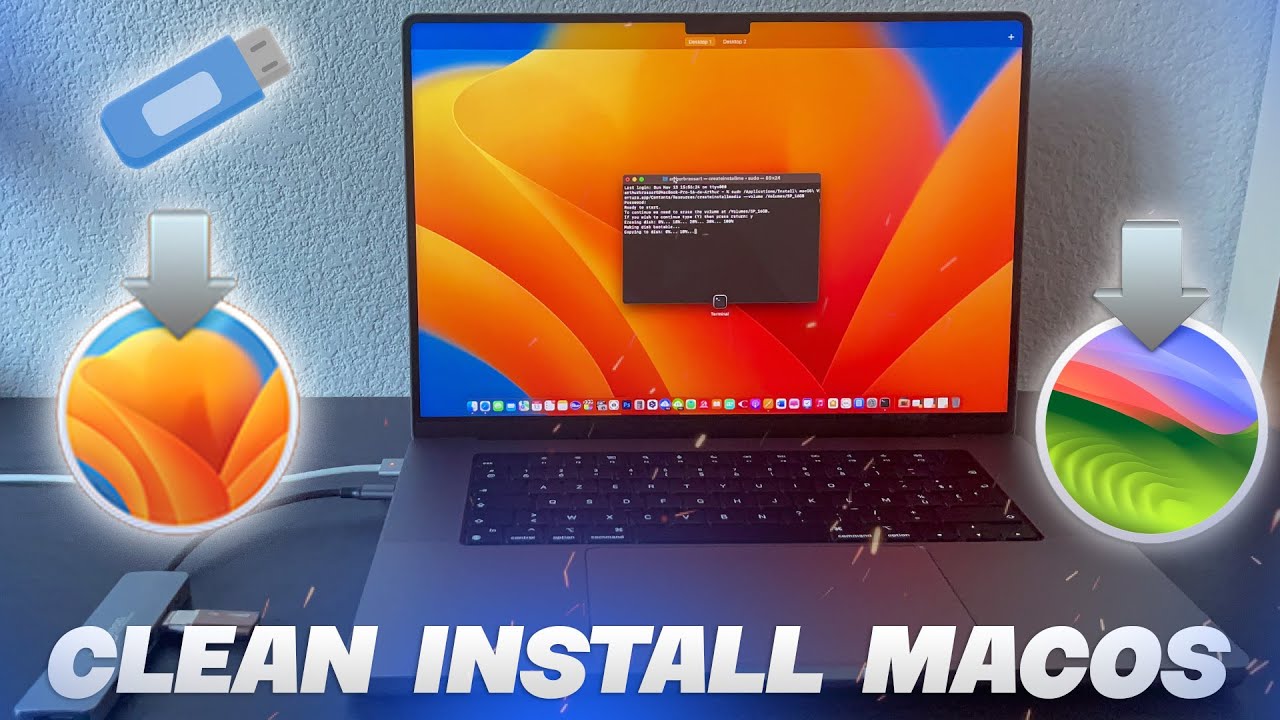
In this video, I'm showing you how to do a clean install of macOS Sonoma or Ventura. A clean install is a process of installing a new image of macOS on an empty, erased hard drive.
Download the latest macOS from Apple: https://support.apple.com/en-us/HT211683
Terminal command:
sudo /Applications/Install\ macOS\ Sequoia.app/Contents/Resources/createinstallmedia --volume /Volumes/MyVolume
*(Replace MyVolume with the name of your USB drive)
✅ Subscribe to get the most out of your Apple Devices:
@ArthurBrassart
📺 Enjoyed my video? Watch this next:
https://youtu.be/ZERnlxl6LRw
☕️ Support my work and buy me a coffee:
https://www.paypal.com/paypalme/arthurbrassart
👋 Let‘s connect on Instagram:
https://www.instagram.com/arthur_brassart/
💰Business:
contact.arthur.brassart@gmail.com
🎥 The Kit & Tools I Use*:
My MacBook: https://amzn.to/3SBADWE
My iPhone: https://amzn.to/3vZZFWB
My Apple Watch: https://amzn.to/48RvlvW
My Favorite SSD: https://amzn.to/47Yv60N
My Microphone: https://amzn.to/43JGgER
My studio headphones: https://amzn.to/3qcLHOJ
My External Display: https://amzn.to/492EQII
My Keyboard: https://amzn.to/3SxF0lN
My Mouse: https://amzn.to/4967YP0
*Affiliated links
Timecodes:
0:00 - What is a Clean Install of macOS?
1:23 - Preparation
1:54 - Step 1. Copy your data and files.
2:20 - Step 2. Download macOS image
2:48 - Step 3. Make a bootable USB drive using Terminal
4:24 - Step 4. Boot options - Erase your Hard Drive
5:48 - Step 5. Boot from the USB installer
How to expand SSD on Mac - https://youtu.be/SKtXGr6p6nQ
Top 10 Best Free Games - https://youtu.be/hs0HvBEuYC4
Top 10 Best Paid Games - https://youtu.be/J7wLrdPcqLc
Top 10 Best Paid Games Part 2 - https://youtu.be/4bFtmnEJdcw
Top 10 Best Paid Apps for iOS in 2022 - https://youtu.be/bQgsn2je4vE
Top 10 Best Free Apps for iOS - https://youtu.be/7kLmd47__ho
MacBook Pro 16-inch Unboxing and Review - https://youtu.be/K1VailatVlI
Safari for Apple Watch - https://youtu.be/Y3yti2cgr_E
Unboxing Apple Watch Series 7 45 mm Green - https://youtu.be/SZwDH2bqaTc
My Apple Watch Band Collection - https://youtu.be/zZ9red5IbpU
How to install screen protector for Apple Watch S7 (Hydrogel vs Plastic) - https://youtu.be/ZOtGVNewo6Q
#Mac #howto #macbook
After the clean install process, your MacBook will be like new. So it will work faster and better. For example, I had a lot of junk files, some useless apps, and games - now my computer is clean and fresh. Actually, I noticed that it works much faster now.
Thanks for watching, I hope this video was helpful. If you want to support me please subscribe to my YouTube channel.
In this video, I'm showing you how to do a clean install of macOS Sonoma or Ventura. A clean install is a process of installing a new image of macOS on an empty, erased hard drive.
Download the latest macOS from Apple: https://support.apple.com/en-us/HT211683
Terminal command:
sudo /Applications/Install\ macOS\ Sequoia.app/Contents/Resources/createinstallmedia --volume /Volumes/MyVolume
*(Replace MyVolume with the name of your USB drive)
✅ Subscribe to get the most out of your Apple Devices:
@ArthurBrassart
📺 Enjoyed my video? Watch this next:
https://youtu.be/ZERnlxl6LRw
☕️ Support my work and buy me a coffee:
https://www.paypal.com/paypalme/arthurbrassart
👋 Let‘s connect on Instagram:
https://www.instagram.com/arthur_brassart/
💰Business:
contact.arthur.brassart@gmail.com
🎥 The Kit & Tools I Use*:
My MacBook: https://amzn.to/3SBADWE
My iPhone: https://amzn.to/3vZZFWB
My Apple Watch: https://amzn.to/48RvlvW
My Favorite SSD: https://amzn.to/47Yv60N
My Microphone: https://amzn.to/43JGgER
My studio headphones: https://amzn.to/3qcLHOJ
My External Display: https://amzn.to/492EQII
My Keyboard: https://amzn.to/3SxF0lN
My Mouse: https://amzn.to/4967YP0
*Affiliated links
Timecodes:
0:00 - What is a Clean Install of macOS?
1:23 - Preparation
1:54 - Step 1. Copy your data and files.
2:20 - Step 2. Download macOS image
2:48 - Step 3. Make a bootable USB drive using Terminal
4:24 - Step 4. Boot options - Erase your Hard Drive
5:48 - Step 5. Boot from the USB installer
How to expand SSD on Mac - https://youtu.be/SKtXGr6p6nQ
Top 10 Best Free Games - https://youtu.be/hs0HvBEuYC4
Top 10 Best Paid Games - https://youtu.be/J7wLrdPcqLc
Top 10 Best Paid Games Part 2 - https://youtu.be/4bFtmnEJdcw
Top 10 Best Paid Apps for iOS in 2022 - https://youtu.be/bQgsn2je4vE
Top 10 Best Free Apps for iOS - https://youtu.be/7kLmd47__ho
MacBook Pro 16-inch Unboxing and Review - https://youtu.be/K1VailatVlI
Safari for Apple Watch - https://youtu.be/Y3yti2cgr_E
Unboxing Apple Watch Series 7 45 mm Green - https://youtu.be/SZwDH2bqaTc
My Apple Watch Band Collection - https://youtu.be/zZ9red5IbpU
How to install screen protector for Apple Watch S7 (Hydrogel vs Plastic) - https://youtu.be/ZOtGVNewo6Q
#Mac #howto #macbook
After the clean install process, your MacBook will be like new. So it will work faster and better. For example, I had a lot of junk files, some useless apps, and games - now my computer is clean and fresh. Actually, I noticed that it works much faster now.
Thanks for watching, I hope this video was helpful. If you want to support me please subscribe to my YouTube channel.
Tags and Topics
Browse our collection to discover more content in these categories.
Video Information
Views
130.2K
Likes
986
Duration
7:09
Published
Nov 27, 2022
User Reviews
4.3
(26) Related Trending Topics
LIVE TRENDSRelated trending topics. Click any trend to explore more videos.
No specific trending topics match this video yet.
Explore All Trends