Quick Guide: Auto-Download PDFs in Chrome Instead of Opening 📥
Learn how to easily set Google Chrome to automatically download PDF files instead of opening them. Follow these simple steps to customize your download settings now!
TechTips
46 views • Mar 20, 2019
About this video
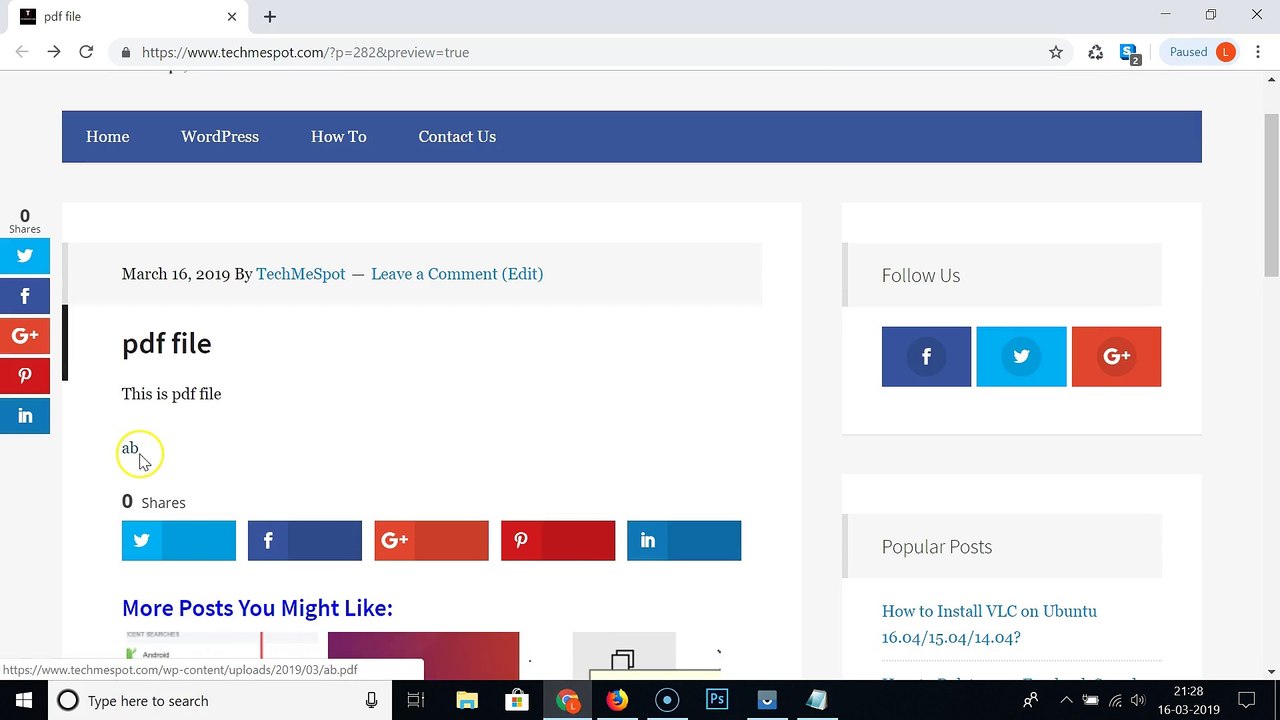
How to Enable Auto-Download of PDF Files in Google Chrome instead of Automatically Opening them?<br /><br />Step 1: Open Google Chrome, and then Click on 'Three Dots' at the top right.<br /><br />Step 2: Click on 'Settings'.<br /><br />Step 3: Scroll down, and then click on 'Advanced'.<br /><br />Step 4: Scroll Down, and then click on 'Content settings' under 'Privacy and security'.<br /><br />Step 5: Click on 'PDF documents'.<br /><br />Step 6: Now, Click on toggle next to 'Download PDF files instead of automatically opening them in Chrome' and disable it, if it is enabled.<br /><br />It's done.<br /><br /><br />Thanks for watching, please like and subscribe <br /><br />==============================================<br /><br />https://www.facebook.com/HowtoTutorialsByAmit/
Video Information
Views
46
Duration
2:11
Published
Mar 20, 2019
Related Trending Topics
LIVE TRENDSRelated trending topics. Click any trend to explore more videos.
Trending Now