Mastering View Title Customization in Revit | Part 37 🏗️
Learn step-by-step how to customize view titles in Revit to enhance your project organization and presentation. Perfect for architects and designers looking to elevate their workflow!
Autodesk786
1.2K views • Mar 15, 2025
About this video
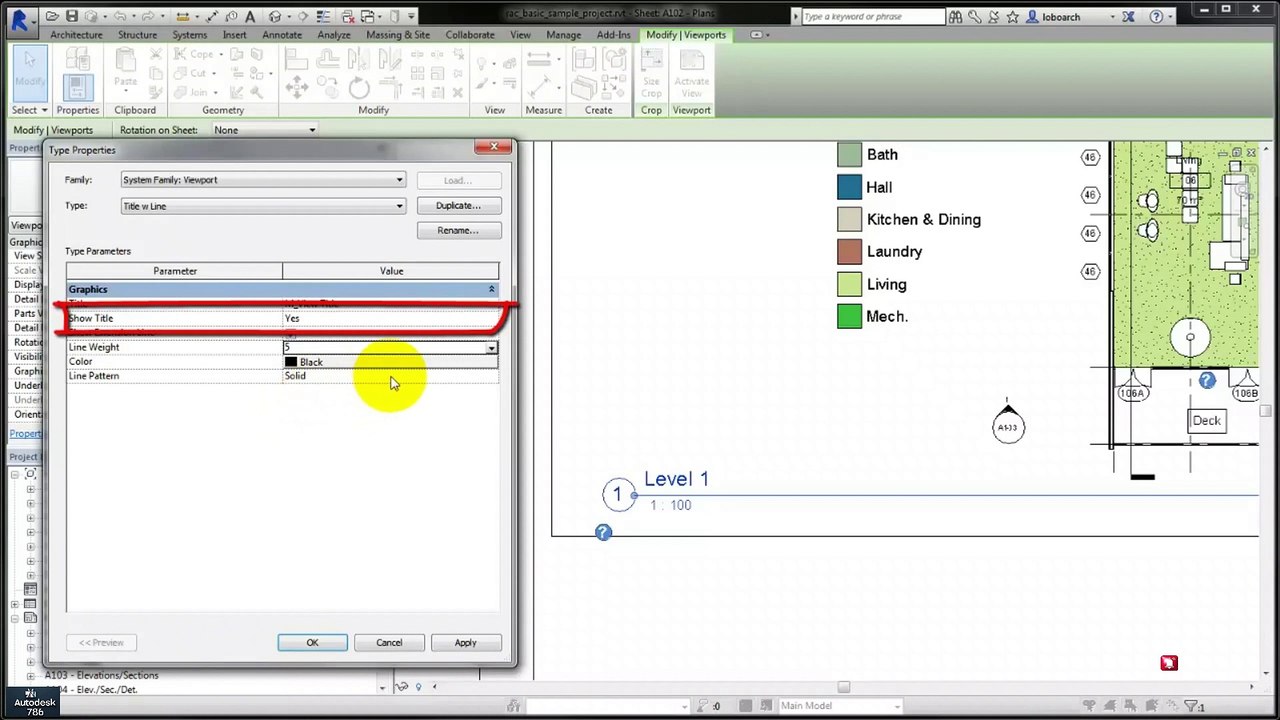
#architecture #revit #revitfamily #revitproject #civil3d #autocadcivil3d #sketchup #sketchupmodels #3dsmax #3dstairs <br />To customize view titles in Revit, follow these steps:<br />Step 1: Edit the View Title Family<br />Open your Revit project.<br />Select a Viewport on a sheet.<br />In the Properties Panel, find the Viewport Type and click Edit Type.<br />Under the Title parameter, you'll see the View Title family. Click Edit... next to it.<br />Step 2: Modify the View Title Family<br />The View Title family will open.<br />You can modify the text, fonts, line styles, and other elements.<br />To add custom parameters (like scale or project name), go to "Label" and select the appropriate parameters.<br /><br />Adjust the alignment, size, and other settings as per your preference.<br />Step 3: Save and Load the Family<br />Click Save As to avoid overwriting the original family.<br />Load the updated family back into your project.<br />Step 4: Apply the Custom View Title<br />In the Viewport Type Properties, select your newly customized View Title.<br />Now, all viewports of this type will display the custom view title.
Video Information
Views
1.2K
Duration
2:06
Published
Mar 15, 2025
User Reviews
3.7
(1) Related Trending Topics
LIVE TRENDSRelated trending topics. Click any trend to explore more videos.
No specific trending topics match this video yet.
Explore All Trends