Mastering Selection Techniques in Revit | Part 19 🛠️
Learn essential selection skills in Revit to enhance your modeling efficiency. This comprehensive guide covers key tips and tricks for effective selection in your Revit projects. Watch now!
Autodesk786
486 views • Feb 17, 2025
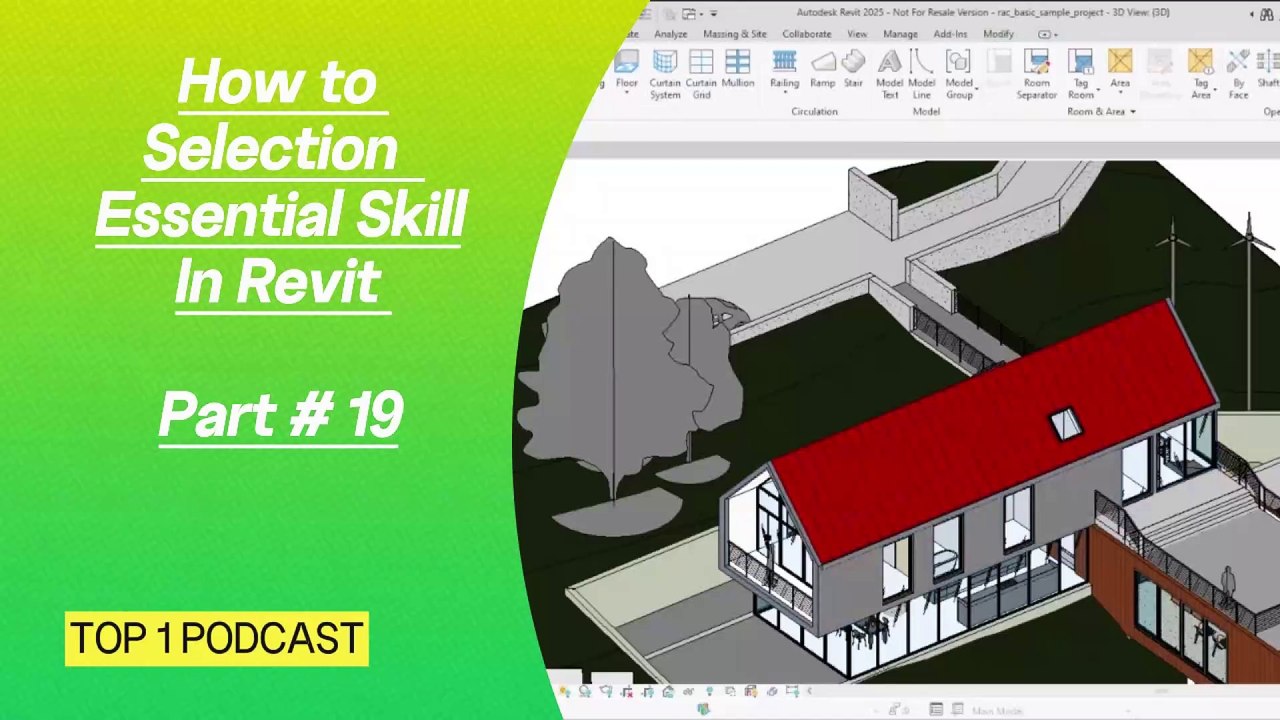
About this video
https://dai.ly/x9dob6c<br />https://dai.ly/x9dob38<br />https://dai.ly/x9dgqem<br />https://dai.ly/x9d58e0<br />https://dai.ly/x9d2fm6<br />https://dai.ly/x9dob6c<br />Selection in Revit – Essential Skills<br />Efficient selection techniques in Revit improve modeling speed and accuracy. Knowing how to select, filter, and modify elements helps streamline your workflow.<br /><br />1. Basic Selection Methods<br />A) Single Element Selection<br />✅ Click on an element to select it.<br />✅ Hold CTRL to select multiple elements.<br />✅ Hold SHIFT to deselect an element.<br /><br />B) Window & Crossing Selection<br />🔹 Left to Right (Window Selection) → Selects only fully enclosed elements.<br />🔹 Right to Left (Crossing Selection) → Selects everything that the window touches.<br /><br />📌 Tip: Use Filter (Selection Panel) after a crossing selection to refine results.<br /><br />2. Advanced Selection Techniques<br />A) Selecting Similar Elements<br />Select an element.<br />Right-click → Choose Select All Instances.<br />In View → Selects similar elements in the active view.<br />In Entire Project → Selects all instances throughout the model.<br />B) Selection Filtering<br />Select multiple elements.<br />Click Filter (Selection Panel).<br />Uncheck unwanted categories and press OK.<br />📌 Tip: Useful for selecting only doors, only walls, or only furniture from a mixed selection.<br /><br />3. Selection Controls (Locking & Preventing Selection)<br />A) Prevent Selecting Specific Elements<br />Pin Elements → Select an element, then click Pin 🔒 (Modify Panel).<br />Disable Select Elements by Face → Click the Selection Dropdown (bottom-right corner).<br />📌 Tip: Use Tab to cycle through overlapping elements before selection.<br /><br />4. Quick Selection Shortcuts<br />Shortcut Function<br />CTRL + Click Add elements to selection<br />SHIFT + Click Remove elements from selection<br />TAB Cycle through elements (useful for overlapping geometry)<br />Filter Refine selected elements by category<br />Select All Instances Quickly select all similar objects<br />🚀 Final Tips:<br />✅ Use Selection Filters to refine bulk selections.<br />✅ Pin important elements to prevent accidental movement.<br />✅ Use TAB for cycling through complex selections.<br />✅ Right-click shortcuts save time for selecting similar objects.<br /><br />Would you like a specific selection method explained further
Video Information
Views
486
Duration
2:06
Published
Feb 17, 2025
Related Trending Topics
LIVE TRENDSRelated trending topics. Click any trend to explore more videos.
No specific trending topics match this video yet.
Explore All Trends