Mastering Revit Data Access: Step-by-Step Guide 🔑 | Part 25
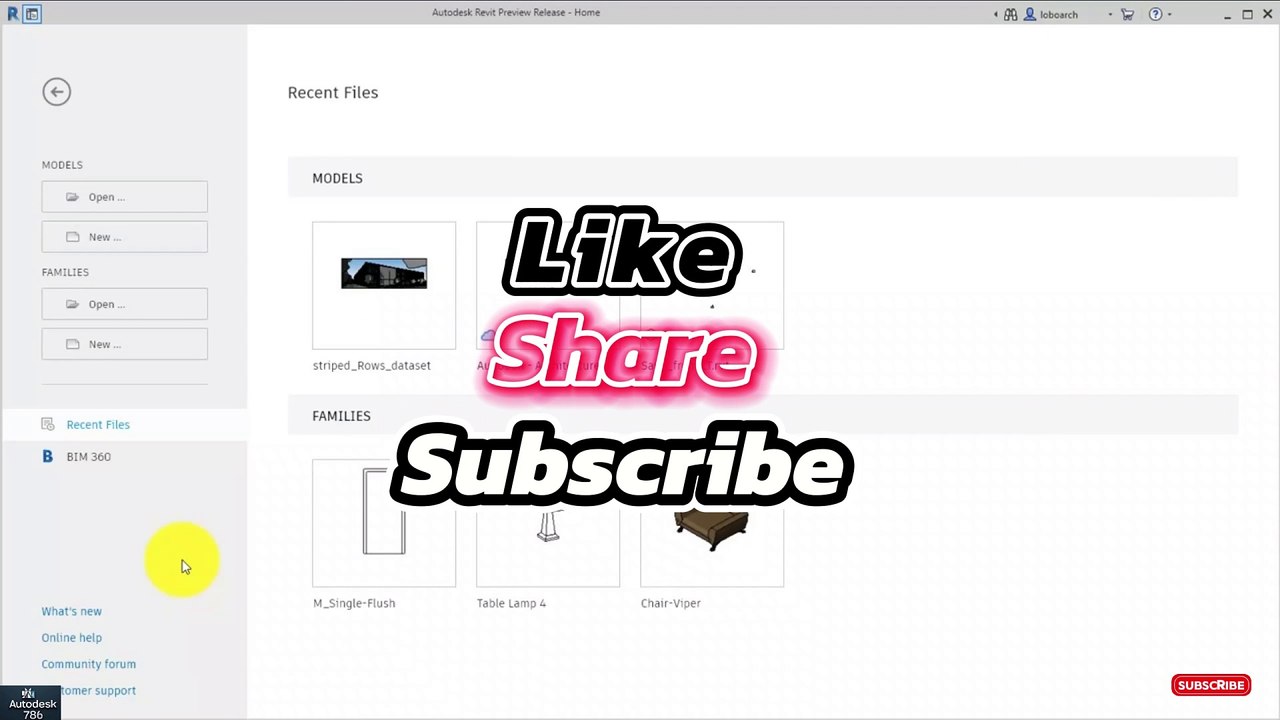
Learn how to efficiently access and manage your Revit data in this comprehensive tutorial. Perfect for Revit users looking to enhance their workflow and data handling skills. Watch now! 📐
Autodesk786
572 views • Feb 23, 2025
About this video
https://dai.ly/x9dob6c<br />https://dai.ly/x9dob38<br />https://dai.ly/x9dgqem<br />https://dai.ly/x9d58e0<br />https://dai.ly/x9d2fm6<br />https://dai.ly/x9dob6c<br />How to Access Your Revit Data in Revit<br />Revit stores project data in various formats, including models, schedules, parameters, and reports. To efficiently access and manage Revit data, you can use built-in tools such as Schedules, Tags, Parameters, and APIs.<br /><br />1. Accessing Data through Properties Palette<br />✅ Select any element in the model.<br />✅ Open the Properties Palette (Shortcut: PP).<br />✅ View and edit instance and type parameters.<br /><br />📌 Tip: The Properties Palette is the quickest way to check an element’s attributes.<br /><br />2. Accessing Data via Schedules<br />Schedules provide structured data about model elements.<br /><br />A) Creating a Schedule<br />Go to View Tab → Schedules → Schedule/Quantities.<br />Choose a category (e.g., Doors, Walls, Pipes).<br />Select parameters (e.g., Length, Material, Cost).<br />Click OK to generate the schedule.<br />📌 Tip: Use filters and sorting to organize the data.<br /><br />3. Accessing Data through Tags and Annotations<br />Tags help display data from model elements in drawings.<br /><br />A) Adding Tags to Elements<br />Go to Annotate Tab → Tag by Category.<br />Click on an element to place a data tag.<br />Customize the tag in Edit Type Properties.<br />📌 Tip: Use keynotes for standardized labeling.<br /><br />4. Accessing Revit Data with Parameters<br />Revit uses parameters to store data.<br /><br />A) Types of Parameters<br />✅ Instance Parameters – Unique per element (e.g., Door Number).<br />✅ Type Parameters – Shared across similar elements (e.g., Door Width).<br />✅ Project Parameters – Custom data applied to multiple elements.<br /><br />B) Accessing Parameter Data<br />Select an element → View in Properties Palette.<br />Modify values in Family Editor or Schedules.<br />Use Shared Parameters for custom attributes across projects.<br />📌 Tip: Global Parameters allow values to be linked across multiple elements.<br /><br />5. Exporting Revit Data (Excel, Database, API)<br />A) Exporting Schedules to Excel<br />Open a Schedule View.<br />Click File → Export → Reports → Schedule.<br />Save as CSV or TXT, then open in Excel.<br />B) Using Dynamo for Data Extraction<br />✅ Open Dynamo (Manage Tab → Dynamo).<br />✅ Use nodes to extract element data (Element.GetParameterValueByName).<br />✅ Export data to Excel or JSON.<br /><br />📌 Tip: Use Power BI for live data visualization.<br /><br />🚀 Quick Summary:<br />🔹 Use Properties Palette for quick access.<br />🔹 Generate Schedules for structured data.<br />🔹 Use Tags and Parameters for organized annotations.<br />🔹 Export Data to Excel or API for further analysis.<br /><br />Would you like a step-by-step guide on exporting Revit data to Excel
Video Information
Views
572
Duration
1:23
Published
Feb 23, 2025
Related Trending Topics
LIVE TRENDSRelated trending topics. Click any trend to explore more videos.
No specific trending topics match this video yet.
Explore All Trends