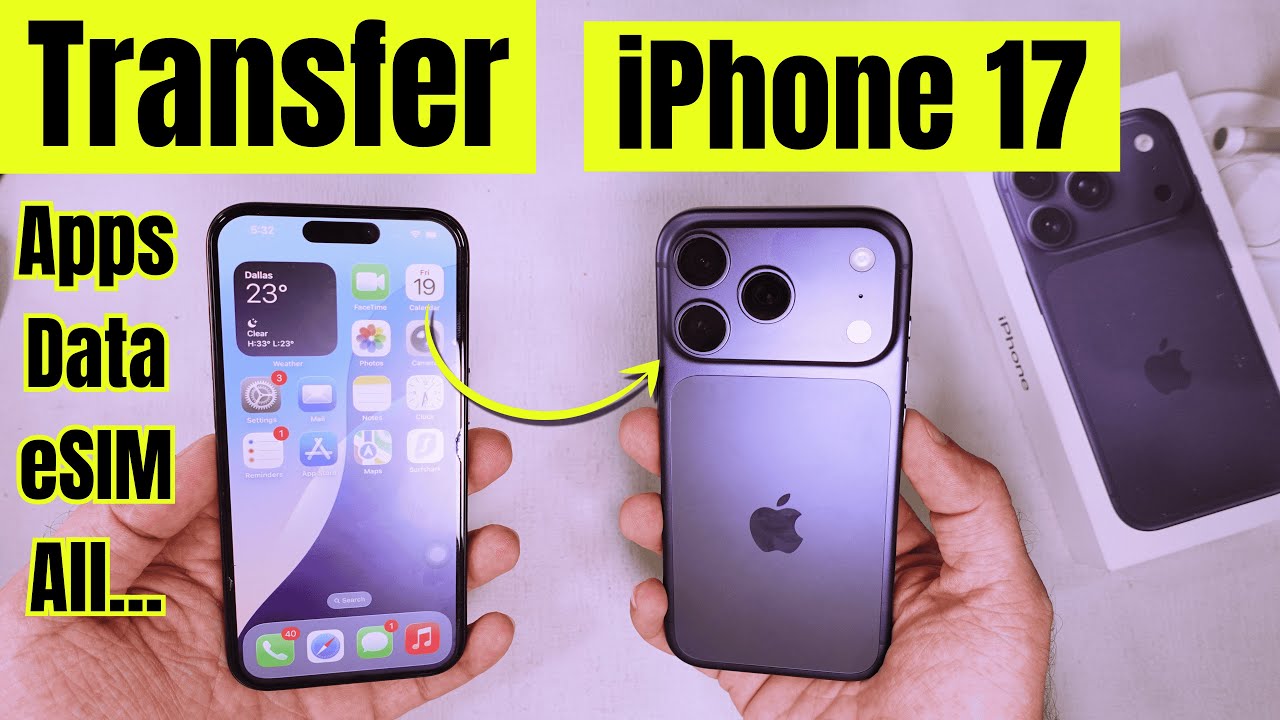
Transfer Data to iPhone 17 & Pro 📱
Learn how to move apps, contacts, settings, and more from your old iPhone to your new iPhone 17, 17 Pro, Max, or Air.

Free Tech Guide
62.0K views • Sep 19, 2025
About this video
Here's How to Transfer Everything From Your Old iPhone to iPhone 17 and 17 Pro. Move Apps, Data, Contacts, Info, Login, eSIM, Account setup, and Settings to iPhone 17 from old iPhone.
00:00 intro
00:24 Start Transfer to iPhone 17
01:57 Other Transfer Option
03:04 Transfer eSIM to iPhone 17
complete step-by-step guide to move literally everything — your apps with their data and logins, photos, videos, eSIM, and more — from your old iPhone to New iPhone 17 Pro, iPhone 17 Pro Max, or iPhone Air.
First, press and hold the side button to turn on your new iPhone until you see the Apple logo pop up. Once it boots, pick your language and then your country or region.
If your old iPhone is nearby, your new iPhone will detect it automatically — just give it a few seconds or maybe a minute.
If you’d rather set it up like a brand-new iPhone without using your old one, tap on “Set Up Without Another iPhone.”
But I’m gonna wait for the pop-up on my old iPhone. If you don’t see it, just lock and unlock your old phone.
Once the “Set Up New iPhone” pop-up appears, unlock it and hit Continue.
Now you’ll see a screen on your new phone asking you to hold it up to the camera — line up the animation pattern inside the circle to verify.
Then choose the Apple ID account you want to use on the new phone. If your old phone was set up with Family Sharing, you might also see your kid’s account listed. I’m selecting my main account and tapping “Get Started.”
Next, enter your old iPhone’s passcode on your new iPhone screen.
Give it a few minutes — your new phone will activate.
After that, you can set up Face ID or skip it for later. If you’re setting it up now, position your face inside the frame and slowly move your head in a circle so it catches all angles.
Once that’s done, skip the “Set Up Face ID With a Mask” part and tap “Don’t Use Face ID With a Mask.”
Now you’ll get options to restore from an iCloud backup, transfer directly from iPhone, or even from a Mac/PC or Android. You can also choose “Don’t Transfer Anything” if you want a fresh start.
For me, I’m going with “Transfer from iPhone” — it moves everything at once.
Stay on the “Setting Up Your Account” screen while it does its thing. Agree to the terms and conditions.
It’ll show you what’s coming over — app data, settings, screen time info, and more. Tap Continue.
You can turn on Location Services if you want, since some apps need it, or just skip it for now.
Next is Stolen Device Protection — it’s an extra security layer you can turn on later in Settings.
You’ll also see Apple Intelligence — you can set it up now or skip it to speed things up.
You’ll get a screen for customizing the new camera control button — just continue.
Then choose if you wanna set up Siri now or later, it’s needed for CarPlay.
Now just sit tight while the transfer finishes. It can take several minutes to move all your apps and data.
When the transfer completes, your iPhone will restart. After reboot, you’ll see an option to transfer your eSIM.
Tap Continue on the “Restore Complete” screen. Your iPhone will ask to transfer your phone number. Unlock your old phone and tap “Continue.”
Select “Transfer from iPhone,” verify the number, then double-press the side button on your old iPhone to confirm.
Your carrier will send a notification for the eSIM transfer. Wait a bit and you’ll see an “Activating SIM” screen.
Once it finishes, go to the Settings app, scroll to “Mobile Service,” and you’ll see your eSIM is now on the new iPhone — and your old phone will show it’s been transferred to your iPhone 17 Pro.
And that’s it — all your apps, accounts, and data are now on your new iPhone exactly like your old one.
GET CHEAP iPHONES on Amazon (US): https://amzn.to/3NrhGmd
GET CHEAP iPHONES on Amazon (CA): https://amzn.to/4h53UTU
GET CHEAP iPHONES on Amazon (UK): https://amzn.to/40570Bj
GET CHEAP iPAD on Amazon (US): https://amzn.to/4dP9XcC
GET CHEAP AirPods on Amazon (US): https://amzn.to/3BJVIsd
If you found this video helpful, give it a like!
Need more help? Drop a comment below!
Don’t forget to subscribe for regular updates!
#iPhone17pro #transfer #iphone17promax #setup
Subscribe on YouTube: https://www.youtube.com/freetechguide?sub_confirmation=1
00:00 intro
00:24 Start Transfer to iPhone 17
01:57 Other Transfer Option
03:04 Transfer eSIM to iPhone 17
complete step-by-step guide to move literally everything — your apps with their data and logins, photos, videos, eSIM, and more — from your old iPhone to New iPhone 17 Pro, iPhone 17 Pro Max, or iPhone Air.
First, press and hold the side button to turn on your new iPhone until you see the Apple logo pop up. Once it boots, pick your language and then your country or region.
If your old iPhone is nearby, your new iPhone will detect it automatically — just give it a few seconds or maybe a minute.
If you’d rather set it up like a brand-new iPhone without using your old one, tap on “Set Up Without Another iPhone.”
But I’m gonna wait for the pop-up on my old iPhone. If you don’t see it, just lock and unlock your old phone.
Once the “Set Up New iPhone” pop-up appears, unlock it and hit Continue.
Now you’ll see a screen on your new phone asking you to hold it up to the camera — line up the animation pattern inside the circle to verify.
Then choose the Apple ID account you want to use on the new phone. If your old phone was set up with Family Sharing, you might also see your kid’s account listed. I’m selecting my main account and tapping “Get Started.”
Next, enter your old iPhone’s passcode on your new iPhone screen.
Give it a few minutes — your new phone will activate.
After that, you can set up Face ID or skip it for later. If you’re setting it up now, position your face inside the frame and slowly move your head in a circle so it catches all angles.
Once that’s done, skip the “Set Up Face ID With a Mask” part and tap “Don’t Use Face ID With a Mask.”
Now you’ll get options to restore from an iCloud backup, transfer directly from iPhone, or even from a Mac/PC or Android. You can also choose “Don’t Transfer Anything” if you want a fresh start.
For me, I’m going with “Transfer from iPhone” — it moves everything at once.
Stay on the “Setting Up Your Account” screen while it does its thing. Agree to the terms and conditions.
It’ll show you what’s coming over — app data, settings, screen time info, and more. Tap Continue.
You can turn on Location Services if you want, since some apps need it, or just skip it for now.
Next is Stolen Device Protection — it’s an extra security layer you can turn on later in Settings.
You’ll also see Apple Intelligence — you can set it up now or skip it to speed things up.
You’ll get a screen for customizing the new camera control button — just continue.
Then choose if you wanna set up Siri now or later, it’s needed for CarPlay.
Now just sit tight while the transfer finishes. It can take several minutes to move all your apps and data.
When the transfer completes, your iPhone will restart. After reboot, you’ll see an option to transfer your eSIM.
Tap Continue on the “Restore Complete” screen. Your iPhone will ask to transfer your phone number. Unlock your old phone and tap “Continue.”
Select “Transfer from iPhone,” verify the number, then double-press the side button on your old iPhone to confirm.
Your carrier will send a notification for the eSIM transfer. Wait a bit and you’ll see an “Activating SIM” screen.
Once it finishes, go to the Settings app, scroll to “Mobile Service,” and you’ll see your eSIM is now on the new iPhone — and your old phone will show it’s been transferred to your iPhone 17 Pro.
And that’s it — all your apps, accounts, and data are now on your new iPhone exactly like your old one.
GET CHEAP iPHONES on Amazon (US): https://amzn.to/3NrhGmd
GET CHEAP iPHONES on Amazon (CA): https://amzn.to/4h53UTU
GET CHEAP iPHONES on Amazon (UK): https://amzn.to/40570Bj
GET CHEAP iPAD on Amazon (US): https://amzn.to/4dP9XcC
GET CHEAP AirPods on Amazon (US): https://amzn.to/3BJVIsd
If you found this video helpful, give it a like!
Need more help? Drop a comment below!
Don’t forget to subscribe for regular updates!
#iPhone17pro #transfer #iphone17promax #setup
Subscribe on YouTube: https://www.youtube.com/freetechguide?sub_confirmation=1
Tags and Topics
Browse our collection to discover more content in these categories.
Video Information
Views
62.0K
Likes
552
Duration
4:05
Published
Sep 19, 2025
User Reviews
4.3
(12) Related Trending Topics
LIVE TRENDSRelated trending topics. Click any trend to explore more videos.
No specific trending topics match this video yet.
Explore All Trends