How to Stop iPhone from Dimming Automatically (Auto-Brightness OFF)
If your iPhone keeps dimming by itself, don’t worry. In this quick tutorial, I’ll show you how to stop your iPhone from dimming automatically by turning off ...

How-To Tutorials Made Simple
38 views • Nov 12, 2025
About this video
If your iPhone keeps dimming by itself, don’t worry. In this quick tutorial, I’ll show you how to stop your iPhone from dimming automatically by turning off Auto-Brightness, True Tone, and Night Shift. These features adjust your screen based on your environment, which can make the display look darker without warning.
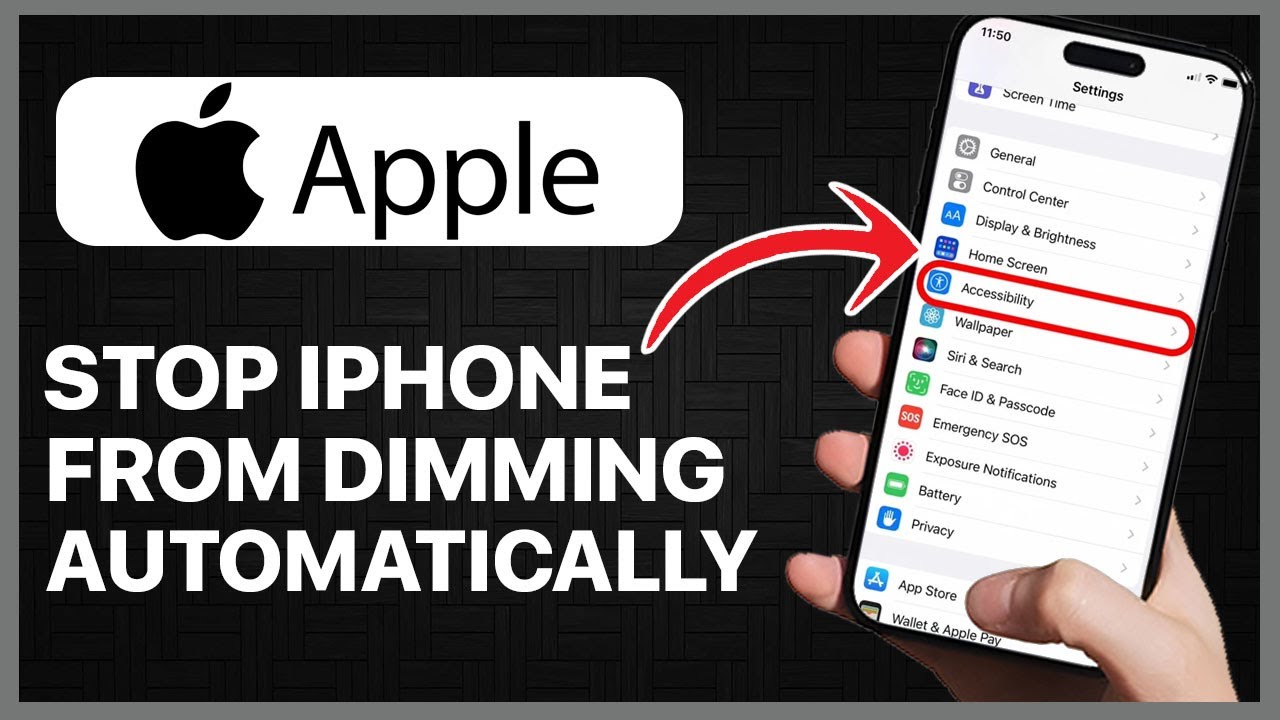
First, open Settings and go to Accessibility → Display & Text Size. Scroll down and turn off Auto-Brightness. This stops the iPhone from changing your brightness based on surrounding light.
Next, go back to Settings and open Display & Brightness. Turn off True Tone if you want your screen to keep the same color and brightness in all lighting conditions. Below that, check Night Shift, which can make your screen appear warmer and dimmer at night. You can turn it off or adjust the schedule.
⏰ TIMESTAMPS:
0:00 – Intro
0:07 – Turn off Auto Brightness
0:26 – Disable True Tone
0:42 – Adjust or turn off Night Shift
1:00 – Final result
✅ THIS FIX WORKS ON:
iPhone X, XR, XS, 11, 12, 13, 14, 15, SE
iOS 14, iOS 15, iOS 16, iOS 17, iOS 18
📄 OTHER SEARCH KEYWORDS:
iPhone keeps dimming, auto brightness not working, why is my iPhone screen dark, iPhone brightness problem, stop screen dimming iPhone.
#iPhoneTutorial #iPhoneDimming #AutoBrightness #iPhoneFix #AppleHelp #iOSGuide
First, open Settings and go to Accessibility → Display & Text Size. Scroll down and turn off Auto-Brightness. This stops the iPhone from changing your brightness based on surrounding light.
Next, go back to Settings and open Display & Brightness. Turn off True Tone if you want your screen to keep the same color and brightness in all lighting conditions. Below that, check Night Shift, which can make your screen appear warmer and dimmer at night. You can turn it off or adjust the schedule.
⏰ TIMESTAMPS:
0:00 – Intro
0:07 – Turn off Auto Brightness
0:26 – Disable True Tone
0:42 – Adjust or turn off Night Shift
1:00 – Final result
✅ THIS FIX WORKS ON:
iPhone X, XR, XS, 11, 12, 13, 14, 15, SE
iOS 14, iOS 15, iOS 16, iOS 17, iOS 18
📄 OTHER SEARCH KEYWORDS:
iPhone keeps dimming, auto brightness not working, why is my iPhone screen dark, iPhone brightness problem, stop screen dimming iPhone.
#iPhoneTutorial #iPhoneDimming #AutoBrightness #iPhoneFix #AppleHelp #iOSGuide
Tags and Topics
Browse our collection to discover more content in these categories.
Video Information
Views
38
Duration
1:11
Published
Nov 12, 2025
Related Trending Topics
LIVE TRENDSRelated trending topics. Click any trend to explore more videos.