Stop iPhone Screen Dimming During Videos 📱
Learn how to prevent your iPhone screen from dimming unexpectedly while watching videos or using apps like Instagram.

AeireinTech
4.2K views • Sep 10, 2024
About this video
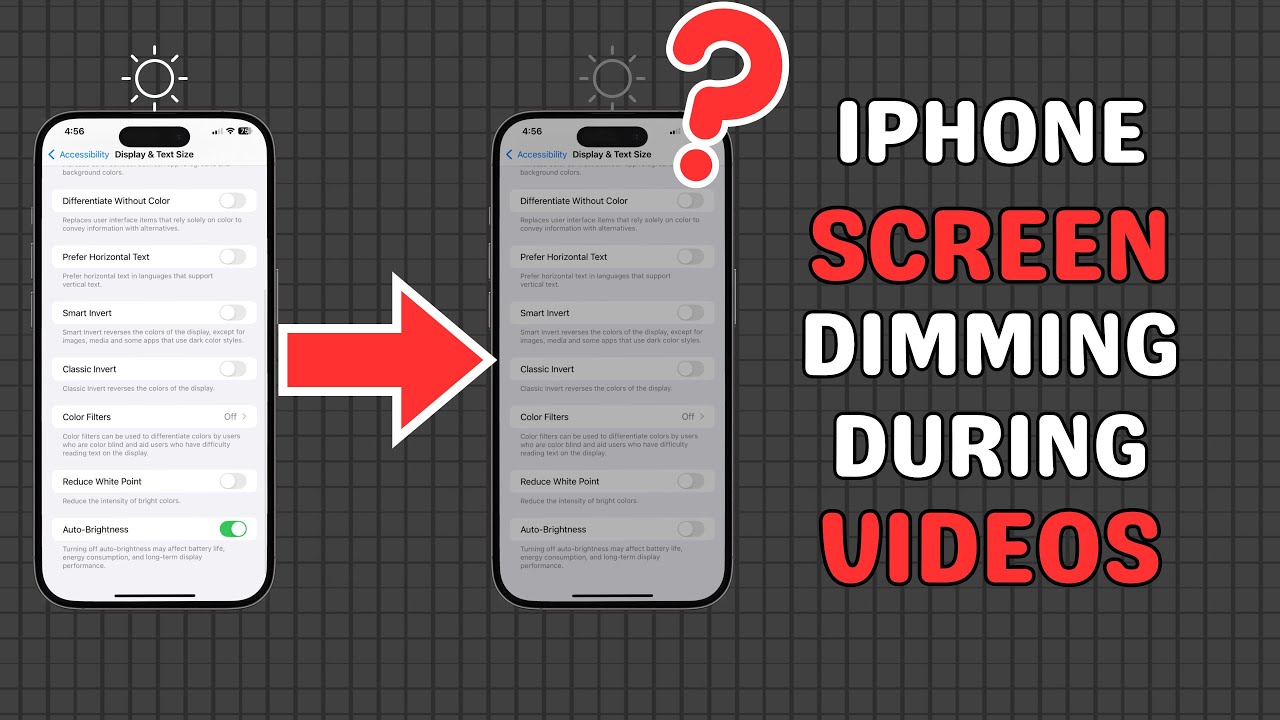
Is your iPhone screen dimming unexpectedly while watching videos or scrolling through apps like Instagram? In this video, I’ll show you how to stop iPhone screen dimming by turning off Auto-Brightness and manually adjusting the brightness settings. We’ll explore why your screen dims even with Auto-Brightness off and how to fix it, including disabling Attention-Aware Features and adjusting True Tone and Night Shift, which can impact your iPhone's screen brightness. Whether your iPhone screen dims during videos or in other apps, you’ll learn how to take control of the brightness settings and prevent it from happening again. By following these simple steps, you can stop your iPhone from dimming and enjoy uninterrupted viewing.
🎬 Table of Contents
0:00 Intro
0:03 Turn Off Auto-Brightness
0:21 Manually Adjust Your Brightness
0:38 Turn Off Attention-Aware Features
0:55 Disable True Tone and Night Shift
Steps Covered
Step 1: Turn Off Auto-Brightness
If you’d rather manage the brightness on your own, the first thing to do is disable Auto-Brightness. Here’s how you do it:
1. Go to 'Settings' on your iPhone.
2. Tap 'Accessibility'.
3. Tap 'Display & Text Size'.
4. Scroll down and toggle off 'Auto-Brightness'.
Step 2: Manually Adjust Your Brightness
With Auto-Brightness off, you’re in control. You can adjust the brightness manually depending on your environment. Here’s how:
- On iPhone X and later, swipe down from the top right corner to open the 'Control Center'.
- On older models, swipe up from the bottom edge.
- Adjust the brightness by sliding the brightness bar up or down.
Just remember, the brighter your screen, the faster your battery will drain!
Step 3: Turn Off Attention-Aware Features
If your screen still dims, another possible culprit is the 'Attention-Aware Features'. This feature dims your screen when your phone senses that you’re not looking at it. Here’s how to disable it:
1. Open 'Settings'.
2. Tap 'Accessibility'.
3. Select 'Face ID & Attention'.
4. Toggle off 'Attention Aware Features' and confirm with your passcode.
Step 4: Disable True Tone and Night Shift
Features like 'True Tone' and 'Night Shift' can also affect your screen brightness. While these tools are meant to adjust your screen for better color accuracy and reduce blue light, they can sometimes make your screen look too dim. To turn these off:
1. Open the 'Control Center'.
2. Press and hold the brightness bar.
3. Turn off 'Night Shift' and 'True Tone' by tapping their icons until they turn gray.
💬 Follow us
Facebook https://www.facebook.com/aeireintech/
Instagram https://www.instagram.com/aeireintech/
Twitter https://www.x.com/aeireintech
[stop iPhone screen dimming, iPhone dimming while watching videos, disable Auto-Brightness iPhone, manually adjust iPhone brightness, iPhone brightness control, Attention-Aware Features, True Tone, Night Shift, iPhone screen dimming fix, iPhone brightness settings, iPhone screen brightness adjustment, iPhone tips and tricks]
#iPhoneScreenDimming #StopiPhoneDimming #AutoBrightness #iPhoneBrightnessControl #TrueTone #NightShift #AttentionAwareFeatures #iPhoneTips #iPhoneSettings #iPhoneHelp #FixiPhoneScreenDimming #TechTips #iPhoneTricks #iPhoneProblems #ScreenBrightness #iPhoneGuide
🎬 Table of Contents
0:00 Intro
0:03 Turn Off Auto-Brightness
0:21 Manually Adjust Your Brightness
0:38 Turn Off Attention-Aware Features
0:55 Disable True Tone and Night Shift
Steps Covered
Step 1: Turn Off Auto-Brightness
If you’d rather manage the brightness on your own, the first thing to do is disable Auto-Brightness. Here’s how you do it:
1. Go to 'Settings' on your iPhone.
2. Tap 'Accessibility'.
3. Tap 'Display & Text Size'.
4. Scroll down and toggle off 'Auto-Brightness'.
Step 2: Manually Adjust Your Brightness
With Auto-Brightness off, you’re in control. You can adjust the brightness manually depending on your environment. Here’s how:
- On iPhone X and later, swipe down from the top right corner to open the 'Control Center'.
- On older models, swipe up from the bottom edge.
- Adjust the brightness by sliding the brightness bar up or down.
Just remember, the brighter your screen, the faster your battery will drain!
Step 3: Turn Off Attention-Aware Features
If your screen still dims, another possible culprit is the 'Attention-Aware Features'. This feature dims your screen when your phone senses that you’re not looking at it. Here’s how to disable it:
1. Open 'Settings'.
2. Tap 'Accessibility'.
3. Select 'Face ID & Attention'.
4. Toggle off 'Attention Aware Features' and confirm with your passcode.
Step 4: Disable True Tone and Night Shift
Features like 'True Tone' and 'Night Shift' can also affect your screen brightness. While these tools are meant to adjust your screen for better color accuracy and reduce blue light, they can sometimes make your screen look too dim. To turn these off:
1. Open the 'Control Center'.
2. Press and hold the brightness bar.
3. Turn off 'Night Shift' and 'True Tone' by tapping their icons until they turn gray.
💬 Follow us
Facebook https://www.facebook.com/aeireintech/
Instagram https://www.instagram.com/aeireintech/
Twitter https://www.x.com/aeireintech
[stop iPhone screen dimming, iPhone dimming while watching videos, disable Auto-Brightness iPhone, manually adjust iPhone brightness, iPhone brightness control, Attention-Aware Features, True Tone, Night Shift, iPhone screen dimming fix, iPhone brightness settings, iPhone screen brightness adjustment, iPhone tips and tricks]
#iPhoneScreenDimming #StopiPhoneDimming #AutoBrightness #iPhoneBrightnessControl #TrueTone #NightShift #AttentionAwareFeatures #iPhoneTips #iPhoneSettings #iPhoneHelp #FixiPhoneScreenDimming #TechTips #iPhoneTricks #iPhoneProblems #ScreenBrightness #iPhoneGuide
Tags and Topics
Browse our collection to discover more content in these categories.
Video Information
Views
4.2K
Likes
11
Duration
1:16
Published
Sep 10, 2024
User Reviews
3.9
(4) Related Trending Topics
LIVE TRENDSRelated trending topics. Click any trend to explore more videos.
No specific trending topics match this video yet.
Explore All Trends