Merge Files into One PDF with Adobe Acrobat
Learn how to combine multiple files into a single PDF using Adobe Acrobat. Perfect for creating unified documents. 📄

pdf-tips
1.7K views • Nov 22, 2022
About this video
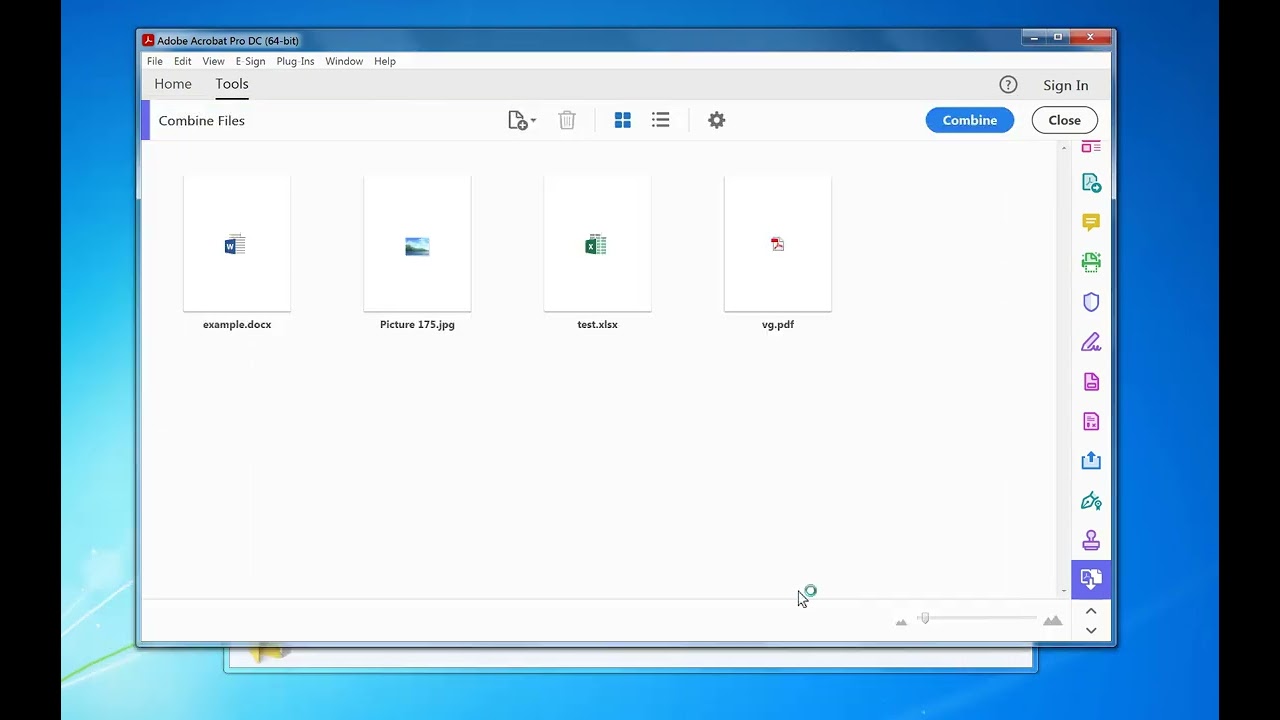
In this video, we'll show you how to combine multiple files into a single PDF file. This is a very useful skill to have if you want to create a PDF document that you can share with others.
We'll walk you through the steps of how to add files into a PDF file, and by the end of the video, you'll be able to combine lot's of files into a single PDF file with ease!
Easy step-by-step guide. more details can be found here: https://pdf-tips.com/how-to-combine-multiple-files-into-a-single-pdf-with-adobe-acrobat/
Adobe Acrobat can be downloaded here: https://www.adobe.com/uk/acrobat/free-trial-download.html
1. Make sure Adobe Acrobat full version is installed
2. Open Adobe Acrobat
3. Click the "Tools" menu
4. In the Search box enter "Combine"
5. Click the "Combine Files into a Single PDF" option
6. Click the "Add Files" button
7. Navigate to your folder where the files are, it's easier if they are all in the same folder
8. Select "All Supported Formats" in the bottom right corner of the file navigation "Add Files" window or Type *.* in the Filename box
9. Left mouse click on each file with the CTRL key down or SHIFT key for a range of files and then click the "Open" button
10. To add more from another folder click the "Folder +" icon
11. Click the "Combine" button
12. When Done click the File menu, Save As... to save the combined file to a file
#pdf-tips #pdf #tips #howto #adobe
www.pdf-tips.com
We'll walk you through the steps of how to add files into a PDF file, and by the end of the video, you'll be able to combine lot's of files into a single PDF file with ease!
Easy step-by-step guide. more details can be found here: https://pdf-tips.com/how-to-combine-multiple-files-into-a-single-pdf-with-adobe-acrobat/
Adobe Acrobat can be downloaded here: https://www.adobe.com/uk/acrobat/free-trial-download.html
1. Make sure Adobe Acrobat full version is installed
2. Open Adobe Acrobat
3. Click the "Tools" menu
4. In the Search box enter "Combine"
5. Click the "Combine Files into a Single PDF" option
6. Click the "Add Files" button
7. Navigate to your folder where the files are, it's easier if they are all in the same folder
8. Select "All Supported Formats" in the bottom right corner of the file navigation "Add Files" window or Type *.* in the Filename box
9. Left mouse click on each file with the CTRL key down or SHIFT key for a range of files and then click the "Open" button
10. To add more from another folder click the "Folder +" icon
11. Click the "Combine" button
12. When Done click the File menu, Save As... to save the combined file to a file
#pdf-tips #pdf #tips #howto #adobe
www.pdf-tips.com
Tags and Topics
Browse our collection to discover more content in these categories.
Video Information
Views
1.7K
Likes
4
Duration
2:11
Published
Nov 22, 2022
User Reviews
3.8
(1) Related Trending Topics
LIVE TRENDSRelated trending topics. Click any trend to explore more videos.
No specific trending topics match this video yet.
Explore All Trends