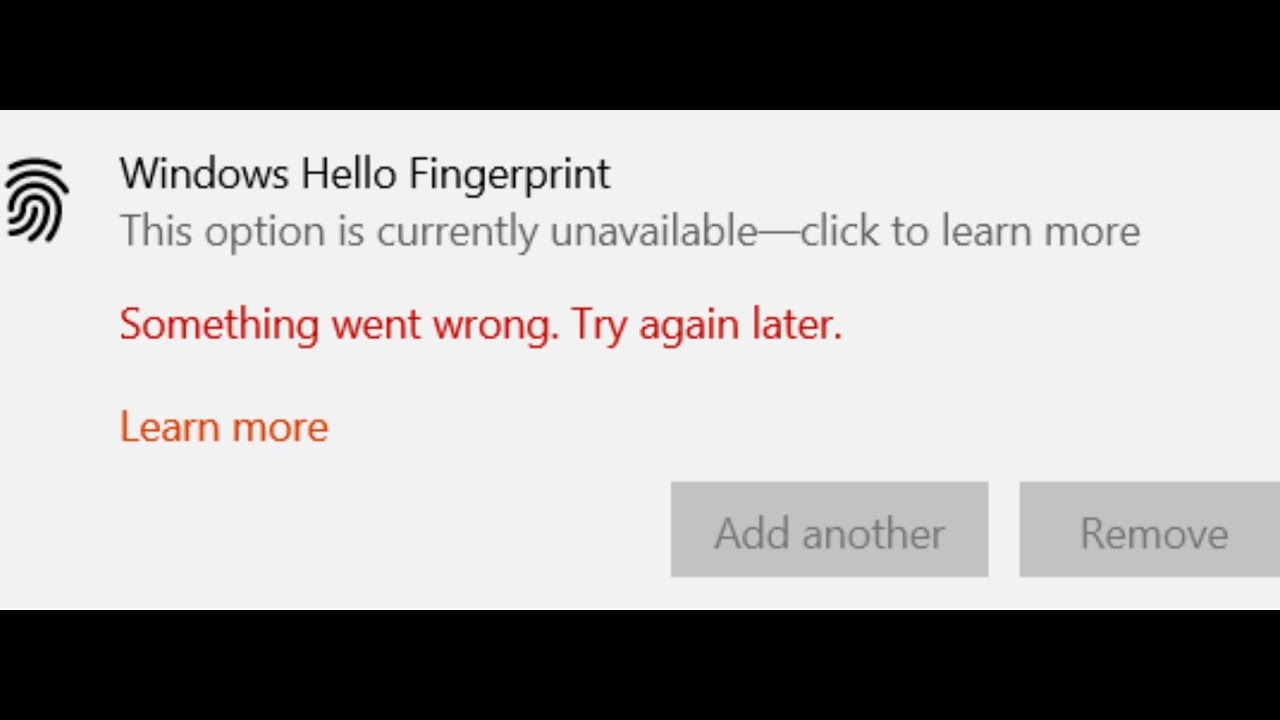
Fix Windows Hello Fingerprint Error Something Went Wrong Try Again Later
Steps to Fix Windows Hello Fingerprint Error This option is currently Unavailable Something Went Wrong Try Again Later on Windows 10 Step 1) Check Fingerprin...
AarohanTechSol
35.6K views • Jun 14, 2021
About this video
Steps to Fix Windows Hello Fingerprint Error This option is currently Unavailable Something Went Wrong Try Again Later on Windows 10
Step 1) Check Fingerprint power management settings in device manager
Right click your fingerprint reader device and choose Properties, go to the Power Management tab and uncheck Allow the computer to turn off this device to save power.
Step 2) Re-register Windows Hello Fingerprints
Sign-in to your Windows 10 Administrator account using password.
Now; open your File Explorer and browse to the location: C:\Windows\ServiceProfiles\LocalService\AppData\Local\Microsoft
Right click on the NGC folder and select Properties from the context menu.
Under the "Security" tab, click on "Advanced" option.
From the following window, next to the Owner section, click on the "change" link.
Under the Enter the object name to select option, input Administrators if you are using administrator account, or the local user name.
Click on Check Names and then OK.
Once you have followed all these steps, you should be able to enter NGC folder. Delete all the files from the folder
Troubleshoot
Click Advanced Options
Startup Settings
Restart
Press (4) to Enable Safe Mode
Wait while Windows 10 starts in safe mode.
Log in
Try deleting again.
After removing contents of the NGC folder, add a PIN/Face/Fingerprint by following the path: Click on Start Menu / Settings app / Account Settings/ Sign-in Options/ Add a PIN/Face/Fingerprint.
Step 3) Restart Credential Manager service
Step 4) Disable and enable your fingerprint reader
Make a right click on Fingerprint device and click on disable device and then again make right click on click on Enable device.
Step 5) Roll back the fingerprint sensor driver
Make a right click on Fingerprint device and select Properties, go to the driver tab and click on Roll back driver.
Step 5) Uninstall Fingerprint (Lenovo Fingerprint Manager Pro, Synaptics Fingerprint Driver, Goodix fingerprint) from device manager as well as apps and features. and then Download latest drivers for your fingerprint reader from system manufacturer’s website.
Open Device manager, make a right click on Fingerprint device and select Properties, go to the driver tab and click on uninstall.
Also uninstall Fingerprint driver from Apps and Features.
Restart your PC
Lenovo: https://support.lenovo.com/us/en/
HP: https://support.hp.com/
Dell: https://www.dell.com/support
Step 6) Remove and recreate your Windows Hello Fingerprint
Step 8) Update System BIOS
Step 9) Perform Windows Clean Boot
Step 10) Run SFC and DISM Command
sfc /scannow
dism /online /cleanup-image /restorehealth
Step 11) Create a new local user account
Step 1) Check Fingerprint power management settings in device manager
Right click your fingerprint reader device and choose Properties, go to the Power Management tab and uncheck Allow the computer to turn off this device to save power.
Step 2) Re-register Windows Hello Fingerprints
Sign-in to your Windows 10 Administrator account using password.
Now; open your File Explorer and browse to the location: C:\Windows\ServiceProfiles\LocalService\AppData\Local\Microsoft
Right click on the NGC folder and select Properties from the context menu.
Under the "Security" tab, click on "Advanced" option.
From the following window, next to the Owner section, click on the "change" link.
Under the Enter the object name to select option, input Administrators if you are using administrator account, or the local user name.
Click on Check Names and then OK.
Once you have followed all these steps, you should be able to enter NGC folder. Delete all the files from the folder
Troubleshoot
Click Advanced Options
Startup Settings
Restart
Press (4) to Enable Safe Mode
Wait while Windows 10 starts in safe mode.
Log in
Try deleting again.
After removing contents of the NGC folder, add a PIN/Face/Fingerprint by following the path: Click on Start Menu / Settings app / Account Settings/ Sign-in Options/ Add a PIN/Face/Fingerprint.
Step 3) Restart Credential Manager service
Step 4) Disable and enable your fingerprint reader
Make a right click on Fingerprint device and click on disable device and then again make right click on click on Enable device.
Step 5) Roll back the fingerprint sensor driver
Make a right click on Fingerprint device and select Properties, go to the driver tab and click on Roll back driver.
Step 5) Uninstall Fingerprint (Lenovo Fingerprint Manager Pro, Synaptics Fingerprint Driver, Goodix fingerprint) from device manager as well as apps and features. and then Download latest drivers for your fingerprint reader from system manufacturer’s website.
Open Device manager, make a right click on Fingerprint device and select Properties, go to the driver tab and click on uninstall.
Also uninstall Fingerprint driver from Apps and Features.
Restart your PC
Lenovo: https://support.lenovo.com/us/en/
HP: https://support.hp.com/
Dell: https://www.dell.com/support
Step 6) Remove and recreate your Windows Hello Fingerprint
Step 8) Update System BIOS
Step 9) Perform Windows Clean Boot
Step 10) Run SFC and DISM Command
sfc /scannow
dism /online /cleanup-image /restorehealth
Step 11) Create a new local user account
Tags and Topics
Browse our collection to discover more content in these categories.
#Fix Windows Hello Fingerprint Error Something Went Wrong Try Again Later On Dell #Windows Hello Fingerprint Error Something Went Wrong Try Again Later Lenovo #Windows Hello Fingerprint Error Something Went Wrong Try Again Later On HP #Windows Hello Fingerprint Error Something Went Wrong Try Again Later On Dell Windows 10 #Fingerprint scanner not working Error Something Went Wrong Try Again Later
Video Information
Views
35.6K
Likes
140
Duration
13:12
Published
Jun 14, 2021
User Reviews
4.1
(7) Related Trending Topics
LIVE TRENDSRelated trending topics. Click any trend to explore more videos.
No specific trending topics match this video yet.
Explore All Trends