Fix Windows Hello Fingerprint Unavailable Error
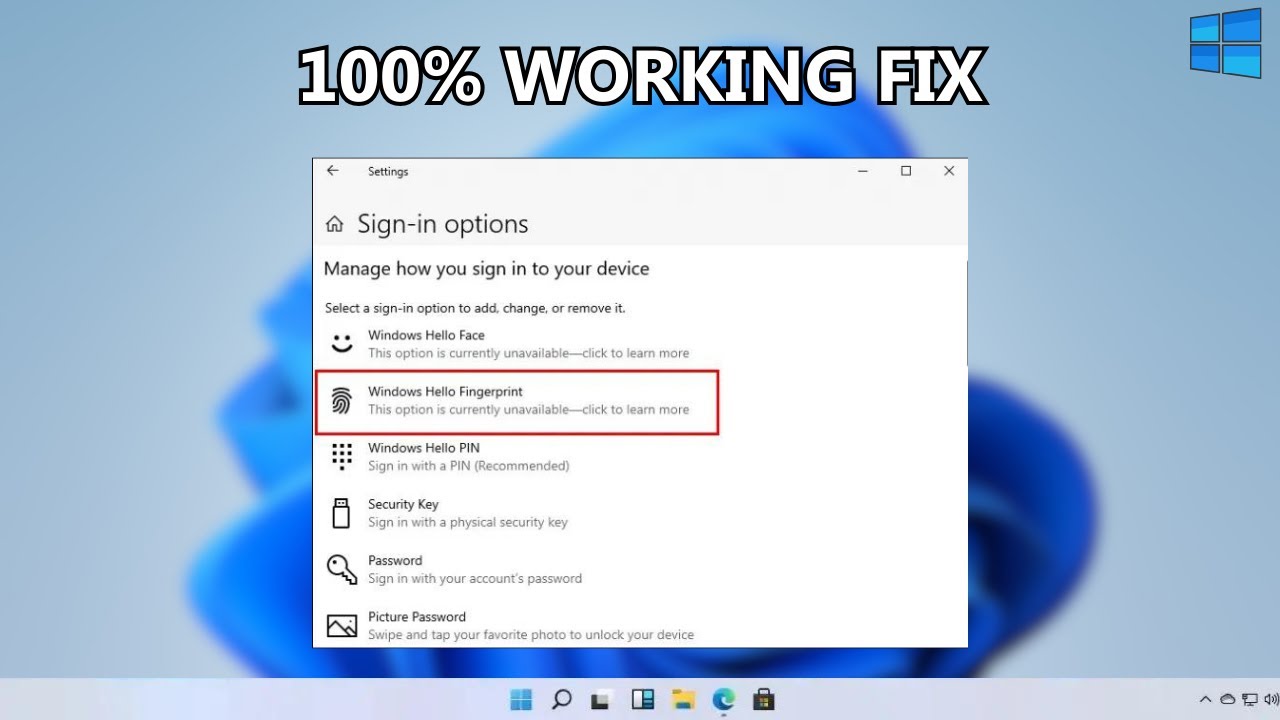
Learn how to resolve the 'Fingerprint - This option is currently unavailable' error on Windows 10/11 devices. 🔑

Tutorial Maven
69.5K views • Sep 8, 2023
About this video
Are you encountering the "Windows Hello Fingerprint - This option is currently unavailable" error on your Windows 11 or Windows 10 device? In this detailed tutorial for 2023, we will guide you through resolving this issue step by step. Our goal is to help you get your fingerprint recognition feature working again, ensuring convenience and security in your biometric login experience.
If you're faced with the frustrating message of "This option is currently unavailable," don't worry. Follow our comprehensive troubleshooting guide below to resolve the issue effectively:
Check Fingerprint Hardware Compatibility: Make sure your device supports fingerprint recognition.
Update Fingerprint Drivers: Keep your drivers up to date for optimal functionality.
Enable Biometric Settings: Ensure biometric features are activated in your settings.
Run Windows Troubleshooter: Utilize Windows troubleshooter to diagnose and fix the issue.
Clear Biometric Data: Reset stored biometric data to troubleshoot potential conflicts.
Check Group Policy Settings: Verify that your group policies are not interfering with fingerprint recognition.
Check for Windows Updates: Update your system to the latest version to resolve compatibility issues.
Restart Windows Biometric Service: Restart the service responsible for biometric functions.
By following these troubleshooting steps, you'll be on your way to resolving the "Windows Hello Fingerprint - This option is currently unavailable" error. Enjoy the convenience and security of biometric login once again.
Timestamps:
0:00 Introduction
0:05 Troubleshooting Windows Hello Fingerprint Unavailability
Tags: #WindowsHello #FingerprintIssue #Windows10 #Windows11 #TechTroubleshooting
If you're faced with the frustrating message of "This option is currently unavailable," don't worry. Follow our comprehensive troubleshooting guide below to resolve the issue effectively:
Check Fingerprint Hardware Compatibility: Make sure your device supports fingerprint recognition.
Update Fingerprint Drivers: Keep your drivers up to date for optimal functionality.
Enable Biometric Settings: Ensure biometric features are activated in your settings.
Run Windows Troubleshooter: Utilize Windows troubleshooter to diagnose and fix the issue.
Clear Biometric Data: Reset stored biometric data to troubleshoot potential conflicts.
Check Group Policy Settings: Verify that your group policies are not interfering with fingerprint recognition.
Check for Windows Updates: Update your system to the latest version to resolve compatibility issues.
Restart Windows Biometric Service: Restart the service responsible for biometric functions.
By following these troubleshooting steps, you'll be on your way to resolving the "Windows Hello Fingerprint - This option is currently unavailable" error. Enjoy the convenience and security of biometric login once again.
Timestamps:
0:00 Introduction
0:05 Troubleshooting Windows Hello Fingerprint Unavailability
Tags: #WindowsHello #FingerprintIssue #Windows10 #Windows11 #TechTroubleshooting
Tags and Topics
Browse our collection to discover more content in these categories.
Video Information
Views
69.5K
Likes
279
Duration
2:59
Published
Sep 8, 2023
User Reviews
4.1
(13) Related Trending Topics
LIVE TRENDSRelated trending topics. Click any trend to explore more videos.
No specific trending topics match this video yet.
Explore All Trends