Easily Disable Protected View in Excel Permanently for All Versions
Learn simple steps to permanently turn off Protected View in Excel (2010, 2013, 2016) and enhance your workflow. 🚀

Mas Rasid
15.6K views • Oct 10, 2021
About this video
how disable protect view microsoft excel permanently
These steps can be applied for Excel 2010, 2013, and 2016.
1. Open your protected excel document
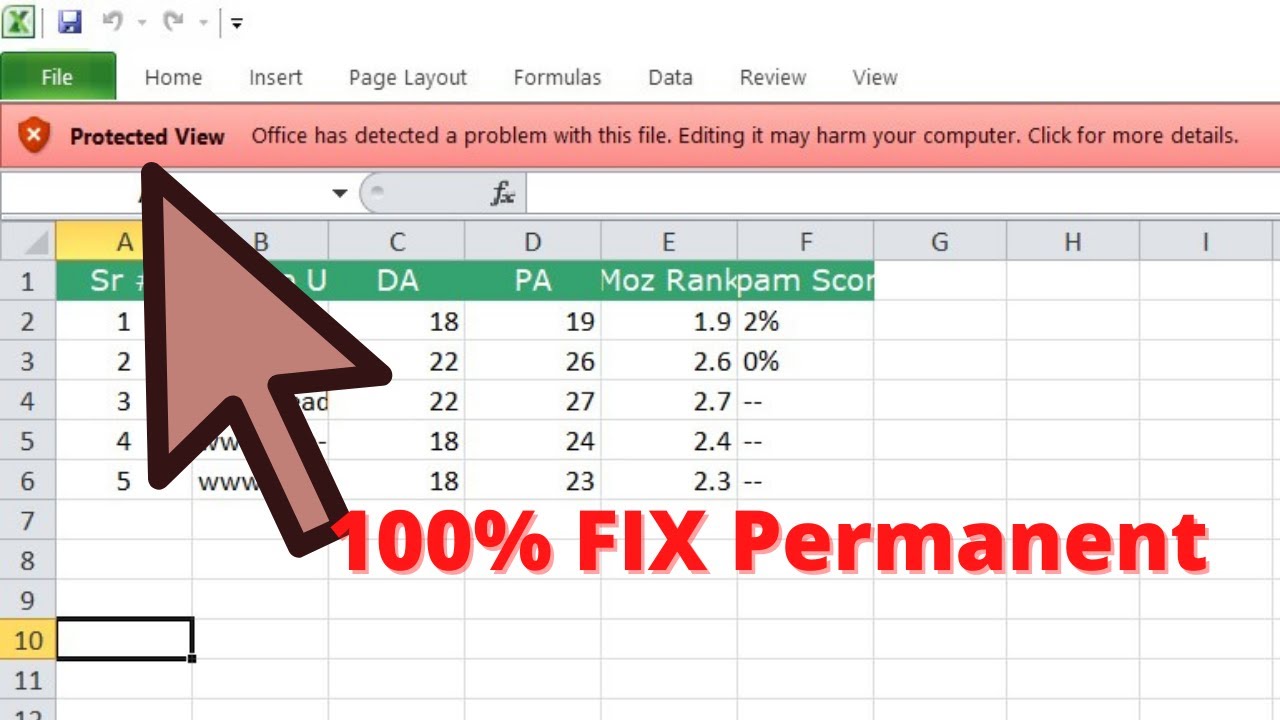
2. Top side you getting error message and click that error message "office has detected a problem with this file. editing it may harm your computer"
3. Clik on " Edit Anyway"
4. Click that box now you can edit your file
1. Open your protected excel document
2. As for "This file originated from and internet location and might be unsafe click for more details" click "Enable" then "Protected View" will disappear
4. Click that box now you can edit your file
how to unlock protected view in ms excel permanent
Step 1: Go to File chose Option chose Trust Center chose Trust Center Settings chose Protected View
Step 2 : Now uncheck following box
Enable protected view for files orginating from the internet
Enable protected view for files located in potentially unsafe location
enable protected view for outlook attachments
Step 3: Click Ok
Thanks for Wacthing How to disable protected view mode in Excel
These steps can be applied for Excel 2010, 2013, and 2016.
1. Open your protected excel document
2. Top side you getting error message and click that error message "office has detected a problem with this file. editing it may harm your computer"
3. Clik on " Edit Anyway"
4. Click that box now you can edit your file
1. Open your protected excel document
2. As for "This file originated from and internet location and might be unsafe click for more details" click "Enable" then "Protected View" will disappear
4. Click that box now you can edit your file
how to unlock protected view in ms excel permanent
Step 1: Go to File chose Option chose Trust Center chose Trust Center Settings chose Protected View
Step 2 : Now uncheck following box
Enable protected view for files orginating from the internet
Enable protected view for files located in potentially unsafe location
enable protected view for outlook attachments
Step 3: Click Ok
Thanks for Wacthing How to disable protected view mode in Excel
Tags and Topics
Browse our collection to discover more content in these categories.
Video Information
Views
15.6K
Likes
42
Duration
1:09
Published
Oct 10, 2021
User Reviews
4.0
(3) Related Trending Topics
LIVE TRENDSRelated trending topics. Click any trend to explore more videos.
No specific trending topics match this video yet.
Explore All Trends