Download All Google Photos & Drive Data in One Click! 🚀
Easily back up your Google Photos and Drive data with this simple trick in 2025. Quick and effortless data download!

Sohoj Tech Hindi
104.0K views • Jan 7, 2025
About this video
🌟 Download Your Entire Google Photos & Drive Data in Just a Few Clicks! 🌟
Do you want to back up all your Google Photos and Google Drive data effortlessly? With Google Takeout, you can download everything in one go. Follow this step-by-step guide by Sohoj Tech Hindi to safely export your data for backup or migration.
🔹 How to Download Google Photos & Drive Data:
1️⃣ Go to takeout.google.com.
2️⃣ Click Deselect All to remove unnecessary options.
3️⃣ Scroll down and select Google Drive and Google Photos.
4️⃣ Scroll to the bottom and click Next.
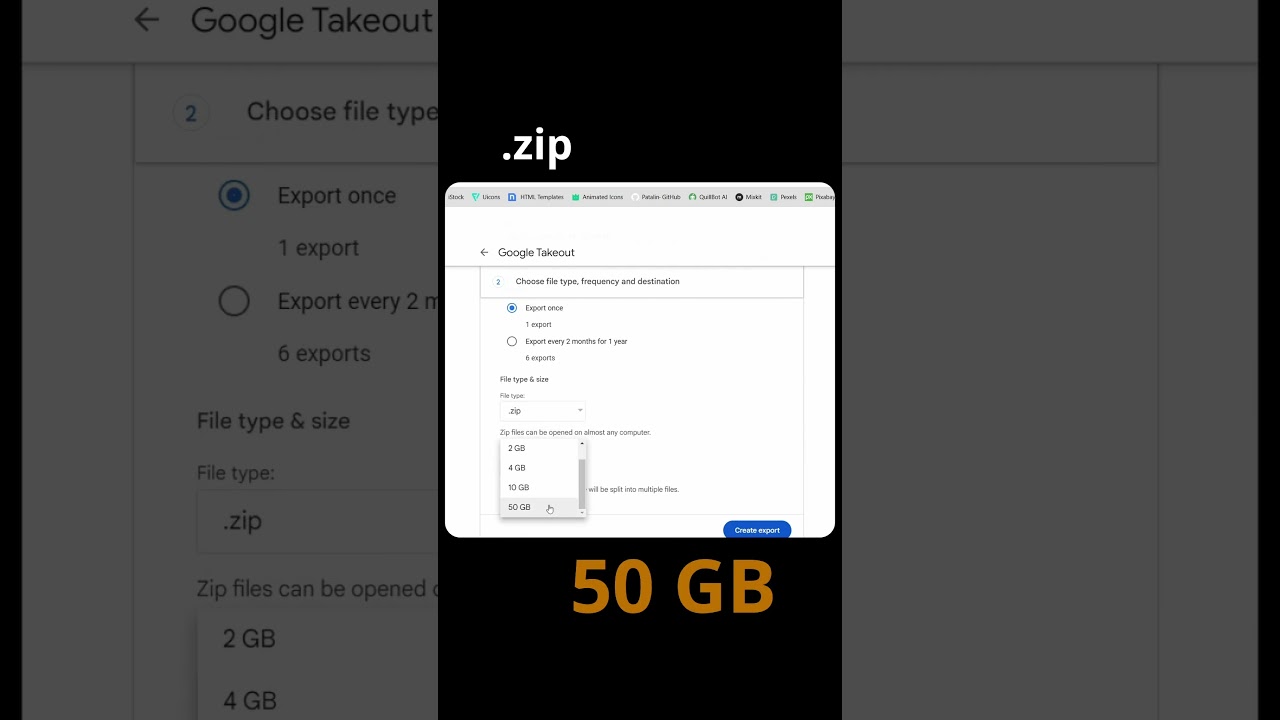
5️⃣ Choose file type as .zip and set the file size to 50GB.
6️⃣ Click Create Export.
🔹 What Happens Next?
Google will process your request and send you a link within 1-2 days.
Download the file from the link to get all your data in one place!
🔹 Why Use This Trick?
📦 Full Backup: Safeguard all your photos and documents in one go.
🚀 Effortless Data Management: Perfect for organizing, transferring, or archiving.
🔒 Secure Process: All data is handled directly by Google.
🔹 Pro Tip: Use an external hard drive or cloud service to store your exported data for extra security.
🔔 Subscribe to Sohoj Tech Hindi:
Love discovering useful tech tips? Subscribe to Sohoj Tech Hindi for more practical guides and hacks to simplify your digital life.
🔖 Relevant Hashtags:
#youtube #shorts #google #tricks #download #GoogleTakeout #GooglePhotosDownload #GoogleDriveBackup #CloudStorageTips #DataBackup #SohojTech #TechHacks #GoogleTips #DigitalProductivity #DataManagement
Do you want to back up all your Google Photos and Google Drive data effortlessly? With Google Takeout, you can download everything in one go. Follow this step-by-step guide by Sohoj Tech Hindi to safely export your data for backup or migration.
🔹 How to Download Google Photos & Drive Data:
1️⃣ Go to takeout.google.com.
2️⃣ Click Deselect All to remove unnecessary options.
3️⃣ Scroll down and select Google Drive and Google Photos.
4️⃣ Scroll to the bottom and click Next.
5️⃣ Choose file type as .zip and set the file size to 50GB.
6️⃣ Click Create Export.
🔹 What Happens Next?
Google will process your request and send you a link within 1-2 days.
Download the file from the link to get all your data in one place!
🔹 Why Use This Trick?
📦 Full Backup: Safeguard all your photos and documents in one go.
🚀 Effortless Data Management: Perfect for organizing, transferring, or archiving.
🔒 Secure Process: All data is handled directly by Google.
🔹 Pro Tip: Use an external hard drive or cloud service to store your exported data for extra security.
🔔 Subscribe to Sohoj Tech Hindi:
Love discovering useful tech tips? Subscribe to Sohoj Tech Hindi for more practical guides and hacks to simplify your digital life.
🔖 Relevant Hashtags:
#youtube #shorts #google #tricks #download #GoogleTakeout #GooglePhotosDownload #GoogleDriveBackup #CloudStorageTips #DataBackup #SohojTech #TechHacks #GoogleTips #DigitalProductivity #DataManagement
Video Information
Views
104.0K
Likes
933
Duration
0:28
Published
Jan 7, 2025
User Reviews
4.4
(20) Related Trending Topics
LIVE TRENDSRelated trending topics. Click any trend to explore more videos.
No specific trending topics match this video yet.
Explore All Trends