Free OCR Tool to Copy & Search Scanned PDFs 📝
Learn how to extract and search text from scanned PDFs easily and free using simple OCR methods. No costly software needed!

Instant Solver Lab
162 views • May 20, 2025
About this video
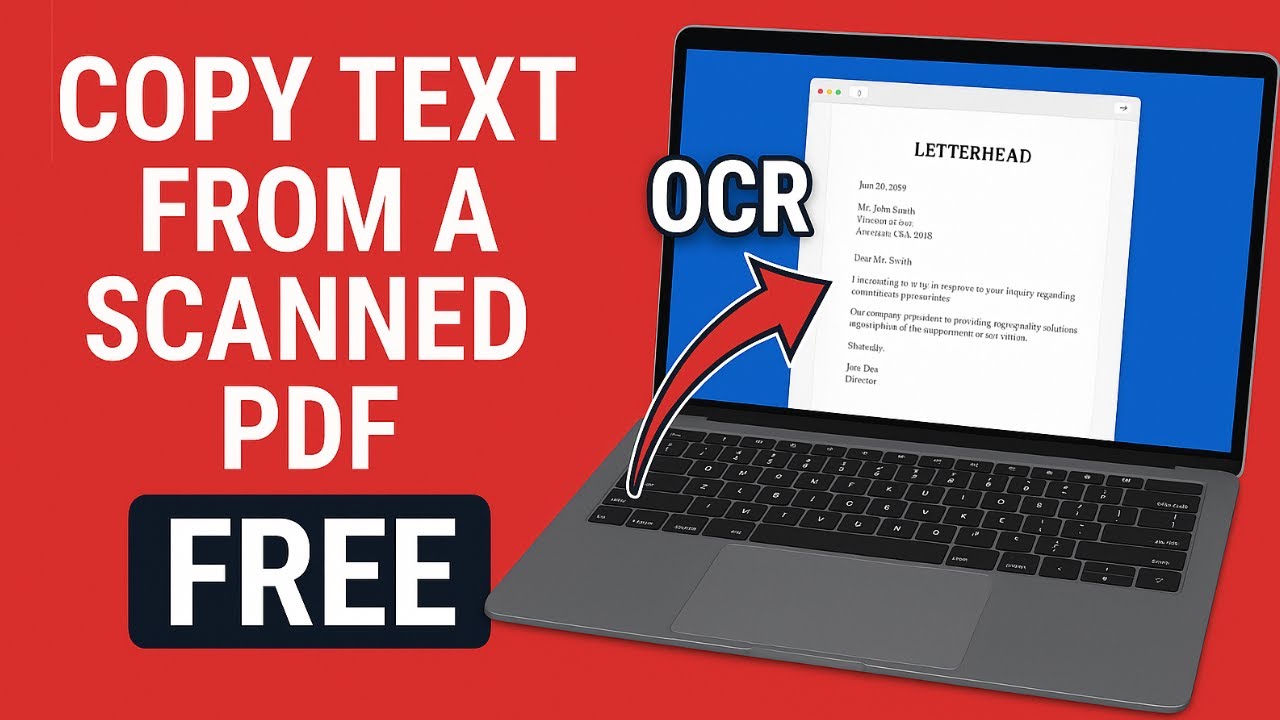
Need to copy or search text from a scanned PDF — but don’t want to pay for expensive software? This tutorial shows you a completely free and simple method using Microsoft OneNote that lets you extract and search text from any scanned PDF using OCR (Optical Character Recognition).
🔍 With this method, you can:
Copy text from scanned letters, contracts, or printed forms
Search through PDF content as if it were typed text
Avoid using paid software like Adobe Acrobat Pro
🧠 How it works:
You simply print your PDF to OneNote (works from any PDF viewer), and OneNote automatically performs OCR on the scanned image. You can then search, select, and copy the recognized text — even if the original PDF was just an image or scan.
✅ In this video, you’ll learn:
How to send a scanned PDF to OneNote using “Print to OneNote”
How to view the scanned PDF inside OneNote
How OCR works in the background
How to highlight, search, and copy the extracted text
Bonus: How to keep the formatting clean when pasting into Word or email
🖥️ Requirements:
A Windows PC with OneNote (free with most Microsoft accounts)
Any standard PDF viewer (e.g., Chrome, Edge, Adobe Reader, FireFox)
💡 This method works great for:
Legal documents
School notes
Printed reports and letters
Old scanned PDFs without selectable text
📌 Skip the subscriptions — use this powerful free tool built right into your system!
#OCR #ScannedPDF #CopyTextFromPDF #FreePDFTools #OneNoteOCR #SearchPDF #PDFTricks #TextRecognition #MicrosoftOneNote #ProductivityTips
🔍 With this method, you can:
Copy text from scanned letters, contracts, or printed forms
Search through PDF content as if it were typed text
Avoid using paid software like Adobe Acrobat Pro
🧠 How it works:
You simply print your PDF to OneNote (works from any PDF viewer), and OneNote automatically performs OCR on the scanned image. You can then search, select, and copy the recognized text — even if the original PDF was just an image or scan.
✅ In this video, you’ll learn:
How to send a scanned PDF to OneNote using “Print to OneNote”
How to view the scanned PDF inside OneNote
How OCR works in the background
How to highlight, search, and copy the extracted text
Bonus: How to keep the formatting clean when pasting into Word or email
🖥️ Requirements:
A Windows PC with OneNote (free with most Microsoft accounts)
Any standard PDF viewer (e.g., Chrome, Edge, Adobe Reader, FireFox)
💡 This method works great for:
Legal documents
School notes
Printed reports and letters
Old scanned PDFs without selectable text
📌 Skip the subscriptions — use this powerful free tool built right into your system!
#OCR #ScannedPDF #CopyTextFromPDF #FreePDFTools #OneNoteOCR #SearchPDF #PDFTricks #TextRecognition #MicrosoftOneNote #ProductivityTips
Video Information
Views
162
Likes
2
Duration
1:40
Published
May 20, 2025
Related Trending Topics
LIVE TRENDSRelated trending topics. Click any trend to explore more videos.
No specific trending topics match this video yet.
Explore All Trends