Master Excel Wildcards: Quickly Extract First and Last Names ✨
Learn how to use wildcard characters in Excel to efficiently extract first names, last names, and more with simple tips and tricks.
RabiGurungXybernetics
2 views • Jun 19, 2025
About this video
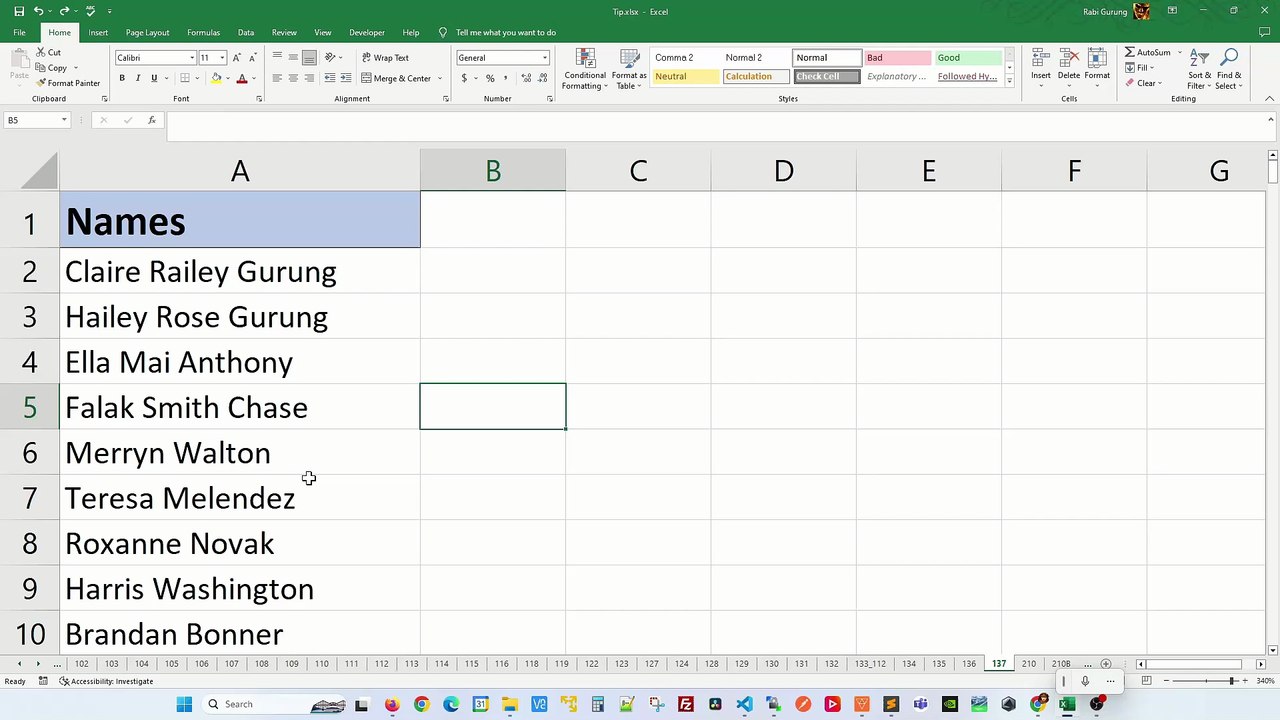
Discover how you can use widlcard in Excel to get first name or last name. <br /><br />In Excel, the asterisk symbol (*) is called a wildcard character. Wildcard characters are used as placeholders to match one or more characters in a text string. <br /><br /><br />When you use the "Find and Replace" function in Excel to find " *" (space followed by an asterisk), it will find all occurrences of that combination of characters after space, and replace them with whatever you specify, in this case a blank. Hence last name is retained. <br /><br />Keep First Name <br />1) Ctrl+H <br />2) Find what as " *" (without double quotes) <br />3) Replace with as BLANK <br />4) Replace All <br /><br />On the other hand, when you use the "Find and Replace" function in Excel to find "* " (asterisk followed by a space), it will find all occurrences of that combination of characters before the last space, and replace them with whatever you specify, in this case a blank as well. Hence last name is retained. <br /><br />Keep Last Name <br />1) Ctrl+H <br />2) Find what as "* " (without double quotes) <br />3) Replace with as BLANK <br />4) Replace All <br /><br />Just as a demo, if you use the "Find and Replace" function in Excel to find "*" (no spaces), everything is replaced with whatever you specify, in this case a blank as well. <br /><br /><br />Find and Replace,
Video Information
Views
2
Duration
0:53
Published
Jun 19, 2025
Related Trending Topics
LIVE TRENDSRelated trending topics. Click any trend to explore more videos.
No specific trending topics match this video yet.
Explore All Trends