Fix Kerberos Authentication Issues in Chrome & Edge for Seamless Access 🔧
Learn proven troubleshooting tips to configure Kerberos Authentication on Google Chrome and Edge, ensuring smooth and secure access to your web apps.

vlogize
5 views • Aug 17, 2025
About this video
Discover effective solutions for configuring `Kerberos Authentication` on Google Chrome and Edge, ensuring seamless access to your web applications.
---
This video is based on the question https://stackoverflow.com/q/64466046/ asked by the user 'IgnitedMind' ( https://stackoverflow.com/u/12662556/ ) and on the answer https://stackoverflow.com/a/64467654/ provided by the user 'IgnitedMind' ( https://stackoverflow.com/u/12662556/ ) at 'Stack Overflow' website. Thanks to these great users and Stackexchange community for their contributions.
Visit these links for original content and any more details, such as alternate solutions, latest updates/developments on topic, comments, revision history etc. For example, the original title of the Question was: Windows Kerberos Authentication for Google Chrome and Edge
Also, Content (except music) licensed under CC BY-SA https://meta.stackexchange.com/help/licensing
The original Question post is licensed under the 'CC BY-SA 4.0' ( https://creativecommons.org/licenses/by-sa/4.0/ ) license, and the original Answer post is licensed under the 'CC BY-SA 4.0' ( https://creativecommons.org/licenses/by-sa/4.0/ ) license.
If anything seems off to you, please feel free to write me at vlogize [AT] gmail [DOT] com.
---
Troubleshooting Kerberos Authentication in Google Chrome and Edge
When it comes to securing web applications, many organizations rely on the Kerberos authentication protocol for its robust security features. However, users frequently encounter issues when attempting to use Kerberos in browsers like Google Chrome and Microsoft Edge. This post will explore the common problems associated with Kerberos authentication on these platforms and detail the steps needed to troubleshoot and configure your browsers effectively.
Understanding the Problem
In some instances, despite correctly setting up your website under trusted and intranet sites, users find that the Kerberos authentication protocol does not work as expected in Chrome and Edge. Instead, they encounter repeated prompts for credentials and error codes like 401 Unauthorized. This issue is particularly frustrating, especially when it works flawlessly in Internet Explorer (IE).
Why Does It Work in IE But Not in Chrome or Edge?
Internet Explorer has built-in support for Kerberos, while Chrome and Edge might require additional configuration steps, especially on Windows devices. It's crucial to address these differences to ensure seamless access to your web applications across different browsers.
Solution Steps to Enable Kerberos Authentication in Chrome
To help you resolve the Kerberos authentication issues in Google Chrome, follow these detailed steps:
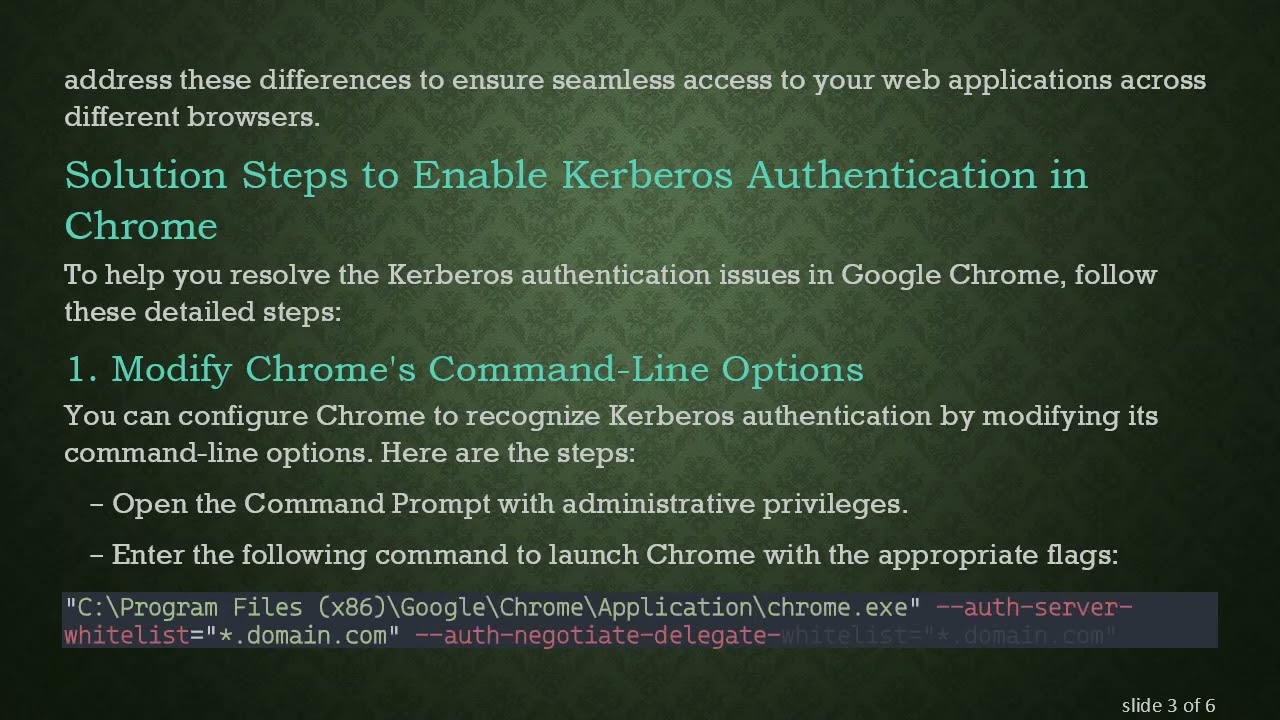
1. Modify Chrome's Command-Line Options
You can configure Chrome to recognize Kerberos authentication by modifying its command-line options. Here are the steps:
Open the Command Prompt with administrative privileges.
Enter the following command to launch Chrome with the appropriate flags:
[[See Video to Reveal this Text or Code Snippet]]
2. Edit the Windows Registry
For more persistent settings and to ensure Kerberos authentication works continuously, you will need to make changes in the Windows Registry:
Open the Registry Editor (type regedit in the Windows search bar).
Navigate to the following keys and add values as necessary:
[[See Video to Reveal this Text or Code Snippet]]
3. Adjust Incognito Mode Settings
Unfortunately, the above settings do not apply to Chrome's Incognito mode by default. To allow Kerberos authentication to work in Incognito, follow these steps:
Open Chrome and go to chrome://flags in the address bar.
Find the setting labeled Enable Ambient Authentication in Incognito mode.
Change the value to Enabled.
4. Troubleshooting for Edge Users
While the focus of this guide is on Google Chrome, many users are also seeking solutions for Microsoft Edge. The steps might be similar, but appropriate adjustments for Edge settings, policies, and installation paths will be necessary. Remember to check for any additional Edge-specific configurations or group policies that may be in effect.
Conclusion
Configuring Kerberos authentication for Google Chrome and Edge can feel like an uphill battle, but with a clear understanding of the necessary steps—from modifying command-line options to adjusting registry values—you can successfully troubleshoot these issues. Remember to ensure that any changes made apply to both regular and Incognito sessions to have a comprehensive solution. As always, if you have additional queries or run into further troubles, don't hesitate to reach out for help.
By following the above steps, you should be well on your way to resolving the Kerberos authentication issues you've been encountering. Happy browsing!
---
This video is based on the question https://stackoverflow.com/q/64466046/ asked by the user 'IgnitedMind' ( https://stackoverflow.com/u/12662556/ ) and on the answer https://stackoverflow.com/a/64467654/ provided by the user 'IgnitedMind' ( https://stackoverflow.com/u/12662556/ ) at 'Stack Overflow' website. Thanks to these great users and Stackexchange community for their contributions.
Visit these links for original content and any more details, such as alternate solutions, latest updates/developments on topic, comments, revision history etc. For example, the original title of the Question was: Windows Kerberos Authentication for Google Chrome and Edge
Also, Content (except music) licensed under CC BY-SA https://meta.stackexchange.com/help/licensing
The original Question post is licensed under the 'CC BY-SA 4.0' ( https://creativecommons.org/licenses/by-sa/4.0/ ) license, and the original Answer post is licensed under the 'CC BY-SA 4.0' ( https://creativecommons.org/licenses/by-sa/4.0/ ) license.
If anything seems off to you, please feel free to write me at vlogize [AT] gmail [DOT] com.
---
Troubleshooting Kerberos Authentication in Google Chrome and Edge
When it comes to securing web applications, many organizations rely on the Kerberos authentication protocol for its robust security features. However, users frequently encounter issues when attempting to use Kerberos in browsers like Google Chrome and Microsoft Edge. This post will explore the common problems associated with Kerberos authentication on these platforms and detail the steps needed to troubleshoot and configure your browsers effectively.
Understanding the Problem
In some instances, despite correctly setting up your website under trusted and intranet sites, users find that the Kerberos authentication protocol does not work as expected in Chrome and Edge. Instead, they encounter repeated prompts for credentials and error codes like 401 Unauthorized. This issue is particularly frustrating, especially when it works flawlessly in Internet Explorer (IE).
Why Does It Work in IE But Not in Chrome or Edge?
Internet Explorer has built-in support for Kerberos, while Chrome and Edge might require additional configuration steps, especially on Windows devices. It's crucial to address these differences to ensure seamless access to your web applications across different browsers.
Solution Steps to Enable Kerberos Authentication in Chrome
To help you resolve the Kerberos authentication issues in Google Chrome, follow these detailed steps:
1. Modify Chrome's Command-Line Options
You can configure Chrome to recognize Kerberos authentication by modifying its command-line options. Here are the steps:
Open the Command Prompt with administrative privileges.
Enter the following command to launch Chrome with the appropriate flags:
[[See Video to Reveal this Text or Code Snippet]]
2. Edit the Windows Registry
For more persistent settings and to ensure Kerberos authentication works continuously, you will need to make changes in the Windows Registry:
Open the Registry Editor (type regedit in the Windows search bar).
Navigate to the following keys and add values as necessary:
[[See Video to Reveal this Text or Code Snippet]]
3. Adjust Incognito Mode Settings
Unfortunately, the above settings do not apply to Chrome's Incognito mode by default. To allow Kerberos authentication to work in Incognito, follow these steps:
Open Chrome and go to chrome://flags in the address bar.
Find the setting labeled Enable Ambient Authentication in Incognito mode.
Change the value to Enabled.
4. Troubleshooting for Edge Users
While the focus of this guide is on Google Chrome, many users are also seeking solutions for Microsoft Edge. The steps might be similar, but appropriate adjustments for Edge settings, policies, and installation paths will be necessary. Remember to check for any additional Edge-specific configurations or group policies that may be in effect.
Conclusion
Configuring Kerberos authentication for Google Chrome and Edge can feel like an uphill battle, but with a clear understanding of the necessary steps—from modifying command-line options to adjusting registry values—you can successfully troubleshoot these issues. Remember to ensure that any changes made apply to both regular and Incognito sessions to have a comprehensive solution. As always, if you have additional queries or run into further troubles, don't hesitate to reach out for help.
By following the above steps, you should be well on your way to resolving the Kerberos authentication issues you've been encountering. Happy browsing!
Tags and Topics
Browse our collection to discover more content in these categories.
Video Information
Views
5
Duration
1:50
Published
Aug 17, 2025
Related Trending Topics
LIVE TRENDSRelated trending topics. Click any trend to explore more videos.
No specific trending topics match this video yet.
Explore All Trends