Set Up Raspberry Pi Zero W Without a Monitor 💻
Learn how to configure your Raspberry Pi Zero W or Zero 2 W using your Windows, Mac, Chromebook, or iPad without a monitor or keyboard.

Caroline Dunn
3.5K views • Feb 19, 2026
About this video
If you have a Raspberry Pi Zero W or Zero 2 W but don’t have a spare monitor, keyboard, or mouse, you can start right here.
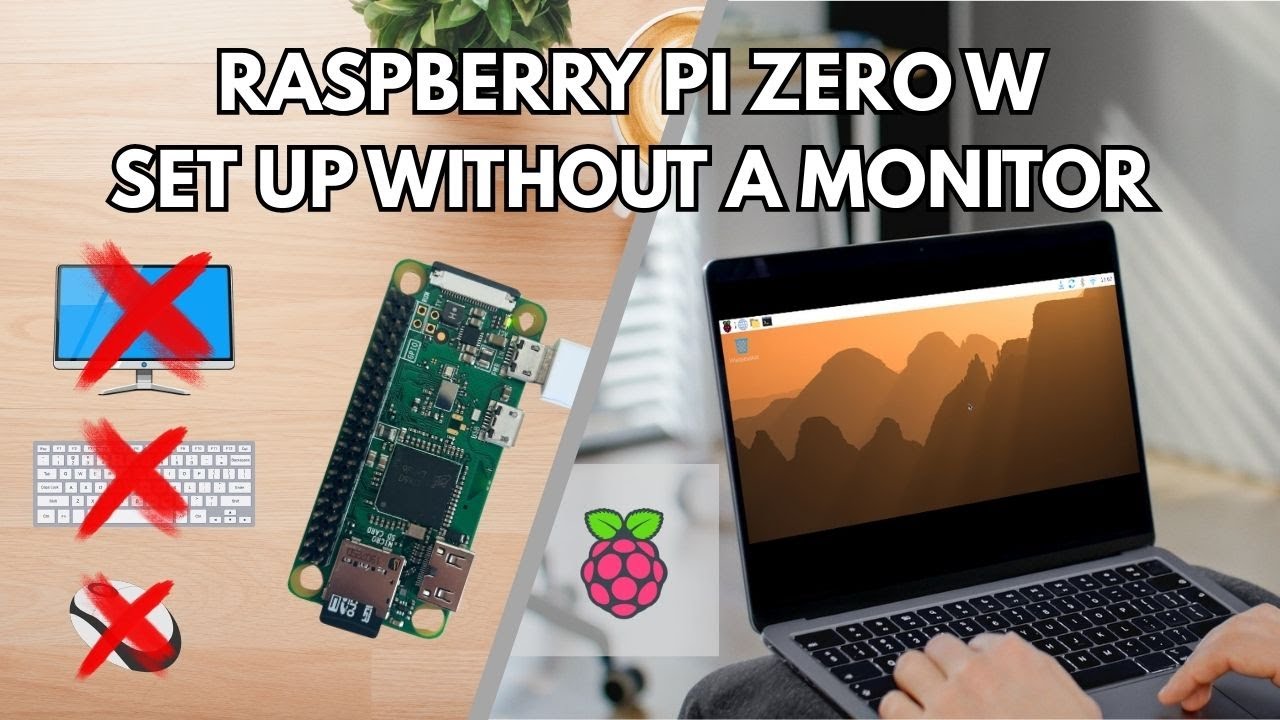
I will show you how to set up a Raspberry Pi Zero W using just your Windows or Mac laptop. Your computer becomes the monitor, keyboard, and mouse—this is known as a headless setup. Alternatively, you can use an iPad or Chromebook as a monitor.
What You Need:
Raspberry Pi: Zero 2 W - https://amzn.to/4r6PE1G
MicroUSB Cable - https://amzn.to/4kmg6ls
MicroSD Card - https://amzn.to/49XlPuo
USB Card Reader (if necessary) - https://amzn.to/46A4gOL
Internet Connection
The links provided are affiliate links in which I may make a small commission but doesn't affect the price that you pay. This helps to keep my channel going to produce content for you.
Key Steps in the Setup
Raspberry Pi Connect: Create a free account at connect.raspberrypi.com to enable remote access through your browser.
Raspberry Pi Imager 2.0: Download the latest software to select your device and operating system.
OS Customization: Set your username, password, and WiFi settings before flashing the card so it works immediately.
Remote Access: Choose between Screen Sharing for a desktop view or Remote Shell for a faster terminal experience.
Python Coding: We run a simple "Hello World" script in Geany and even clone terminal games from GitHub to test the setup.
Links Mentioned:
Raspberry Pi Connect: https://connect.raspberrypi.com/
Raspberry Pi Imager: https://www.raspberrypi.com/software/
Caroline's GitHub Terminal Games: https://github.com/carolinedunn/terminal-games
If this tutorial helped you, please like and subscribe for more practical DIY tech videos.
#RaspberryPi #PiZero2W #RaspberryPiConnect #TechTutorial
Timestamps
0:00 – Intro: What is a Headless Setup?
0:24 – Welcome & Channel Introduction
1:25 – Materials Needed
2:14 – Setting up your Raspberry Pi Connect Account
2:51 – Downloading & Installing Raspberry Pi Imager
5:34 – Flashing the MicroSD Card
6:04 – Inserting the Card & First Boot
7:17– Accessing the Pi via Screen Sharing
8:43 – Python Coding Demo: Hello World in Geany
9:31 – Using Remote Shell for Faster Access
10:00 – Bonus: Cloning & Playing GitHub Terminal Games
11:17 – Using a Chromebook as a Monitor, Keyboard and Mouse
12:18 – Using an iPad as a Monitor
📘 A Woman’s Guide to Winning in Tech
If you enjoyed this video, check out my book, A Woman’s Guide to Winning in Tech.
This book blends sharp humor with practical career strategies to help women navigate tech on their own terms—without changing who they are.
Available on Amazon, Bookshop.org, Barnes & Noble, and IngramSpark.
Learn more: https://winningintech.com/
Follow the book:
Facebook: https://www.facebook.com/winningintech
Instagram: https://www.instagram.com/winning.tech
I will show you how to set up a Raspberry Pi Zero W using just your Windows or Mac laptop. Your computer becomes the monitor, keyboard, and mouse—this is known as a headless setup. Alternatively, you can use an iPad or Chromebook as a monitor.
What You Need:
Raspberry Pi: Zero 2 W - https://amzn.to/4r6PE1G
MicroUSB Cable - https://amzn.to/4kmg6ls
MicroSD Card - https://amzn.to/49XlPuo
USB Card Reader (if necessary) - https://amzn.to/46A4gOL
Internet Connection
The links provided are affiliate links in which I may make a small commission but doesn't affect the price that you pay. This helps to keep my channel going to produce content for you.
Key Steps in the Setup
Raspberry Pi Connect: Create a free account at connect.raspberrypi.com to enable remote access through your browser.
Raspberry Pi Imager 2.0: Download the latest software to select your device and operating system.
OS Customization: Set your username, password, and WiFi settings before flashing the card so it works immediately.
Remote Access: Choose between Screen Sharing for a desktop view or Remote Shell for a faster terminal experience.
Python Coding: We run a simple "Hello World" script in Geany and even clone terminal games from GitHub to test the setup.
Links Mentioned:
Raspberry Pi Connect: https://connect.raspberrypi.com/
Raspberry Pi Imager: https://www.raspberrypi.com/software/
Caroline's GitHub Terminal Games: https://github.com/carolinedunn/terminal-games
If this tutorial helped you, please like and subscribe for more practical DIY tech videos.
#RaspberryPi #PiZero2W #RaspberryPiConnect #TechTutorial
Timestamps
0:00 – Intro: What is a Headless Setup?
0:24 – Welcome & Channel Introduction
1:25 – Materials Needed
2:14 – Setting up your Raspberry Pi Connect Account
2:51 – Downloading & Installing Raspberry Pi Imager
5:34 – Flashing the MicroSD Card
6:04 – Inserting the Card & First Boot
7:17– Accessing the Pi via Screen Sharing
8:43 – Python Coding Demo: Hello World in Geany
9:31 – Using Remote Shell for Faster Access
10:00 – Bonus: Cloning & Playing GitHub Terminal Games
11:17 – Using a Chromebook as a Monitor, Keyboard and Mouse
12:18 – Using an iPad as a Monitor
📘 A Woman’s Guide to Winning in Tech
If you enjoyed this video, check out my book, A Woman’s Guide to Winning in Tech.
This book blends sharp humor with practical career strategies to help women navigate tech on their own terms—without changing who they are.
Available on Amazon, Bookshop.org, Barnes & Noble, and IngramSpark.
Learn more: https://winningintech.com/
Follow the book:
Facebook: https://www.facebook.com/winningintech
Instagram: https://www.instagram.com/winning.tech
Video Information
Views
3.5K
Likes
83
Duration
13:37
Published
Feb 19, 2026
User Reviews
4.6
(3)