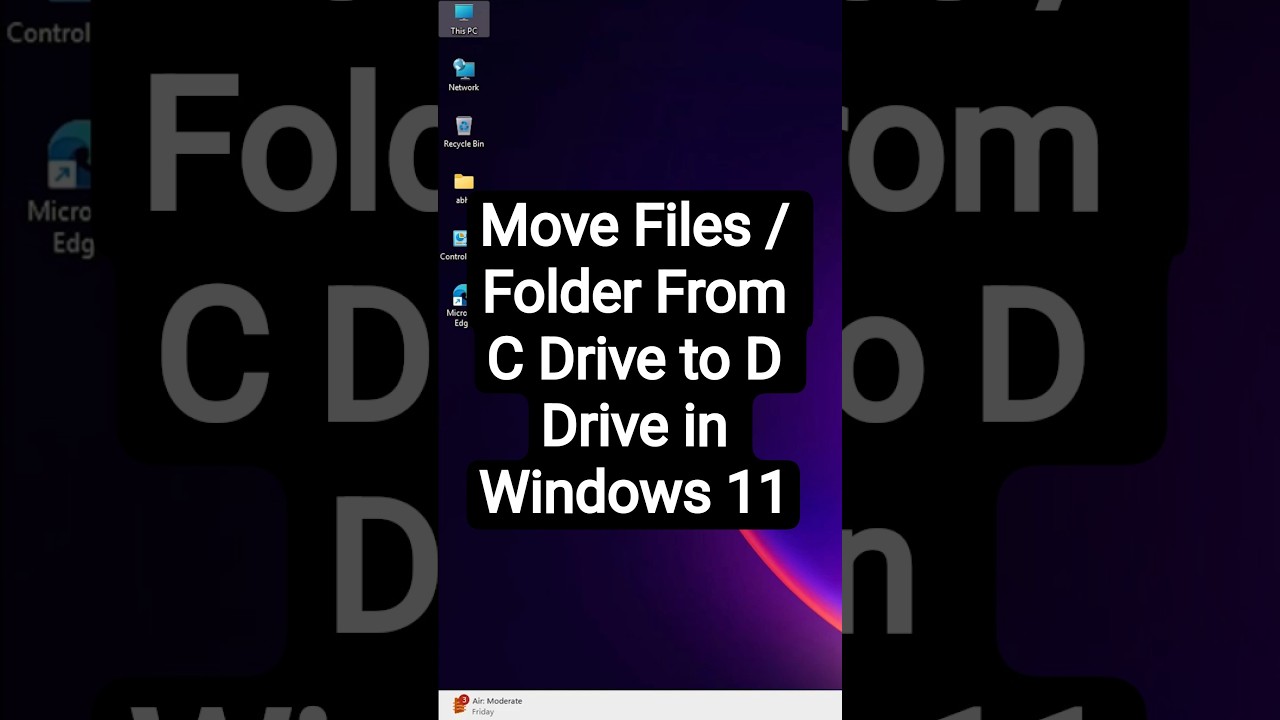
Move Files / Folder From C Drive to D Drive in Windows 11
Running out of space on your C drive? This beginner-friendly guide shows you how to move files from C drive to D drive in Windows 11 to free up storage! Foll...
Discover You
204.6K views • Jun 21, 2025
About this video
Running out of space on your C drive? This beginner-friendly guide shows you how to move files from C drive to D drive in Windows 11 to free up storage! Follow these simple steps to organize your files quickly and safely.
📌 Steps to Move Files From C Drive to D Drive in Windows 11:
1 Open File Explorer and go to This PC.
2 Navigate to the C drive and select the files or folders you want to move.
3 Right-click the selected items and click Cut (or press Ctrl + X).
4 Go to the D drive (or another drive of your choice).
5 Right-click on a blank space and click Paste (or press Ctrl + V).
6 Verify the files are moved to the D drive and no longer appear in the C drive.
💡 Pro Tip: Create specific folders in the D drive (e.g., “Documents,” “Media”) to keep your files organized after moving!
👍 Like, subscribe, and hit the bell 🔔 for more Windows 11 tips and tech tutorials!
#Windows11 #MoveFiles #CtoDDrive #TechTutorial #WindowsTips
📌 Steps to Move Files From C Drive to D Drive in Windows 11:
1 Open File Explorer and go to This PC.
2 Navigate to the C drive and select the files or folders you want to move.
3 Right-click the selected items and click Cut (or press Ctrl + X).
4 Go to the D drive (or another drive of your choice).
5 Right-click on a blank space and click Paste (or press Ctrl + V).
6 Verify the files are moved to the D drive and no longer appear in the C drive.
💡 Pro Tip: Create specific folders in the D drive (e.g., “Documents,” “Media”) to keep your files organized after moving!
👍 Like, subscribe, and hit the bell 🔔 for more Windows 11 tips and tech tutorials!
#Windows11 #MoveFiles #CtoDDrive #TechTutorial #WindowsTips
Tags and Topics
Browse our collection to discover more content in these categories.
Video Information
Views
204.6K
Likes
2.3K
Duration
0:43
Published
Jun 21, 2025
User Reviews
4.5
(40) Related Trending Topics
LIVE TRENDSRelated trending topics. Click any trend to explore more videos.
No specific trending topics match this video yet.
Explore All Trends