Mastering the Rotation of Unanchored Labels in Civil 3D 🛠️
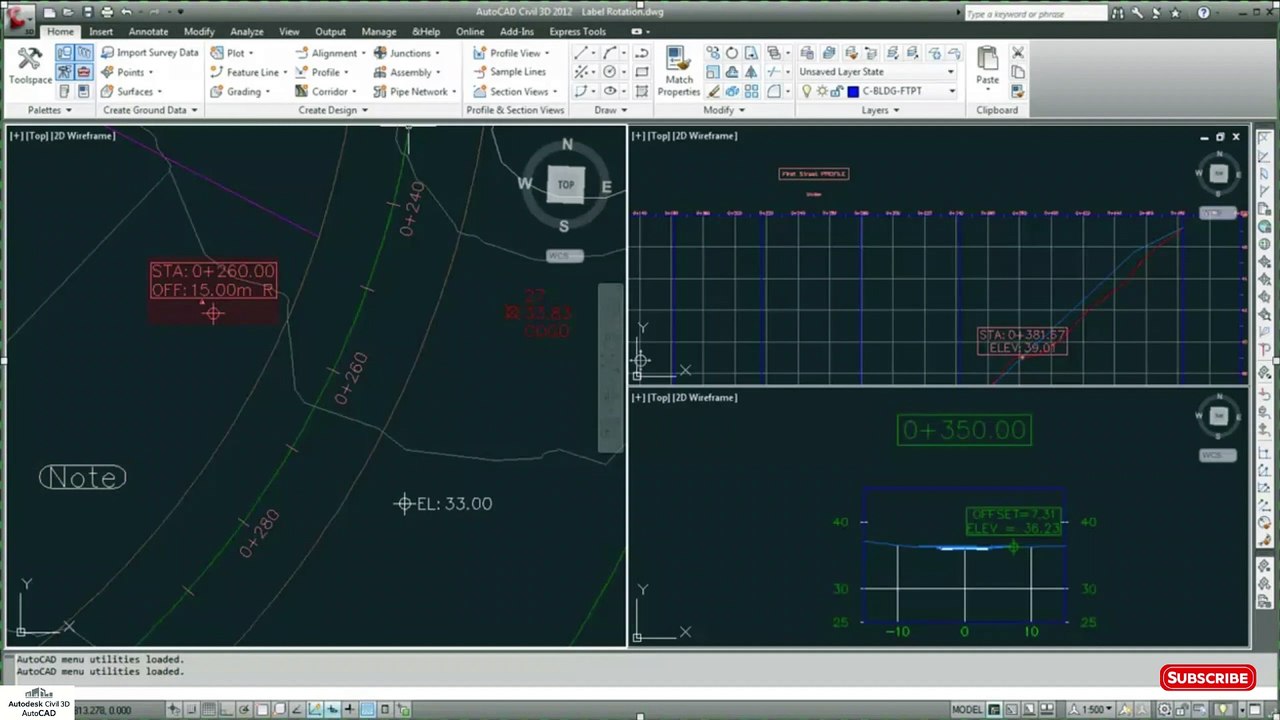
Learn step-by-step how to rotate unanchored labels effectively in Civil 3D. Enhance your drafting skills and improve your project accuracy with this easy tutorial!
Autodesk786
641 views • Feb 3, 2025
About this video
https://dai.ly/x9dgqem<br />https://dai.ly/x9d58e0<br />https://dai.ly/x9d2fm6<br />https://dai.ly/x9d176m<br />https://dai.ly/x9cytxm<br />https://dai.ly/x9cyqdo<br /><br />How to Rotate Unanchored Labels in Civil 3D<br />In Civil 3D, labels can either be anchored (linked to an object) or unanchored (free-standing). If a label is unanchored, you can manually rotate it to improve visibility.<br /><br />Method 1: Using the Properties Palette<br />Select the Label<br /><br />Click on the unanchored label in your drawing.<br />Open the Properties Palette<br /><br />Type PROPERTIES in the command line and press Enter.<br />In the Properties window, look for the General section.<br />Change the Rotation Angle<br /><br />Find Rotation Angle or Text Rotation.<br />Enter the desired angle (e.g., 90° for vertical alignment).<br />Method 2: Using the Rotate Command<br />Select the Label<br /><br />Click the label to highlight it.<br />Type ROTATE and Press Enter<br /><br />This activates the Rotate command.<br />Specify the Base Point<br /><br />Choose a reference point for rotation.<br />Enter the Rotation Angle<br /><br />Type an angle (e.g., 45 degrees) or rotate freely.<br />Method 3: Adjusting the Label Style (For Dynamic Labels)<br />If your label is not rotating as expected, the style might be locked. To fix this:<br /><br />Go to the Settings Tab in Toolspace<br /><br />Open Toolspace → Click the Settings tab.<br />Find Your Label Style<br /><br />Expand Labels (e.g., Alignment Labels, Surface Labels).<br />Edit the Label Style<br /><br />Right-click on the style → Edit.<br />In the Text Component Editor, check if Rotation is set to "By Reference" or "Fixed".<br />Change to User-defined Rotation<br /><br />Allow manual rotation if needed.<br />Tips:<br />✔ If the label is still not rotating, check if it's linked to an object.<br />✔ Use the GRIPS on the label to manually adjust its position.<br />✔ If you frequently rotate labels, create a new label style with an adjustable rotation option.
Video Information
Views
641
Duration
3:03
Published
Feb 3, 2025
Related Trending Topics
LIVE TRENDSRelated trending topics. Click any trend to explore more videos.
No specific trending topics match this video yet.
Explore All Trends