Master Image Transformation in Photoshop: Easy Step-by-Step Guide 🎨
Learn how to creatively transform any photo using Photoshop's Quick Selection tool. Perfect for beginners wanting to give their images a fresh new look!
James Chima
2 views • Jul 3, 2018
About this video
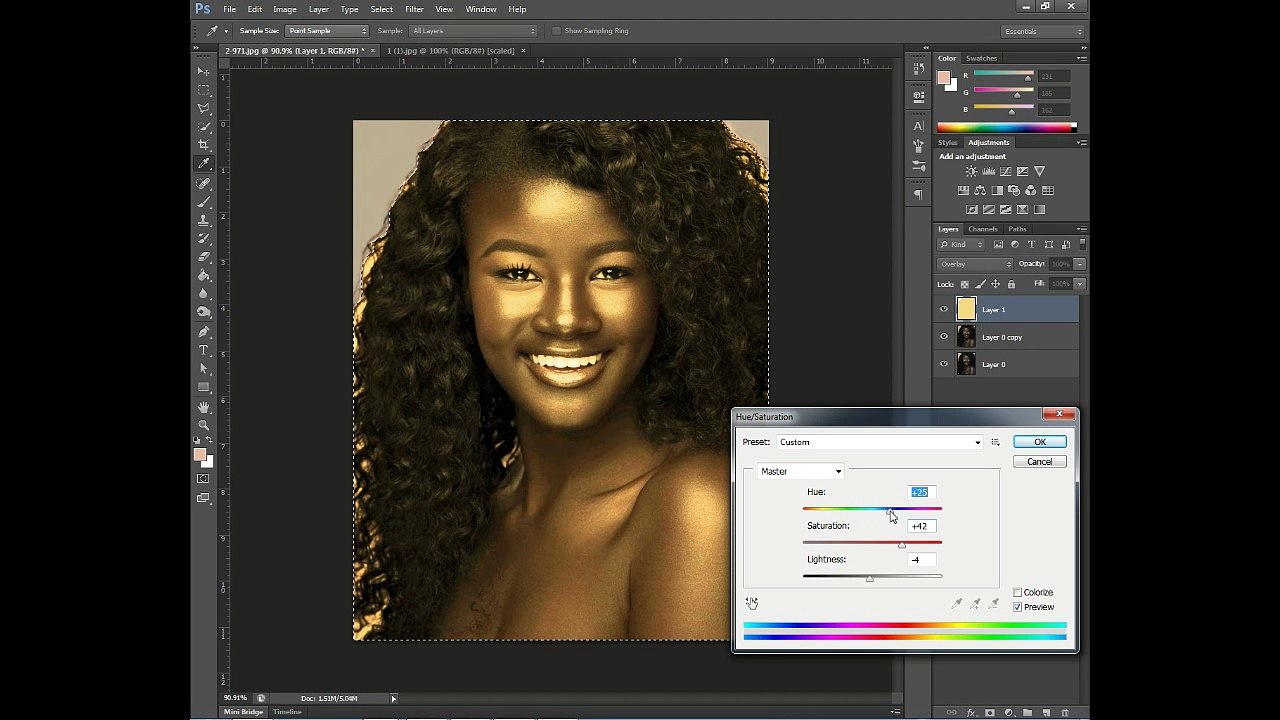
This tutorial will teach you how to transform any image (picture) and give it a new and different look. <br /><br />You will be exposed to the Quick Selection tool to quickly “paint” a selection using an adjustable round brush tip. As you drag, the selection expands outward and automatically finds and follows defined edges in the image.<br /><br />The brush tool is an element of the painting tool that allows you to select a brush shape (square, circle, oval and so on) and also the the thickness in pixels you want to paint on your image with. As you move your cursor over the image it leaves a stroke of color.<br /><br />The Eyedropper tool (the icon in the Toolbar) is used to sample a color from an image to use this color further. It's practical as it facilitates color selection, for example, an appropriate color for the skin or the sky. <br /><br />Please like the above video and subscribe for more videos.<br /><br />Please if you have any question, feel free to post on the comment box below.<br /><br />Please LIKE, SUBSCRIBE and SHARE this video.<br /><br />CONNECT WITH ME<br />Facebook: https://www.facebook.com/jameschima09<br />Instagram: https://www.instagram.com/jameschima09<br />Twitter: https://www.twitter.com/jameschima09
Video Information
Views
2
Duration
16:27
Published
Jul 3, 2018
Related Trending Topics
LIVE TRENDSRelated trending topics. Click any trend to explore more videos.
No specific trending topics match this video yet.
Explore All Trends