Installing Kali Linux on Windows 11 Using VirtualBox: A Step-by-Step Guide for 2025
Learn how to install Kali Linux on your Windows 11 PC using VirtualBox with this comprehensive, beginner-friendly tutorial. Follow these steps to run Kali Linux alongside Windows 11 without removing or dual-booting your system.
ProgrammingKnowledge2
9.5K views • Aug 7, 2025
About this video
How To Install Kali Linux on Windows 11 via VirtualBox | Step-by-Step Guide for Beginners
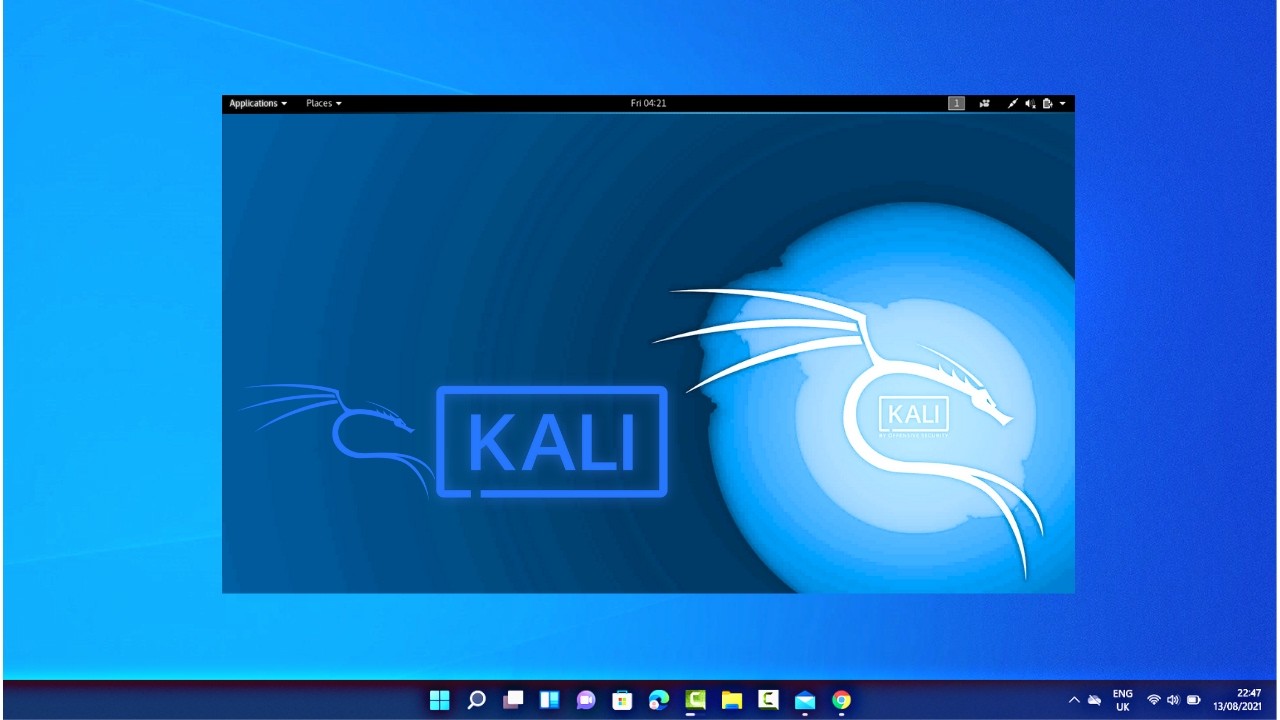
Want to run **Kali Linux** on your **Windows 11 PC** without removing your existing operating system? In this complete beginner-friendly tutorial, you'll learn **how to install Kali Linux on Windows 11 using VirtualBox**, a free and powerful virtualization tool.
Kali Linux is one of the most popular **penetration testing and ethical hacking** distributions used by cybersecurity professionals worldwide. By installing it in a virtual machine, you can test tools, learn hacking techniques, or explore Linux without affecting your main system.
This guide works for all modern Windows 11 laptops or desktops and uses official Kali ISO images and Oracle VM VirtualBox.
---
🛠️ **What You’ll Learn in This Tutorial:**
* Where and how to download **Kali Linux ISO**
* How to download and install **VirtualBox** on Windows 11
* Creating a new virtual machine with proper configurations
* Allocating RAM, CPU cores, and virtual storage
* Installing Kali Linux step-by-step inside the VM
* First-time setup tips after installation
* Optional: Installing **Guest Additions** for full-screen and better performance
---
📦 **Downloads Required:**
* 🔗 VirtualBox: [https://www.virtualbox.org/](https://www.virtualbox.org/)
* 🔗 Kali Linux ISO (64-bit): [https://www.kali.org/get-kali/](https://www.kali.org/get-kali/)
---
💻 **System Requirements:**
* Windows 11 (Home or Pro)
* At least **8 GB RAM** (16 GB recommended)
* Minimum **30 GB free disk space**
* Virtualization enabled in BIOS (important!)
---
📌 **Steps Covered:**
1. Enable virtualization in BIOS (if not already done)
2. Install Oracle VirtualBox on your Windows system
3. Download the latest Kali Linux ISO
4. Create a new VM and configure settings (RAM, disk, processor)
5. Attach ISO and start the installation
6. Partition disk, set up users, and complete install
7. Boot into Kali Linux and update the system
---
🔥 **Why Use Kali in VirtualBox?**
* Safe and sandboxed environment
* No risk to your main OS
* Great for ethical hacking labs, training, and experimenting
---
📢 Don’t forget to **like**, **comment**, and **subscribe** for more cybersecurity, Linux, and ethical hacking tutorials!
\#KaliLinux #Windows11 #VirtualBox #EthicalHacking #CyberSecurity #InstallKali #LinuxTutorial #KaliLinuxVirtualBox #VirtualMachine #HackingLab #KaliOnWindows #KaliLinuxSetup #PenetrationTesting #LinuxForBeginners #WindowsLinuxVM
Want to run **Kali Linux** on your **Windows 11 PC** without removing your existing operating system? In this complete beginner-friendly tutorial, you'll learn **how to install Kali Linux on Windows 11 using VirtualBox**, a free and powerful virtualization tool.
Kali Linux is one of the most popular **penetration testing and ethical hacking** distributions used by cybersecurity professionals worldwide. By installing it in a virtual machine, you can test tools, learn hacking techniques, or explore Linux without affecting your main system.
This guide works for all modern Windows 11 laptops or desktops and uses official Kali ISO images and Oracle VM VirtualBox.
---
🛠️ **What You’ll Learn in This Tutorial:**
* Where and how to download **Kali Linux ISO**
* How to download and install **VirtualBox** on Windows 11
* Creating a new virtual machine with proper configurations
* Allocating RAM, CPU cores, and virtual storage
* Installing Kali Linux step-by-step inside the VM
* First-time setup tips after installation
* Optional: Installing **Guest Additions** for full-screen and better performance
---
📦 **Downloads Required:**
* 🔗 VirtualBox: [https://www.virtualbox.org/](https://www.virtualbox.org/)
* 🔗 Kali Linux ISO (64-bit): [https://www.kali.org/get-kali/](https://www.kali.org/get-kali/)
---
💻 **System Requirements:**
* Windows 11 (Home or Pro)
* At least **8 GB RAM** (16 GB recommended)
* Minimum **30 GB free disk space**
* Virtualization enabled in BIOS (important!)
---
📌 **Steps Covered:**
1. Enable virtualization in BIOS (if not already done)
2. Install Oracle VirtualBox on your Windows system
3. Download the latest Kali Linux ISO
4. Create a new VM and configure settings (RAM, disk, processor)
5. Attach ISO and start the installation
6. Partition disk, set up users, and complete install
7. Boot into Kali Linux and update the system
---
🔥 **Why Use Kali in VirtualBox?**
* Safe and sandboxed environment
* No risk to your main OS
* Great for ethical hacking labs, training, and experimenting
---
📢 Don’t forget to **like**, **comment**, and **subscribe** for more cybersecurity, Linux, and ethical hacking tutorials!
\#KaliLinux #Windows11 #VirtualBox #EthicalHacking #CyberSecurity #InstallKali #LinuxTutorial #KaliLinuxVirtualBox #VirtualMachine #HackingLab #KaliOnWindows #KaliLinuxSetup #PenetrationTesting #LinuxForBeginners #WindowsLinuxVM
Tags and Topics
Browse our collection to discover more content in these categories.
Video Information
Views
9.5K
Likes
86
Duration
3:46
Published
Aug 7, 2025
User Reviews
4.3
(1) Related Trending Topics
LIVE TRENDSRelated trending topics. Click any trend to explore more videos.
Trending Now