Install Windows 11 24H2 on Unsupported Hardware in 24H
Learn how to install Windows 11 24H2 on unsupported hardware with this quick guide. 🚀 Step-by-step instructions for a smooth setup.
jensd_be
42.5K views • Oct 8, 2024
About this video
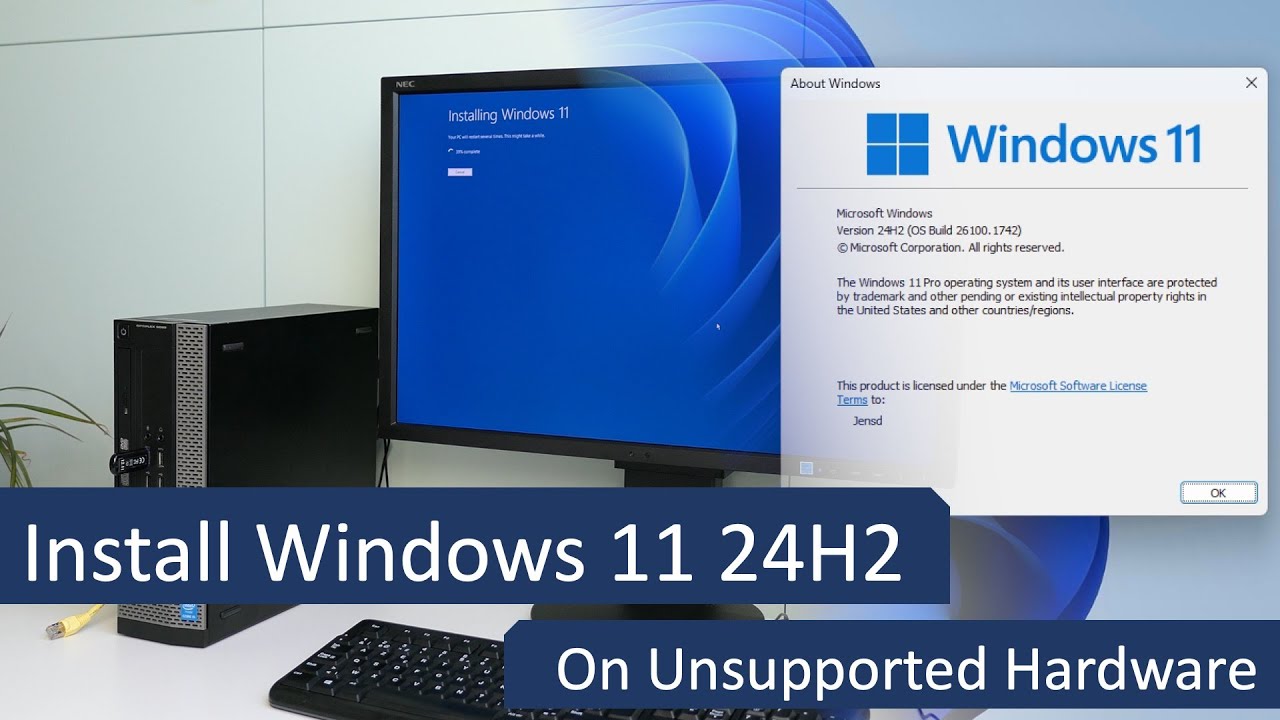
In this video I will explain how to perform a fresh installation of Windows 11 24H2 on unsupported hardware.
In the video, we will take a look at the required steps, then prepare a bootable USB drive, which can be used on multiple machines, followed by an installation where we bypass the hardware limitations and eventually also the requirement for a Microsoft account. Finally we will quickly explore some of the new features in the 24H2 release. This works for both Windows 11 Home and Professional.
In the meanwhile, Microsoft has released version 25H2 of Windows 11, which requires a different approach.
You can find updated videos for 25H2 over here:
- Upgrade from Windows 11 which is already on 24H2 on unsupported hardware: https://youtu.be/LkG87oX-aRU
- Perform a fresh installation of Windows 11 25H2 on unsupported hardware: https://youtu.be/ONywTBNc1Fs
- Upgrade from Windows 10 or an older version of Windows 11 like 23H2 or 22H2 on unsupported hardware: https://youtu.be/uVnQaG06XOA
Other scenarios:
- Upgrade from Windows 10 to the latest version of Windows 11: 24H2 on unsupported hardware: https://youtu.be/EWV1G3IDRMg
- Upgrade from Windows 11 23H2, 22H2 and earlier to the latest version of Windows 11: 24H2 on unsupported hardware: https://youtu.be/mC657pIDyOc
If you prefer to have the step-by-step instructions in written form: https://jensd.be/2547/windows/upgrade-to-or-install-windows-11-24h2-on-unsupported-hardware
Chapters:
00:00 - Introduction
01:10 - Other scenarios
02:28 - SSE 4.2 and POPCNT
03:19 - USB drive preparation
05:07 - Create Windows 11 installer
06:30 - Install Windows 11 24H2
07:49 - Skip hardware checks
10:44 - Initial setup and bypass Microsoft account
12:36 - 24H2 and new features
13:18 - Windows Updates
In the video, we will take a look at the required steps, then prepare a bootable USB drive, which can be used on multiple machines, followed by an installation where we bypass the hardware limitations and eventually also the requirement for a Microsoft account. Finally we will quickly explore some of the new features in the 24H2 release. This works for both Windows 11 Home and Professional.
In the meanwhile, Microsoft has released version 25H2 of Windows 11, which requires a different approach.
You can find updated videos for 25H2 over here:
- Upgrade from Windows 11 which is already on 24H2 on unsupported hardware: https://youtu.be/LkG87oX-aRU
- Perform a fresh installation of Windows 11 25H2 on unsupported hardware: https://youtu.be/ONywTBNc1Fs
- Upgrade from Windows 10 or an older version of Windows 11 like 23H2 or 22H2 on unsupported hardware: https://youtu.be/uVnQaG06XOA
Other scenarios:
- Upgrade from Windows 10 to the latest version of Windows 11: 24H2 on unsupported hardware: https://youtu.be/EWV1G3IDRMg
- Upgrade from Windows 11 23H2, 22H2 and earlier to the latest version of Windows 11: 24H2 on unsupported hardware: https://youtu.be/mC657pIDyOc
If you prefer to have the step-by-step instructions in written form: https://jensd.be/2547/windows/upgrade-to-or-install-windows-11-24h2-on-unsupported-hardware
Chapters:
00:00 - Introduction
01:10 - Other scenarios
02:28 - SSE 4.2 and POPCNT
03:19 - USB drive preparation
05:07 - Create Windows 11 installer
06:30 - Install Windows 11 24H2
07:49 - Skip hardware checks
10:44 - Initial setup and bypass Microsoft account
12:36 - 24H2 and new features
13:18 - Windows Updates
Video Information
Views
42.5K
Likes
646
Duration
14:01
Published
Oct 8, 2024
User Reviews
4.6
(8) Related Trending Topics
LIVE TRENDSRelated trending topics. Click any trend to explore more videos.
No specific trending topics match this video yet.
Explore All Trends