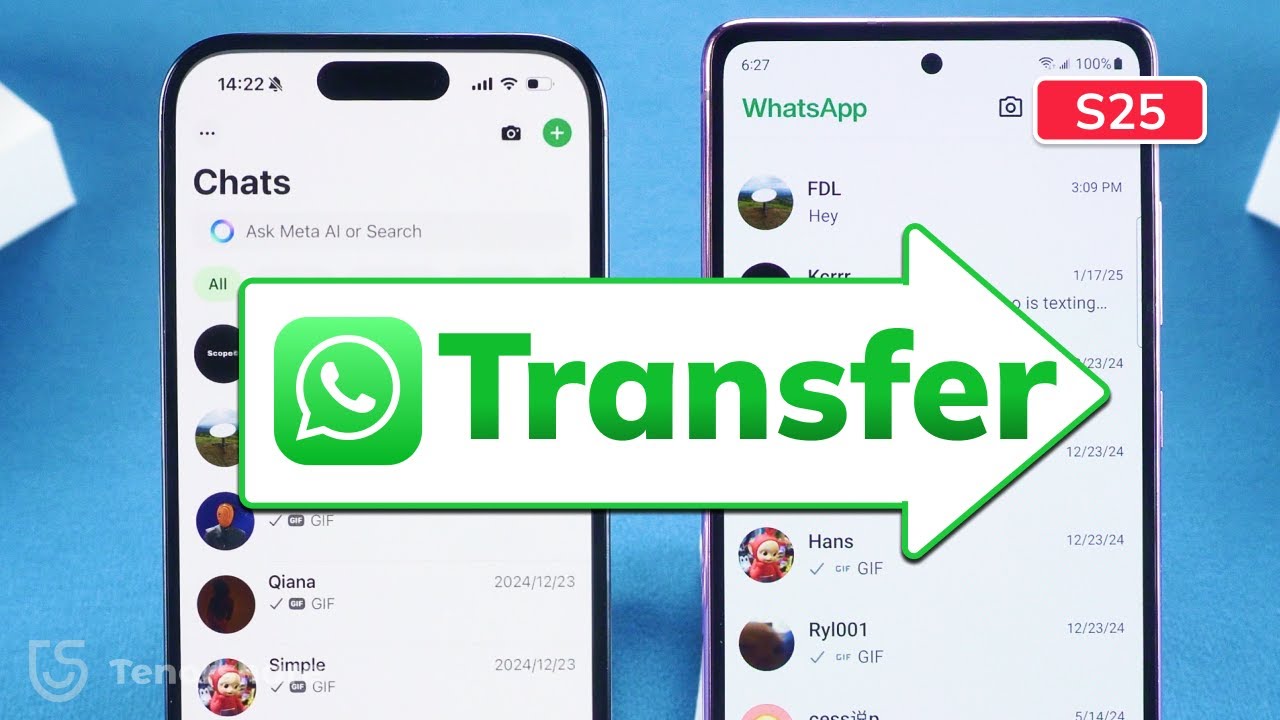
Transfer WhatsApp from iPhone to Samsung S25 (2025) 📱
Learn 2 quick and easy ways to transfer WhatsApp data from iPhone to Samsung S25 in 2025. Fast and simple! 👉 https://bit.ly/4au8cRX

TenorshareOfficial
47.2K views • Feb 2, 2025
About this video
Transfer WhatsApp from iPhone to Samsung S25 Quickly! 👉 :https://bit.ly/4au8cRX
*iPhone to Samsung Whatsapp Data Transfer* Ready to transfer your WhatsApp chats seamlessly? In this video, we’ll show you two methods: one using Smart Switch (requires factory reset) and another with iCareFone Transfer (no reset needed). Both are fast and reliable for moving your WhatsApp data effortlessly.
*⏱TIMESTAMP:*
00:00 Introduction
00:25 1: Use Smart Switch to Transfer WhatsApp to Samsung (Factory Reset Required)
02:50 2: Use iCareFone Transfer (No Reset Needed) to Transfer WhatsApp to Samsung
*💡Text guide here:*
How to Transfer WhatsApp from iPhone to Samsung S25
- *Method 1: Smart Switch*
1. Reset your Samsung S25 to factory settings (search *Factory Data Reset* in settings).
2. On iPhone, go to *WhatsApp - Chats - Move Chats to Android*, then tap *Start*.
3. Set up your S25, update Smart Switch, and connect devices via cable.
4. Select *WhatsApp* in the data transfer list and tap *Transfer*.
5. Complete the setup on Samsung, install WhatsApp, and verify your phone number to restore chats.
- *Method 2: iCareFone Transfer*
1. Download iCareFone Transfer on your computer and connect both devices via cables.
2. Open the software, choose *WhatsApp - iOS to Android*, and tap *Transfer*.
3. Follow prompts to enable USB debugging on your Samsung and allow access.
4. Verify your WhatsApp account and select the data to transfer.
5. Reinstall WhatsApp on Samsung, verify your number, and restore chats from a local backup.
*🤨Understanding Key Terms:*
- *Smart Switch*: Samsung’s app for data transfer between devices, requiring factory reset for WhatsApp transfers.
- *iCareFone Transfer*: A software tool for transferring WhatsApp and social media data without resetting your device.
- *Local Backup*: A WhatsApp feature that allows restoring data stored directly on your device rather than the cloud.
*👇You might also want to know:*
Transfer Photos from iPhone to Samsung: https://youtu.be/irMiZaw9Pjc
Move Contacts from iPhone to Android: https://youtu.be/MiVF2WzdVnw
Backup iPhone WhatsApp Data: https://youtu.be/uo2uMnMcF5c
📑Official Links and Resources:
Smart Switch Support: https://www.samsung.com/us/support/owners/app/smart-switch
iCareFone Transfer Guide: https://www.tenorshare.com/icarefone-transfer.html
*SamsungS25 WhatsAppTransfer iCareFone Tenorshare*
```
#tenorshare
🔔 Subscribe Here (it's FREE!): https://bit.ly/30eZwvG
----------Social Media-------------
Facebook: https://www.facebook.com/TenorshareOfficial/
Twitter: https://twitter.com/Tenorshare_Inc
Pinterest: https://www.pinterest.com/Tenorshare
Instagram: https://www.instagram.com/tenorsharesoftware
TikTok: https://www.tiktok.com/@tenorshare_tech_tips
Tenorshare Official Website: https://www.tenorshare.com
Tenorshare AI Youtube: https://www.youtube.com/@TenorshareAI
Tenorshare AI PDF: https://ai.tenorshare.com/
Get more freebies on Discord: https://discord.com/invite/qDFjcjsDXe
*iPhone to Samsung Whatsapp Data Transfer* Ready to transfer your WhatsApp chats seamlessly? In this video, we’ll show you two methods: one using Smart Switch (requires factory reset) and another with iCareFone Transfer (no reset needed). Both are fast and reliable for moving your WhatsApp data effortlessly.
*⏱TIMESTAMP:*
00:00 Introduction
00:25 1: Use Smart Switch to Transfer WhatsApp to Samsung (Factory Reset Required)
02:50 2: Use iCareFone Transfer (No Reset Needed) to Transfer WhatsApp to Samsung
*💡Text guide here:*
How to Transfer WhatsApp from iPhone to Samsung S25
- *Method 1: Smart Switch*
1. Reset your Samsung S25 to factory settings (search *Factory Data Reset* in settings).
2. On iPhone, go to *WhatsApp - Chats - Move Chats to Android*, then tap *Start*.
3. Set up your S25, update Smart Switch, and connect devices via cable.
4. Select *WhatsApp* in the data transfer list and tap *Transfer*.
5. Complete the setup on Samsung, install WhatsApp, and verify your phone number to restore chats.
- *Method 2: iCareFone Transfer*
1. Download iCareFone Transfer on your computer and connect both devices via cables.
2. Open the software, choose *WhatsApp - iOS to Android*, and tap *Transfer*.
3. Follow prompts to enable USB debugging on your Samsung and allow access.
4. Verify your WhatsApp account and select the data to transfer.
5. Reinstall WhatsApp on Samsung, verify your number, and restore chats from a local backup.
*🤨Understanding Key Terms:*
- *Smart Switch*: Samsung’s app for data transfer between devices, requiring factory reset for WhatsApp transfers.
- *iCareFone Transfer*: A software tool for transferring WhatsApp and social media data without resetting your device.
- *Local Backup*: A WhatsApp feature that allows restoring data stored directly on your device rather than the cloud.
*👇You might also want to know:*
Transfer Photos from iPhone to Samsung: https://youtu.be/irMiZaw9Pjc
Move Contacts from iPhone to Android: https://youtu.be/MiVF2WzdVnw
Backup iPhone WhatsApp Data: https://youtu.be/uo2uMnMcF5c
📑Official Links and Resources:
Smart Switch Support: https://www.samsung.com/us/support/owners/app/smart-switch
iCareFone Transfer Guide: https://www.tenorshare.com/icarefone-transfer.html
*SamsungS25 WhatsAppTransfer iCareFone Tenorshare*
```
#tenorshare
🔔 Subscribe Here (it's FREE!): https://bit.ly/30eZwvG
----------Social Media-------------
Facebook: https://www.facebook.com/TenorshareOfficial/
Twitter: https://twitter.com/Tenorshare_Inc
Pinterest: https://www.pinterest.com/Tenorshare
Instagram: https://www.instagram.com/tenorsharesoftware
TikTok: https://www.tiktok.com/@tenorshare_tech_tips
Tenorshare Official Website: https://www.tenorshare.com
Tenorshare AI Youtube: https://www.youtube.com/@TenorshareAI
Tenorshare AI PDF: https://ai.tenorshare.com/
Get more freebies on Discord: https://discord.com/invite/qDFjcjsDXe
Video Information
Views
47.2K
Likes
224
Duration
4:53
Published
Feb 2, 2025
User Reviews
4.1
(9) Related Trending Topics
LIVE TRENDSRelated trending topics. Click any trend to explore more videos.
No specific trending topics match this video yet.
Explore All Trends