Stop Google Photos Backup on iOS & Android
Learn how to disable Google Photos backup on iPhone and Android to save storage and prevent auto uploads. 📱

Free Tech Guide
1.4K views • Sep 1, 2025
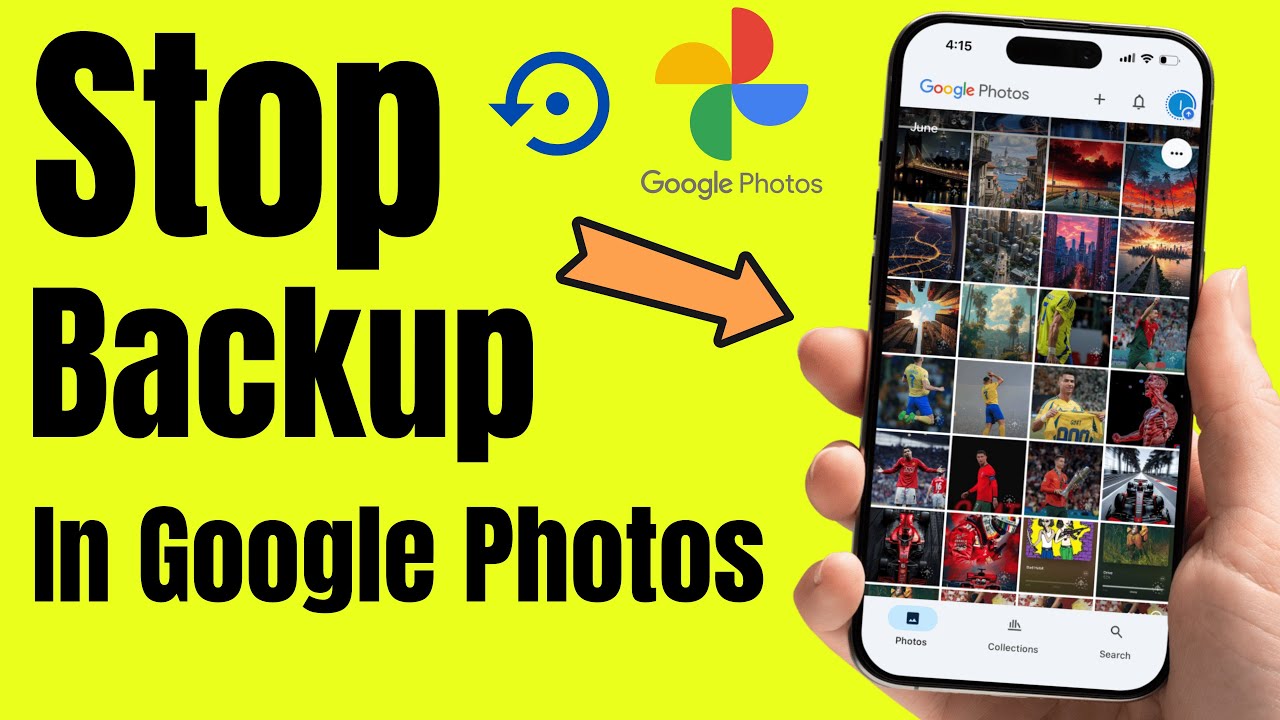
About this video
Learn how to stop backup in Google Photos on your iPhone or Android device with this simple tutorial. Save storage space and prevent automatic file uploads with these easy steps!
Stop auto backup in the Google Photos app on iPhone and Android.
stop backup in Google Photos on iPhone or Android. Open the Google Photos app on your phone. The steps are the same for both iOS and Android devices.
Tap on the profile icon at the top right corner and tap on Backup. This might be because the backup process is running or the backup is complete.
Please disable the toggle at the top. That's it. Force close the app. Backup in Google Photos will never turn on automatically until you manually start it. But if you are reinstalling or installing an app on a new device, then auto backup is turned on by default. Follow the same steps and stop it before it floods.
stop backup google photos,
disable backup google photos,
turn off google photos auto backup,
stop google photos syncing,
disable photos backup android,
disable photos backup iphone,
google photos stop uploading,
turn off auto upload google photos,
pause backup google photos,
manage backup settings google photos,
stop auto sync google photos,
google photos storage full disable backup,
how to turn off backup google photos,
google photos backup not needed,
GET CHEAP iPHONES on Amazon (US): https://amzn.to/3NrhGmd
GET CHEAP iPHONES on Amazon (CA): https://amzn.to/4h53UTU
GET CHEAP iPHONES on Amazon (UK): https://amzn.to/40570Bj
GET CHEAP iPAD on Amazon (US): https://amzn.to/4dP9XcC
GET CHEAP AirPods on Amazon (US): https://amzn.to/3BJVIsd
If you found this video helpful, give it a like!
Need more help? Drop a comment below!
Don’t forget to subscribe for regular updates!
#googlephotos #backup #stop
Subscribe on YouTube: https://www.youtube.com/freetechguide?sub_confirmation=1
Stop auto backup in the Google Photos app on iPhone and Android.
stop backup in Google Photos on iPhone or Android. Open the Google Photos app on your phone. The steps are the same for both iOS and Android devices.
Tap on the profile icon at the top right corner and tap on Backup. This might be because the backup process is running or the backup is complete.
Please disable the toggle at the top. That's it. Force close the app. Backup in Google Photos will never turn on automatically until you manually start it. But if you are reinstalling or installing an app on a new device, then auto backup is turned on by default. Follow the same steps and stop it before it floods.
stop backup google photos,
disable backup google photos,
turn off google photos auto backup,
stop google photos syncing,
disable photos backup android,
disable photos backup iphone,
google photos stop uploading,
turn off auto upload google photos,
pause backup google photos,
manage backup settings google photos,
stop auto sync google photos,
google photos storage full disable backup,
how to turn off backup google photos,
google photos backup not needed,
GET CHEAP iPHONES on Amazon (US): https://amzn.to/3NrhGmd
GET CHEAP iPHONES on Amazon (CA): https://amzn.to/4h53UTU
GET CHEAP iPHONES on Amazon (UK): https://amzn.to/40570Bj
GET CHEAP iPAD on Amazon (US): https://amzn.to/4dP9XcC
GET CHEAP AirPods on Amazon (US): https://amzn.to/3BJVIsd
If you found this video helpful, give it a like!
Need more help? Drop a comment below!
Don’t forget to subscribe for regular updates!
#googlephotos #backup #stop
Subscribe on YouTube: https://www.youtube.com/freetechguide?sub_confirmation=1
Tags and Topics
Browse our collection to discover more content in these categories.
Video Information
Views
1.4K
Likes
3
Duration
0:51
Published
Sep 1, 2025
User Reviews
3.8
(1) Related Trending Topics
LIVE TRENDSRelated trending topics. Click any trend to explore more videos.
No specific trending topics match this video yet.
Explore All Trends