How to Show Hidden Files and Folders in Windows 10
How to Show Hidden Files, Folders & Drives in Windows 10 Follow the video to display hidden files and folders. Option 1 – From File Explorer Select the “S...
TechZain
2.0M views • Jun 10, 2016

About this video
How to Show Hidden Files, Folders & Drives in Windows 10
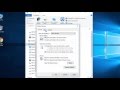
Follow the video to display hidden files and folders.
Option 1 – From File Explorer
Select the “Start” button, then choose “File Explorer“.
Select the “View” tab.
Check the “Hidden items” check box to view hidden items.
Option 2 – From Folder Options
Open This PC, click in the top left hand “File” menu, and select “Change folder and search options"
In the Folder Options window, Click the “View” tab.
Scroll down a bit and change the “Hidden files and folders” setting to “Show hidden files, folders, and drives“.
Hope this helps! Thank you.
unable to show hidden files and folders in windows xp
How to enable Microsoft Windows 10 to show all hidden files
toggle Hidden Files
Follow the video to display hidden files and folders.
Option 1 – From File Explorer
Select the “Start” button, then choose “File Explorer“.
Select the “View” tab.
Check the “Hidden items” check box to view hidden items.
Option 2 – From Folder Options
Open This PC, click in the top left hand “File” menu, and select “Change folder and search options"
In the Folder Options window, Click the “View” tab.
Scroll down a bit and change the “Hidden files and folders” setting to “Show hidden files, folders, and drives“.
Hope this helps! Thank you.
unable to show hidden files and folders in windows xp
How to enable Microsoft Windows 10 to show all hidden files
toggle Hidden Files
Tags and Topics
Browse our collection to discover more content in these categories.
Video Information
Views
2.0M
Likes
12.9K
Duration
1:52
Published
Jun 10, 2016
User Reviews
4.4
(394) Related Trending Topics
LIVE TRENDSRelated trending topics. Click any trend to explore more videos.
No specific trending topics match this video yet.
Explore All Trends