Easily Show Hidden Files, Folders & Drives in Windows 11 🗂️
Learn simple steps to reveal hidden files, folders, and drives in Windows 11 and access your all data effortlessly. Follow our quick guide now!
Mr. Helper
112.8K views • Oct 18, 2024
About this video
How to Enable "Show Hidden Files, Folders, and Drives" in Windows 11
Step 1
Open File Explorer: You can do this by clicking on the File Explorer icon in your taskbar or by pressing Windows Key + E.
Step 2
Access the View Tab: Once File Explorer is open, click on the "View" tab located at the top of the window.
Step 3
Click on Show: In the "View" tab, click on the "Show" button in the toolbar.
Steps 4
Select Hidden Items: From the dropdown menu, check the box next to "Hidden items." This will make hidden files, folders, and drives visible.
Steps 5
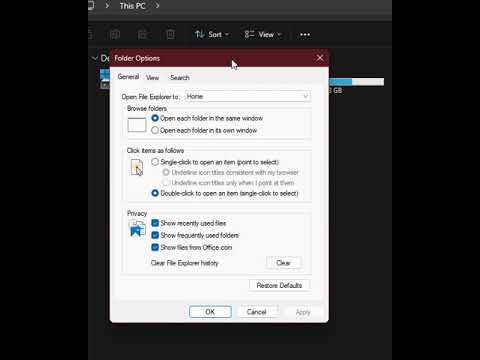
Apply the Changes: Click "Apply" and then "OK" to save your changes.
Step 1
Open File Explorer: You can do this by clicking on the File Explorer icon in your taskbar or by pressing Windows Key + E.
Step 2
Access the View Tab: Once File Explorer is open, click on the "View" tab located at the top of the window.
Step 3
Click on Show: In the "View" tab, click on the "Show" button in the toolbar.
Steps 4
Select Hidden Items: From the dropdown menu, check the box next to "Hidden items." This will make hidden files, folders, and drives visible.
Steps 5
Apply the Changes: Click "Apply" and then "OK" to save your changes.
Tags and Topics
Browse our collection to discover more content in these categories.
Video Information
Views
112.8K
Likes
674
Duration
0:17
Published
Oct 18, 2024
User Reviews
4.2
(22) Related Trending Topics
LIVE TRENDSRelated trending topics. Click any trend to explore more videos.