Save & Backup Photos to Google Photos 📸
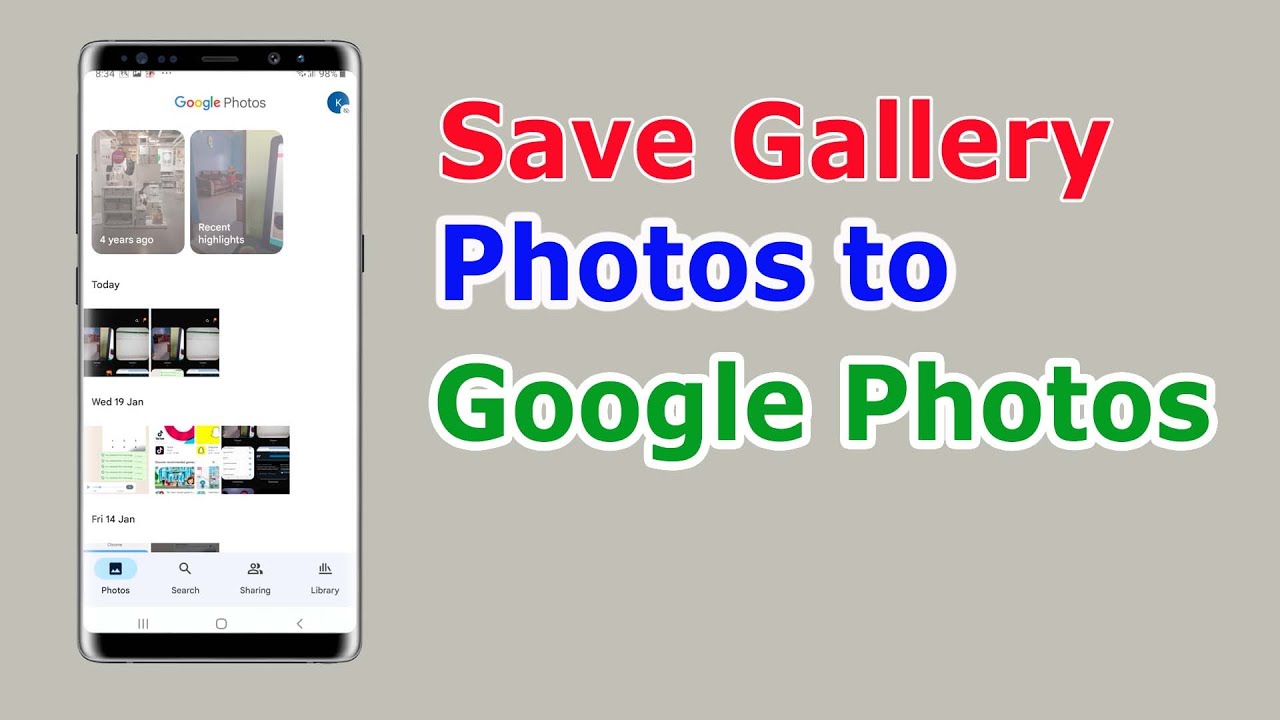
Learn how to save and backup gallery photos to Google Photos easily. Get tips on managing your photo backups efficiently.

windowsandphonetips
1.2M views • Jan 30, 2022
About this video
How to Save Photos to Google Photos. This video also answers some of the queries such as How to Backup Gallery Photos to Google Photos, How to backup photos to Google account, How to upload photos to Google account, Google par photos kaise save kare, How to transfer photos from my gallery to Google Photos
In this video today we will see how to automatically save photos or videos that is present in the gallery of your android device to the google account. Now for this one we are going to use Google photos app. So open this Google folder and there is an application here photos. Open it. After that what you need to do is you need to tap on the profile icon. Then you have to go to this option "photos settings". Go to this option backup and sync and you have to enable this option backup and sync so that the photos that are present in the gallery will be automatically backed up and it will be saved to your google account. Now down here are some settings. If you see there is an option "upload size". There are two options here basically original quality which will save the photo in higher resolution but it will take more space and there is another one which is storage saver which will compress the photo. The quality will be little bit lower but it will take less space. So depending upon the space that you have in your google drive account you have to select this option. Remember all of the photos that you upload in google photos will be backed up and it will be saved to the google drive account. Let me go back and there is one more option here mobile data usage. So if you want to backup and sync the photos by using mobile data then you can enable this option "Back up while roaming". So if you are walking outside and if you are taking pictures and if you want to save those pictures to the Google photos then you can enable this option "Back up while roaming" and then you can set the amount of MB that will be used. For example if I select 30 mb then my photos will be uploaded until 30 mb of data is consumed. Once 30 mb of data is consumed then the photos won't be uploaded or else you have the option to use "Unlimited data". So it depends upon how much data you have. Now again let me go back and there is one more option "Back up device folders". Now by default only the photos that are present in the camera roll of your gallery will be uploaded. But suppose if you want to upload and save photos that are present in other folders, for example skype or whatsapp or messenger then you can select those options from here also. So in this way you are able to upload the photos that are present in your device to the Google account by using Google photos application.
Subscribe to my channel: https://www.youtube.com/channel/UCTrtLqBz7dB6zYKm-HSvTjA
You can also check the following videos:
Play store not downloading apps
https://youtu.be/iGtEfYFJxUM
iPhone can not find Bluetooth devices
https://youtu.be/VsdsFu21ohk
How to clear cache, cookies, history and app cache in iPhone
https://youtu.be/Mm_YnaEnkLM
How to set contact photo in Samsung
https://youtu.be/-1QDCEZBVpY
WiFi of iPhone disconnects when it goes to sleep mode
https://youtu.be/W42wMKf9w5A
#googlephotosbackup
#savephotostogooglephotos
In this video today we will see how to automatically save photos or videos that is present in the gallery of your android device to the google account. Now for this one we are going to use Google photos app. So open this Google folder and there is an application here photos. Open it. After that what you need to do is you need to tap on the profile icon. Then you have to go to this option "photos settings". Go to this option backup and sync and you have to enable this option backup and sync so that the photos that are present in the gallery will be automatically backed up and it will be saved to your google account. Now down here are some settings. If you see there is an option "upload size". There are two options here basically original quality which will save the photo in higher resolution but it will take more space and there is another one which is storage saver which will compress the photo. The quality will be little bit lower but it will take less space. So depending upon the space that you have in your google drive account you have to select this option. Remember all of the photos that you upload in google photos will be backed up and it will be saved to the google drive account. Let me go back and there is one more option here mobile data usage. So if you want to backup and sync the photos by using mobile data then you can enable this option "Back up while roaming". So if you are walking outside and if you are taking pictures and if you want to save those pictures to the Google photos then you can enable this option "Back up while roaming" and then you can set the amount of MB that will be used. For example if I select 30 mb then my photos will be uploaded until 30 mb of data is consumed. Once 30 mb of data is consumed then the photos won't be uploaded or else you have the option to use "Unlimited data". So it depends upon how much data you have. Now again let me go back and there is one more option "Back up device folders". Now by default only the photos that are present in the camera roll of your gallery will be uploaded. But suppose if you want to upload and save photos that are present in other folders, for example skype or whatsapp or messenger then you can select those options from here also. So in this way you are able to upload the photos that are present in your device to the Google account by using Google photos application.
Subscribe to my channel: https://www.youtube.com/channel/UCTrtLqBz7dB6zYKm-HSvTjA
You can also check the following videos:
Play store not downloading apps
https://youtu.be/iGtEfYFJxUM
iPhone can not find Bluetooth devices
https://youtu.be/VsdsFu21ohk
How to clear cache, cookies, history and app cache in iPhone
https://youtu.be/Mm_YnaEnkLM
How to set contact photo in Samsung
https://youtu.be/-1QDCEZBVpY
WiFi of iPhone disconnects when it goes to sleep mode
https://youtu.be/W42wMKf9w5A
#googlephotosbackup
#savephotostogooglephotos
Tags and Topics
Browse our collection to discover more content in these categories.
Video Information
Views
1.2M
Likes
11.5K
Duration
2:54
Published
Jan 30, 2022
User Reviews
4.5
(240) Related Trending Topics
LIVE TRENDSRelated trending topics. Click any trend to explore more videos.
No specific trending topics match this video yet.
Explore All Trends