How to Save Google Docs to iPhone Files in 2024
Learn the step-by-step process to save Google Docs directly to your iPhone Files for easy access and management in 2024.

TutoRealm
23 views • Sep 7, 2024
About this video
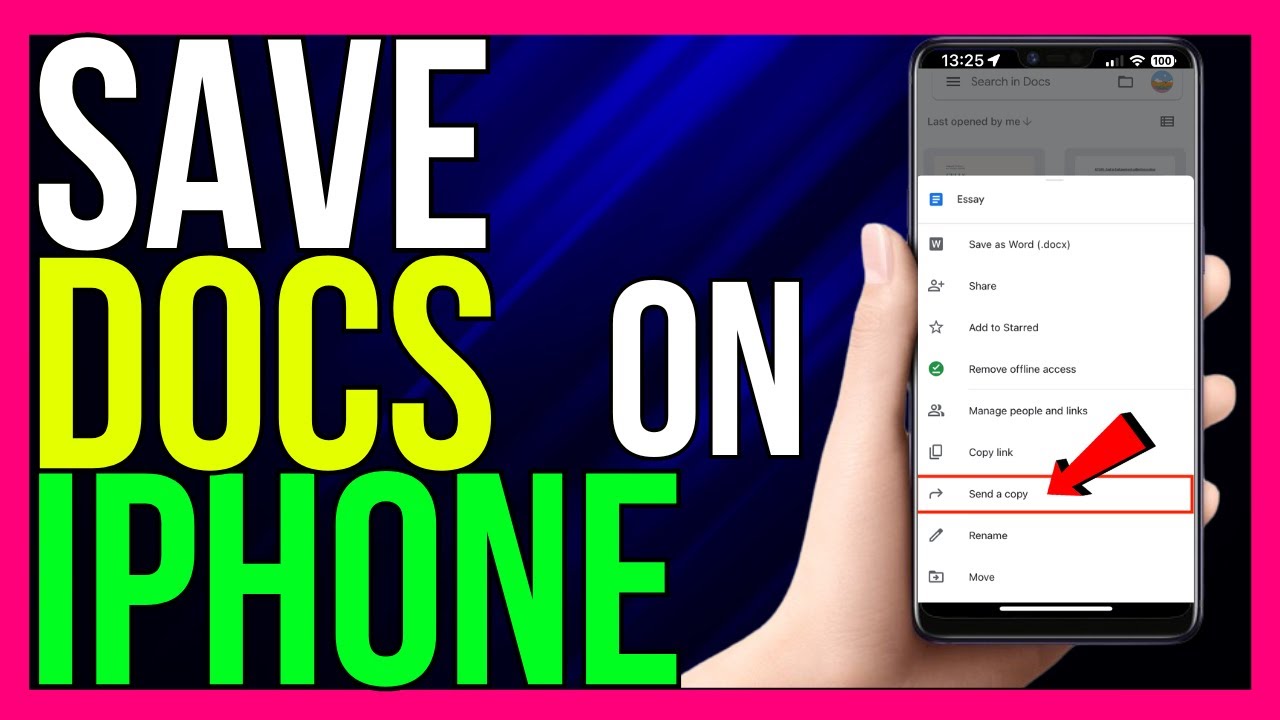
*How to Save Google Doc to iPhone Files (2024 METHOD!)*
Saving a Google Doc to your iPhone Files allows you to access and manage your documents directly from your device. Here’s the 2024 method for saving Google Docs to your iPhone Files app:
### Steps to Save Google Doc to iPhone Files:
1. **Open the Google Docs App**:
- Launch the Google Docs app on your iPhone and make sure you’re signed in to your Google account.
2. **Open the Document**:
- Navigate to the document you want to save, and tap on it to open.
3. **Access the Menu**:
- Tap the three dots (menu icon) in the top right corner of the screen.
4. **Select Share & Export**:
- From the drop-down menu, select **“Share & Export.”**
5. **Choose Save As**:
- Tap on **“Send a Copy”** from the options.
6. **Choose the Format**:
- You’ll be prompted to choose a format. Select either **PDF** or **Word (.docx)** depending on your preference.
7. **Save to Files**:
- Tap **“Save to Files”** from the share options that appear. This will open the Files app on your iPhone.
8. **Select the Destination Folder**:
- Choose the folder where you want to save the document in the Files app. You can save it to iCloud Drive, On My iPhone, or any other folder available in the Files app.
9. **Tap Save**:
- After selecting the folder, tap **“Save”** in the top right corner to complete the process.
### Additional Tips:
- **Organize Your Files**: To keep your documents organized, you can create new folders within the Files app before saving.
- **File Format**: Saving as a PDF is ideal for preserving the document’s layout, while .docx is better for future editing.
This method makes it easy to access your Google Docs directly from the Files app on your iPhone, allowing you to manage and organize your documents efficiently.
#googledocs #iphone #ios #save #files
- TutoRealm
Saving a Google Doc to your iPhone Files allows you to access and manage your documents directly from your device. Here’s the 2024 method for saving Google Docs to your iPhone Files app:
### Steps to Save Google Doc to iPhone Files:
1. **Open the Google Docs App**:
- Launch the Google Docs app on your iPhone and make sure you’re signed in to your Google account.
2. **Open the Document**:
- Navigate to the document you want to save, and tap on it to open.
3. **Access the Menu**:
- Tap the three dots (menu icon) in the top right corner of the screen.
4. **Select Share & Export**:
- From the drop-down menu, select **“Share & Export.”**
5. **Choose Save As**:
- Tap on **“Send a Copy”** from the options.
6. **Choose the Format**:
- You’ll be prompted to choose a format. Select either **PDF** or **Word (.docx)** depending on your preference.
7. **Save to Files**:
- Tap **“Save to Files”** from the share options that appear. This will open the Files app on your iPhone.
8. **Select the Destination Folder**:
- Choose the folder where you want to save the document in the Files app. You can save it to iCloud Drive, On My iPhone, or any other folder available in the Files app.
9. **Tap Save**:
- After selecting the folder, tap **“Save”** in the top right corner to complete the process.
### Additional Tips:
- **Organize Your Files**: To keep your documents organized, you can create new folders within the Files app before saving.
- **File Format**: Saving as a PDF is ideal for preserving the document’s layout, while .docx is better for future editing.
This method makes it easy to access your Google Docs directly from the Files app on your iPhone, allowing you to manage and organize your documents efficiently.
#googledocs #iphone #ios #save #files
- TutoRealm
Tags and Topics
Browse our collection to discover more content in these categories.
Video Information
Views
23
Duration
1:04
Published
Sep 7, 2024
Related Trending Topics
LIVE TRENDSRelated trending topics. Click any trend to explore more videos.
Trending Now