Restore WhatsApp Backup from Google Drive to iPhone (2026) 📱
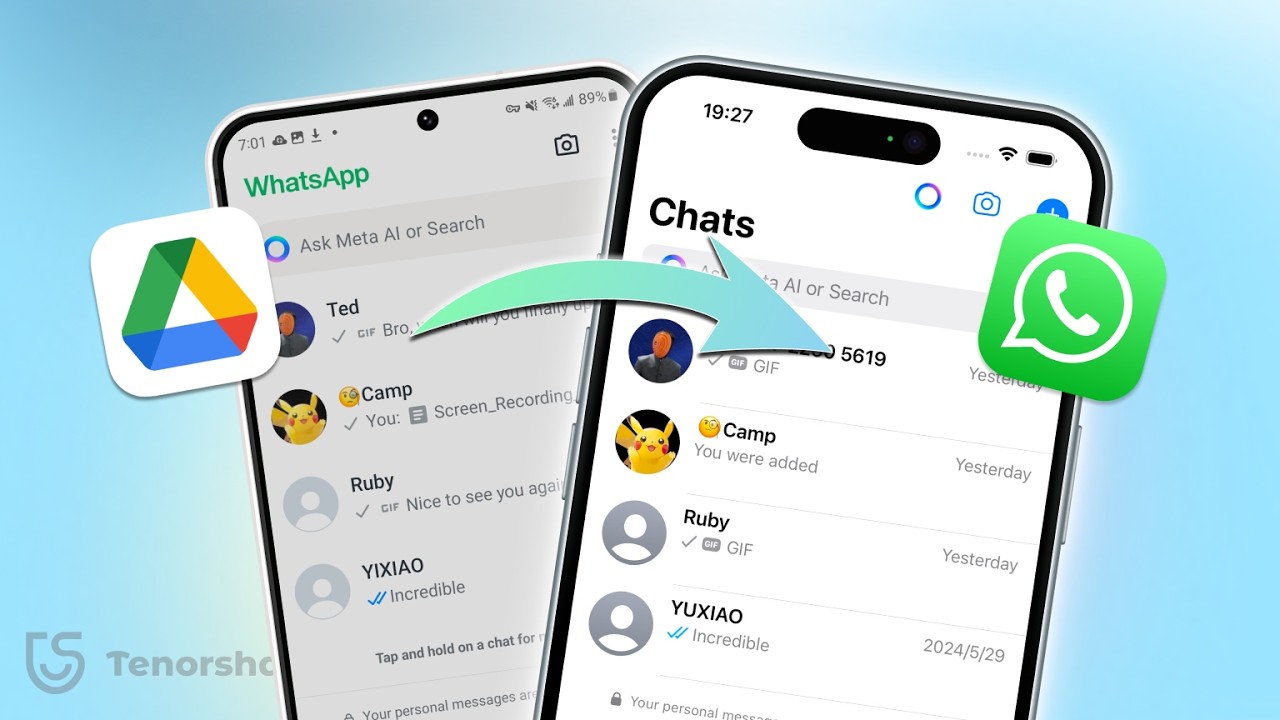
Learn how to transfer WhatsApp backups from Google Drive to iPhone easily, with or without an Android device, using iCareFone.

TenorshareOfficial
133.2K views • Jul 19, 2024
About this video
🚀You can retrieve your Google drive backup with iCareFone for WhatsApp Transfer:https://bit.ly/3zN1sQR
How to transfer your WhatsApp data from Google Drive to your iPhone smoothly? what if I only have an iPhone? How does it work? Here are 2 Ways to restore your data!
🟩Transfer WhatsApp from Android to iPhone 2024 [Official Free Method] :https://youtu.be/5w6HfAS7oAE
🔗How to Disable Two-step Verification in WhatsApp?
:https://www.tenorshare.com/faq/how-to-disable-two-step-verification-for-whatsapp.html
⏱TIMESTAMP:
00:00 Introduction
00:25 Method 1: Restore WhatsApp Backup from Android to iPhone Free
00:45 Method 2: Restore WhatsApp Backup from Google Drive to iPhone
01:00 Step 1: Backup WhatsApp on Google Drive
01:20 Step 2: Retrieve Backup from Google Drive
02:25 Step 3: Download WhatsApp Backup from Google Drive
02:45 Step 4: Verify WhatsApp Number
03:00 Step 5: Restore WhatsApp Backup to iPhone
#WhatsAppTransfer #GoogleDrive #iPhone #iCarefone #WhatsAppBackup
📌Method 1: Restore WhatsApp Backup from Android to iPhone Free
-Use the "Move to iOS" app on your Android phone.
-Transfer all WhatsApp data for free.
-Detailed steps are available in the provided link.
📌Method 2: Restore WhatsApp Backup from Google Drive to iPhone
-Ensure you have a recent WhatsApp backup on Google Drive.
-Turn off end-to-end encryption and disable two-step verification before backing up.
📌Step 1: Backup WhatsApp on Google Drive
-Open WhatsApp on your Android phone.
-Go to Settings → Chats → Chat backup.
-Choose your Google account and tap Back Up.
📌Step 2: Retrieve Backup from Google Drive
-Use iCarefone to retrieve WhatsApp backup from Google Drive.
-Install iCarefone and connect your iPhone.
📌Step 3: Download WhatsApp Backup from Google Drive
-Sign in with your Google account on iCarefone.
-Select the most recent backup and download it.
📌Step 4: Verify WhatsApp Number
-Verify the WhatsApp number used for the backup.
-Enter the verification code sent to your phone.
📌Step 5: Restore WhatsApp Backup to iPhone
-Connect your iPhone and click Restore in iCarefone.
-Log in to WhatsApp on your iPhone and complete the restoration.
🔔 Subscribe Here (it's FREE!): https://bit.ly/30eZwvG
----------Social Media-------------
Facebook: https://www.facebook.com/TenorshareOfficial/
Twitter: https://twitter.com/Tenorshare_Inc
Pinterest: https://www.pinterest.com/Tenorshare
Instagram: https://www.instagram.com/tenorsharesoftware
TikTok: https://www.tiktok.com/@tenorshare_tech_tips
Tenorshare Official Website: https://www.tenorshare.com
Tenorshare AI Youtube: https://www.youtube.com/@TenorshareAI
Tenorshare AI PDF: https://ai.tenorshare.com/
How to transfer your WhatsApp data from Google Drive to your iPhone smoothly? what if I only have an iPhone? How does it work? Here are 2 Ways to restore your data!
🟩Transfer WhatsApp from Android to iPhone 2024 [Official Free Method] :https://youtu.be/5w6HfAS7oAE
🔗How to Disable Two-step Verification in WhatsApp?
:https://www.tenorshare.com/faq/how-to-disable-two-step-verification-for-whatsapp.html
⏱TIMESTAMP:
00:00 Introduction
00:25 Method 1: Restore WhatsApp Backup from Android to iPhone Free
00:45 Method 2: Restore WhatsApp Backup from Google Drive to iPhone
01:00 Step 1: Backup WhatsApp on Google Drive
01:20 Step 2: Retrieve Backup from Google Drive
02:25 Step 3: Download WhatsApp Backup from Google Drive
02:45 Step 4: Verify WhatsApp Number
03:00 Step 5: Restore WhatsApp Backup to iPhone
#WhatsAppTransfer #GoogleDrive #iPhone #iCarefone #WhatsAppBackup
📌Method 1: Restore WhatsApp Backup from Android to iPhone Free
-Use the "Move to iOS" app on your Android phone.
-Transfer all WhatsApp data for free.
-Detailed steps are available in the provided link.
📌Method 2: Restore WhatsApp Backup from Google Drive to iPhone
-Ensure you have a recent WhatsApp backup on Google Drive.
-Turn off end-to-end encryption and disable two-step verification before backing up.
📌Step 1: Backup WhatsApp on Google Drive
-Open WhatsApp on your Android phone.
-Go to Settings → Chats → Chat backup.
-Choose your Google account and tap Back Up.
📌Step 2: Retrieve Backup from Google Drive
-Use iCarefone to retrieve WhatsApp backup from Google Drive.
-Install iCarefone and connect your iPhone.
📌Step 3: Download WhatsApp Backup from Google Drive
-Sign in with your Google account on iCarefone.
-Select the most recent backup and download it.
📌Step 4: Verify WhatsApp Number
-Verify the WhatsApp number used for the backup.
-Enter the verification code sent to your phone.
📌Step 5: Restore WhatsApp Backup to iPhone
-Connect your iPhone and click Restore in iCarefone.
-Log in to WhatsApp on your iPhone and complete the restoration.
🔔 Subscribe Here (it's FREE!): https://bit.ly/30eZwvG
----------Social Media-------------
Facebook: https://www.facebook.com/TenorshareOfficial/
Twitter: https://twitter.com/Tenorshare_Inc
Pinterest: https://www.pinterest.com/Tenorshare
Instagram: https://www.instagram.com/tenorsharesoftware
TikTok: https://www.tiktok.com/@tenorshare_tech_tips
Tenorshare Official Website: https://www.tenorshare.com
Tenorshare AI Youtube: https://www.youtube.com/@TenorshareAI
Tenorshare AI PDF: https://ai.tenorshare.com/
Video Information
Views
133.2K
Likes
524
Duration
4:42
Published
Jul 19, 2024
User Reviews
4.1
(26) Related Trending Topics
LIVE TRENDSRelated trending topics. Click any trend to explore more videos.
Trending Now