How to Resolve BitLocker Recovery Loop and Access Your PC
Experiencing the BitLocker recovery loop? Learn effective methods to recover your PC and regain access without permanent data loss. This guide provides step-by-step solutions to break free from the loop.

CyberMedics
21.4K views • Dec 14, 2023
About this video
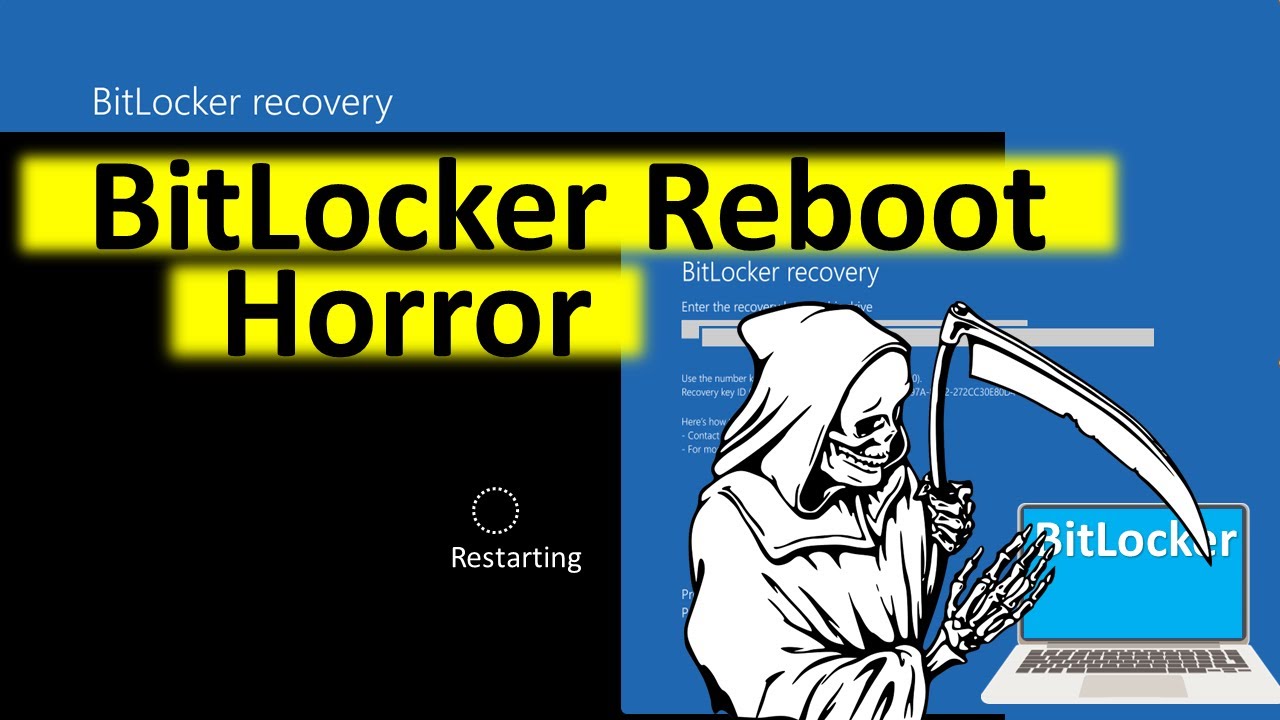
Tired of the endless BitLocker recovery loop? Don't worry, losing access to your computer doesn't have to be permanent! This video will guide you through simple yet effective methods to break free from the loop and regain control of your PC, if you have the recovery key.
Link to our deep dive on BitLocker: https://youtu.be/qnqnIuGEnH0?si=eJtY_7xTkThkvw2D
1. Commands Referenced in video:
Manage-bde -status c:
Manage-bde -unlock c: -rp "Your Recovery Key no quotes"
Manage-bde -protectors -disable c:
2. BitLocker Commands
https://learn.microsoft.com/en-us/windows-server/administration/windows-commands/manage-bde
a) Will give the status of BitLocker Protection on the drive
Manage-bde -status c:
b) Will unlock the drive if locked, otherwise will return an error
Manage-bde -unlock c: -rp "Your Recovery Key no quotes"
c) Will disable BitLocker Protection on your drive
Manage-bde -protectors -disable c:
d) Will give you the Drive ID & the Drive ID Password/BitLocker Key
manage-bde -protectors -get c:
From the Microsoft website bitlocker commands
manage-bde [-status] [-on] [-off] [-pause] [-resume] [-lock] [-unlock] [-autounlock] [-protectors] [-tpm]
[-setidentifier] [-forcerecovery] [-changepassword] [-changepin] [-changekey] [-keypackage] [-upgrade] [-wipefreespace] [{-?|/?}] [{-help|-h}]
Parameters
Parameter Description
manage-bde status Provides information about all drives on the computer, whether or not they are BitLocker-protected.
manage-bde on Encrypts the drive and turns on BitLocker.
manage-bde off Decrypts the drive and turns off BitLocker. All key protectors are removed when decryption is complete.
manage-bde pause Pauses encryption or decryption.
manage-bde resume Resumes encryption or decryption.
manage-bde lock Prevents access to BitLocker-protected data.
manage-bde unlock Allows access to BitLocker-protected data with a recovery password or a recovery key.
manage-bde autounlock Manages automatic unlocking of data drives.
manage-bde protectors Manages protection methods for the encryption key.
manage-bde tpm Configures the computer's Trusted Platform Module (TPM).
manage-bde ForceRecovery Forces a BitLocker-protected drive into recovery mode on restart. When the computer restarts, only a recovery password or recovery key can be used to unlock the drive.
manage-bde changepassword Modifies the password for a data drive.
manage-bde changepin Modifies the PIN for an operating system drive.
manage-bde changekey Modifies the startup key for an operating system drive.
manage-bde KeyPackage Generates a key package for a drive.
manage-bde upgrade Upgrades the BitLocker version.
manage-bde WipeFreeSpace Wipes the free space on a drive.
-? or /? Displays brief Help at the command prompt.
-help or -h Displays complete Help at the command prompt.
3. Many users had problems with "Skip Drive" , "Restart" etc. If that is the case one or more of the methods below should get you around those problems.
All must be run from command prompt as administrator
I. How to restart PC at the Command Prompt?
shutdown /r /f /t 00 and press Enter
/r: Specifies that the computer should restart.
/f: Forces any running applications to close (app data not saved).
/t 00 Sets the delay time before the restart to zero seconds.
II. How to shut down your computer at the Command Prompt instead of restarting?
shutdown /s /f /t 00
/s: Specifies that the computer should shutdown.
/f: Forces any running applications to close (app data not saved).
/t 00 Sets the delay time before the restart to zero seconds.
III. Boot into BIOS from command prompt
a. shutdown /r /fw
/r tells the PC to restart.
/fw tells the PC to reboot to the firmware (UEFI) user interface.
b. Older BIOS systems: press a specific key (such as F2, F12, F10, or DEL) repeatedly during startup
IV. Force PC into Windows Recovery Environment (WinRE) (If no skip drive option)
a. From command prompt
shutdown /r /o /f /t 00
/r: Specifies that the computer should restart.
/o: Specifies that the computer should restart into the Advanced Startup Options menu (WinRE).
/f: Forces any running applications to close.
/t 00: Sets the delay time before the restart to zero seconds.
b. Force Restart During Boot. L
Shut down: your PC completely.
Turn it on: and watch for the Windows logo.
Immediately press and hold the power button: to force it to shut down again as soon as the Windows logo appears.
Repeat: this process two or three times.
On the next boot, Windows will prepare the Automatic Repair and boot into the recovery environment.
c. Using Installation Media (USB/DVD)
Boot from the media.
On the next screen, select "Repair your computer" instead of installing Windows.
Select"Troubleshoot" and then "Startup Repair".
#BitLocker #Windows #BitLockerRecoveryLoop #FixBitLocker #StuckInBitLockerRecoveryLoop #BitLockerRecoveryKey #UnlockBitLockerDrive #Troubleshooting
Link to our deep dive on BitLocker: https://youtu.be/qnqnIuGEnH0?si=eJtY_7xTkThkvw2D
1. Commands Referenced in video:
Manage-bde -status c:
Manage-bde -unlock c: -rp "Your Recovery Key no quotes"
Manage-bde -protectors -disable c:
2. BitLocker Commands
https://learn.microsoft.com/en-us/windows-server/administration/windows-commands/manage-bde
a) Will give the status of BitLocker Protection on the drive
Manage-bde -status c:
b) Will unlock the drive if locked, otherwise will return an error
Manage-bde -unlock c: -rp "Your Recovery Key no quotes"
c) Will disable BitLocker Protection on your drive
Manage-bde -protectors -disable c:
d) Will give you the Drive ID & the Drive ID Password/BitLocker Key
manage-bde -protectors -get c:
From the Microsoft website bitlocker commands
manage-bde [-status] [-on] [-off] [-pause] [-resume] [-lock] [-unlock] [-autounlock] [-protectors] [-tpm]
[-setidentifier] [-forcerecovery] [-changepassword] [-changepin] [-changekey] [-keypackage] [-upgrade] [-wipefreespace] [{-?|/?}] [{-help|-h}]
Parameters
Parameter Description
manage-bde status Provides information about all drives on the computer, whether or not they are BitLocker-protected.
manage-bde on Encrypts the drive and turns on BitLocker.
manage-bde off Decrypts the drive and turns off BitLocker. All key protectors are removed when decryption is complete.
manage-bde pause Pauses encryption or decryption.
manage-bde resume Resumes encryption or decryption.
manage-bde lock Prevents access to BitLocker-protected data.
manage-bde unlock Allows access to BitLocker-protected data with a recovery password or a recovery key.
manage-bde autounlock Manages automatic unlocking of data drives.
manage-bde protectors Manages protection methods for the encryption key.
manage-bde tpm Configures the computer's Trusted Platform Module (TPM).
manage-bde ForceRecovery Forces a BitLocker-protected drive into recovery mode on restart. When the computer restarts, only a recovery password or recovery key can be used to unlock the drive.
manage-bde changepassword Modifies the password for a data drive.
manage-bde changepin Modifies the PIN for an operating system drive.
manage-bde changekey Modifies the startup key for an operating system drive.
manage-bde KeyPackage Generates a key package for a drive.
manage-bde upgrade Upgrades the BitLocker version.
manage-bde WipeFreeSpace Wipes the free space on a drive.
-? or /? Displays brief Help at the command prompt.
-help or -h Displays complete Help at the command prompt.
3. Many users had problems with "Skip Drive" , "Restart" etc. If that is the case one or more of the methods below should get you around those problems.
All must be run from command prompt as administrator
I. How to restart PC at the Command Prompt?
shutdown /r /f /t 00 and press Enter
/r: Specifies that the computer should restart.
/f: Forces any running applications to close (app data not saved).
/t 00 Sets the delay time before the restart to zero seconds.
II. How to shut down your computer at the Command Prompt instead of restarting?
shutdown /s /f /t 00
/s: Specifies that the computer should shutdown.
/f: Forces any running applications to close (app data not saved).
/t 00 Sets the delay time before the restart to zero seconds.
III. Boot into BIOS from command prompt
a. shutdown /r /fw
/r tells the PC to restart.
/fw tells the PC to reboot to the firmware (UEFI) user interface.
b. Older BIOS systems: press a specific key (such as F2, F12, F10, or DEL) repeatedly during startup
IV. Force PC into Windows Recovery Environment (WinRE) (If no skip drive option)
a. From command prompt
shutdown /r /o /f /t 00
/r: Specifies that the computer should restart.
/o: Specifies that the computer should restart into the Advanced Startup Options menu (WinRE).
/f: Forces any running applications to close.
/t 00: Sets the delay time before the restart to zero seconds.
b. Force Restart During Boot. L
Shut down: your PC completely.
Turn it on: and watch for the Windows logo.
Immediately press and hold the power button: to force it to shut down again as soon as the Windows logo appears.
Repeat: this process two or three times.
On the next boot, Windows will prepare the Automatic Repair and boot into the recovery environment.
c. Using Installation Media (USB/DVD)
Boot from the media.
On the next screen, select "Repair your computer" instead of installing Windows.
Select"Troubleshoot" and then "Startup Repair".
#BitLocker #Windows #BitLockerRecoveryLoop #FixBitLocker #StuckInBitLockerRecoveryLoop #BitLockerRecoveryKey #UnlockBitLockerDrive #Troubleshooting
Tags and Topics
Browse our collection to discover more content in these categories.
Video Information
Views
21.4K
Likes
318
Duration
2:26
Published
Dec 14, 2023
User Reviews
4.6
(4) Related Trending Topics
LIVE TRENDSRelated trending topics. Click any trend to explore more videos.
No specific trending topics match this video yet.
Explore All Trends