Install SQL Server 2017 Developer Free on Windows
Learn how to install SQL Server 2017 Developer edition on Windows 8/10 for free in this step-by-step guide. 💻

SQL Server 101
10.7K views • Apr 15, 2020
About this video
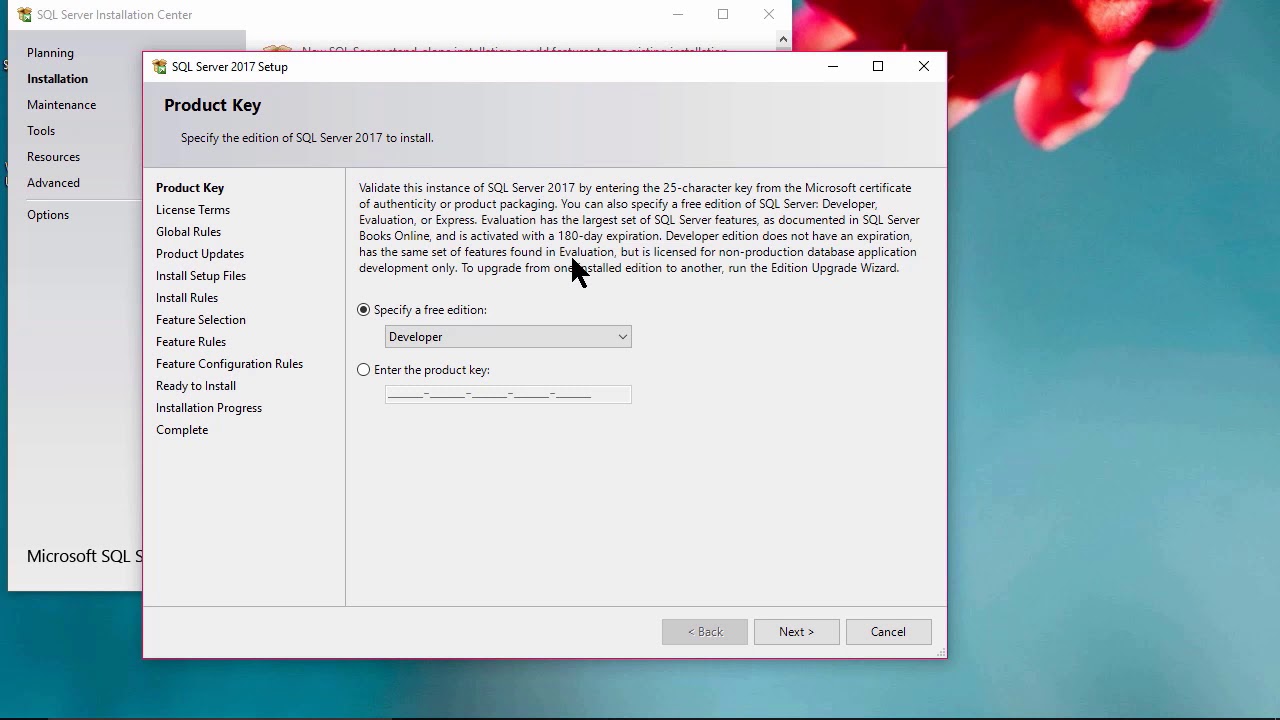
In this video, we'll have a look at how to install SQL Server on your Windows 8 or Windows 10 computer - for FREE.
My SQL Server Udemy courses are:
70-461, 70-761 Querying Microsoft SQL Server with T-SQL: https://rebrand.ly/querying-microsoft-sql-server
98-364: Database Fundamentals (Microsoft SQL Server): https://rebrand.ly/database-fundamentals
70-462 SQL Server Database Administration (DBA): https://rebrand.ly/sql-server-dba
Microsoft SQL Server Reporting Services (SSRS): https://rebrand.ly/sql-server-ssrs
SQL Server Integration Services (SSIS): https://rebrand.ly/sql-server-ssis
SQL Server Analysis Services (SSAS): https://rebrand.ly/sql-server-ssas-mdx
Microsoft Power Pivot (Excel) and SSAS (Tabular DAX model): https://rebrand.ly/microsoft-powerpivot-ssas-tabular-dax
----
The good news is that you don't need a server to install it - your desktop and laptop will probably be fine.
In this video:
1. We will download SQL Server Developer Edition - for free. It used to sell for US$200. I will be using SQL Server 2017 Developer Edition, but feel free to use SQL Server 2019 Developer Edition; it's basically the same.
If you want SQL Server 2019, please go to https://www.microsoft.com/en-gb/sql-server/sql-server-2019 . I would recommend downloading the Developer edition.
2. We will then install SQL Server Developer Edition. What is very important is not selecting all of the options, but just a free.
3. We will then install SQL Server Management Studio (SSMS). This is the front-engine, the part that you will use. I will be installing SSMS 17.4, but the latest version is SSMS 18. The major difference between the two is that the icons have been re-stylised.
My SQL Server Udemy courses are:
70-461, 70-761 Querying Microsoft SQL Server with T-SQL: https://rebrand.ly/querying-microsoft-sql-server
98-364: Database Fundamentals (Microsoft SQL Server): https://rebrand.ly/database-fundamentals
70-462 SQL Server Database Administration (DBA): https://rebrand.ly/sql-server-dba
Microsoft SQL Server Reporting Services (SSRS): https://rebrand.ly/sql-server-ssrs
SQL Server Integration Services (SSIS): https://rebrand.ly/sql-server-ssis
SQL Server Analysis Services (SSAS): https://rebrand.ly/sql-server-ssas-mdx
Microsoft Power Pivot (Excel) and SSAS (Tabular DAX model): https://rebrand.ly/microsoft-powerpivot-ssas-tabular-dax
----
The good news is that you don't need a server to install it - your desktop and laptop will probably be fine.
In this video:
1. We will download SQL Server Developer Edition - for free. It used to sell for US$200. I will be using SQL Server 2017 Developer Edition, but feel free to use SQL Server 2019 Developer Edition; it's basically the same.
If you want SQL Server 2019, please go to https://www.microsoft.com/en-gb/sql-server/sql-server-2019 . I would recommend downloading the Developer edition.
2. We will then install SQL Server Developer Edition. What is very important is not selecting all of the options, but just a free.
3. We will then install SQL Server Management Studio (SSMS). This is the front-engine, the part that you will use. I will be installing SSMS 17.4, but the latest version is SSMS 18. The major difference between the two is that the icons have been re-stylised.
Tags and Topics
Browse our collection to discover more content in these categories.
Video Information
Views
10.7K
Likes
89
Duration
21:23
Published
Apr 15, 2020
User Reviews
4.2
(2) Related Trending Topics
LIVE TRENDSRelated trending topics. Click any trend to explore more videos.
No specific trending topics match this video yet.
Explore All Trends