Install SQL Server & SSMS on Windows 10/11 (2023 Guide)
Learn how to install Microsoft SQL Server and SSMS on Windows 10/11 with this step-by-step guide for SQL query setup in 2023. 🔧

Geeky Script
1.2M views • Jan 9, 2023
About this video
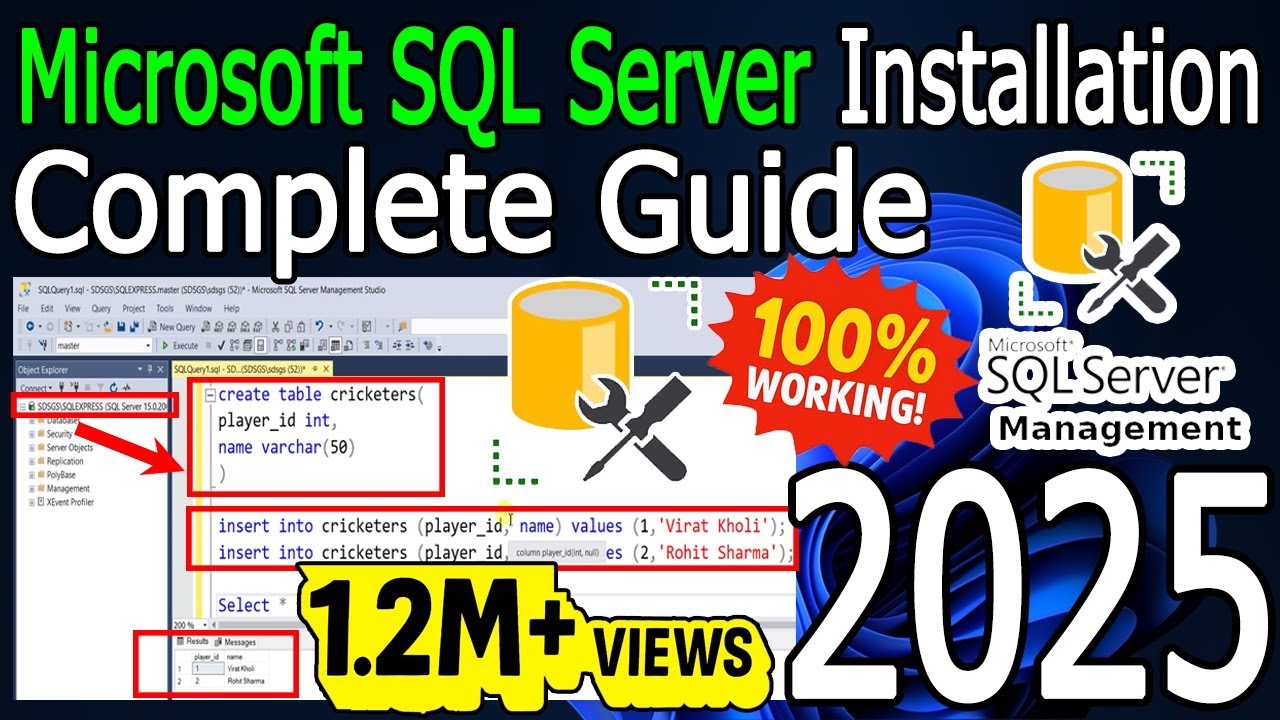
Hello Everyone! Today in this video I am going to step by step guide you on How to install Microsoft SQL Server for writing SQL queries on Windows 10/11. Windows (64-bit).
► Follow me on Instagram: https://www.instagram.com/geekyscript/
► Subscribe to Geeky Script Vlog Channel: https://www.youtube.com/@GeekyScriptVlogs/
► Subscribe to Geeky Syntax Channel: https://www.youtube.com/@geekysyntax/
Geeky Script ( @GeekyScript) is a Computer Science - Educational Videos Creator 🎉
You can support us by buying a coffee ☕️ here —
https://www.buymeacoffee.com/geekyscript
✻ I really hope you find this video useful. ♥
✻ Please click on the CC button to read the subtitles of this video.
🚀 Latest SQL Server Management Studio 21 [ 2025 Update ]: https://youtu.be/D9yp9a90wJI
Installing Microsoft SQL Server 2019 is very easy. Just follow the following steps and there you go to create your first SQL database!! So let's begin.
Step 1. To install Microsoft SQL Server 2019 first you just need to download .exe file from the following Link:
https://www.microsoft.com/en-in/sql-server/sql-server-downloads
Step 2. After downloading Microsoft SQL Server 2019 run the .exe by double-clicking it.
Microsoft SQL Server is a relational database management system developed by Microsoft. As a database server, it is a software product with the primary function of storing and retrieving data as requested by other software applications—which may run either on the same computer or on another computer across a network.
Step 3. You need to click the License agreement as shown in the video.
Step 4. Now simply install all Microsoft SQL Server 2019 as shown in the video.
Step 5. After installation, you need to install SQL Server Management Studio or SSMS. SO download it from the following link:
https://docs.microsoft.com/en-us/sql/ssms/download-sql-server-management-studio-ssms?view=sql-server-ver15
Step 6. Now after installation simply login into the server using windows authentication as shown in the video.
Step 7. After making a connection now it's time to create your first SQL database. For that, simply type CREATE DATABASE yourdatabasename;
And there you go!!
#SQLserver #SQLinstallation #sqltutorial #Windows10/11
Topics addressed in this tutorial:
How To Download And Install MySQL and Workbench IDE On Windows 10/11 64 bit OS
How to install the Microsoft SQL Server 2019 on Windows 10/11
Install Microsoft SQL Server 2019 on Windows 10/11
How to Install Microsoft SQL Server 2019 and Get Started
🔗 Related Videos:
🎙️ Turn Text into Realistic Speech Using Python in 5 Lines! [ 2025 Update ] ft. edge-tts – https://youtu.be/ik1jY22PlP4
🔥 Complete Python Project Tutorials [2025 Update]: ►https://www.youtube.com/watch?v=spSpaFCaWO8&list=PLFaWDe_XIA4rJCL6nOuvvUcg7-ER8yMyn&index=2
🔥 Build Python Face Detector in Just 10 Lines [2025 Update] OpenCV: https://youtu.be/spSpaFCaWO8
🔗 Related Articles on Complete Python Projects:
👉https://geekyscript.com/turn-your-python-text-into-handwritten-notes-with-just-one-script/
👉https://geekyscript.com/turned-jpgs-into-pdfs-in-seconds/
👉https://geekyscript.com/insane-qr-code-generator-with-gui-logo-python-magic/
👉https://geekyscript.com/this-10-line-python-script-can-detect-faces-like-magic-you-wont-believe-how-easy-it-is/
👉https://geekyscript.com/turn-text-into-realistic-speech-using-python-in-5-lines/
MY RELATED VIDEOS:
✻ All about WordPress: https://youtube.com/playlist?list=PLFaWDe_XIA4ru1KDALhCtO5utnC9LfQeu&si=hdxNaeqBPIYx2RI_
✻ All about ECommerce WordPress: https://youtu.be/76E2QmjhRtQ
✻ All about Portfolio Website WordPress: https://youtu.be/Z6m6gxP3qlE
✻ All about Android Studio: https://youtu.be/10IvxreBoIA
✻ All about PostgreSQL: https://youtu.be/F99TVfE7daM
✻ All about MongoDB: https://youtu.be/kgIIpsZvFHg
✻ All about MySQL: https://youtu.be/x-kA7JoV6xw
✻ All about eBook: https://youtu.be/-7f2HqSSeo0
✻ All about React: https://youtu.be/c38i0f0Q08o
✻ All about NextJS: https://youtu.be/pCzofI8vPo4
✻ All about Angular: https://youtu.be/UeRaz971X4U
✻ All about Microsoft SQL Server: https://youtu.be/tGqhlV-kaFU
✻ All about Wamp: https://youtu.be/91RfoD2A1Lo
✻ All about Visual Studio: https://youtu.be/SViilF85ues
THANK YOU so much for watching!
Please make sure to LIKE and SHARE the video and SUBSCRIBE to the channel for more such videos :)
CONNECT WITH ME ON:
✻ Website: https://geekyscript.com/
✻ Instagram: https://www.instagram.com/geekyscript/
✻ LinkedIn: https://www.linkedin.com/in/geekyscript/
✻ X: https://x.com/GeekyScript
✻ Email: geekyscript@outlook.com
✻ YouTube channel: https://www.youtube.com/c/geekyscript/
Affiliate Disclaimer: Some of the links above are affiliate (referral) links which means if you do click and purchase through them, then I may receive a commission. This helps support the free content on this channel.
► Follow me on Instagram: https://www.instagram.com/geekyscript/
► Subscribe to Geeky Script Vlog Channel: https://www.youtube.com/@GeekyScriptVlogs/
► Subscribe to Geeky Syntax Channel: https://www.youtube.com/@geekysyntax/
Geeky Script ( @GeekyScript) is a Computer Science - Educational Videos Creator 🎉
You can support us by buying a coffee ☕️ here —
https://www.buymeacoffee.com/geekyscript
✻ I really hope you find this video useful. ♥
✻ Please click on the CC button to read the subtitles of this video.
🚀 Latest SQL Server Management Studio 21 [ 2025 Update ]: https://youtu.be/D9yp9a90wJI
Installing Microsoft SQL Server 2019 is very easy. Just follow the following steps and there you go to create your first SQL database!! So let's begin.
Step 1. To install Microsoft SQL Server 2019 first you just need to download .exe file from the following Link:
https://www.microsoft.com/en-in/sql-server/sql-server-downloads
Step 2. After downloading Microsoft SQL Server 2019 run the .exe by double-clicking it.
Microsoft SQL Server is a relational database management system developed by Microsoft. As a database server, it is a software product with the primary function of storing and retrieving data as requested by other software applications—which may run either on the same computer or on another computer across a network.
Step 3. You need to click the License agreement as shown in the video.
Step 4. Now simply install all Microsoft SQL Server 2019 as shown in the video.
Step 5. After installation, you need to install SQL Server Management Studio or SSMS. SO download it from the following link:
https://docs.microsoft.com/en-us/sql/ssms/download-sql-server-management-studio-ssms?view=sql-server-ver15
Step 6. Now after installation simply login into the server using windows authentication as shown in the video.
Step 7. After making a connection now it's time to create your first SQL database. For that, simply type CREATE DATABASE yourdatabasename;
And there you go!!
#SQLserver #SQLinstallation #sqltutorial #Windows10/11
Topics addressed in this tutorial:
How To Download And Install MySQL and Workbench IDE On Windows 10/11 64 bit OS
How to install the Microsoft SQL Server 2019 on Windows 10/11
Install Microsoft SQL Server 2019 on Windows 10/11
How to Install Microsoft SQL Server 2019 and Get Started
🔗 Related Videos:
🎙️ Turn Text into Realistic Speech Using Python in 5 Lines! [ 2025 Update ] ft. edge-tts – https://youtu.be/ik1jY22PlP4
🔥 Complete Python Project Tutorials [2025 Update]: ►https://www.youtube.com/watch?v=spSpaFCaWO8&list=PLFaWDe_XIA4rJCL6nOuvvUcg7-ER8yMyn&index=2
🔥 Build Python Face Detector in Just 10 Lines [2025 Update] OpenCV: https://youtu.be/spSpaFCaWO8
🔗 Related Articles on Complete Python Projects:
👉https://geekyscript.com/turn-your-python-text-into-handwritten-notes-with-just-one-script/
👉https://geekyscript.com/turned-jpgs-into-pdfs-in-seconds/
👉https://geekyscript.com/insane-qr-code-generator-with-gui-logo-python-magic/
👉https://geekyscript.com/this-10-line-python-script-can-detect-faces-like-magic-you-wont-believe-how-easy-it-is/
👉https://geekyscript.com/turn-text-into-realistic-speech-using-python-in-5-lines/
MY RELATED VIDEOS:
✻ All about WordPress: https://youtube.com/playlist?list=PLFaWDe_XIA4ru1KDALhCtO5utnC9LfQeu&si=hdxNaeqBPIYx2RI_
✻ All about ECommerce WordPress: https://youtu.be/76E2QmjhRtQ
✻ All about Portfolio Website WordPress: https://youtu.be/Z6m6gxP3qlE
✻ All about Android Studio: https://youtu.be/10IvxreBoIA
✻ All about PostgreSQL: https://youtu.be/F99TVfE7daM
✻ All about MongoDB: https://youtu.be/kgIIpsZvFHg
✻ All about MySQL: https://youtu.be/x-kA7JoV6xw
✻ All about eBook: https://youtu.be/-7f2HqSSeo0
✻ All about React: https://youtu.be/c38i0f0Q08o
✻ All about NextJS: https://youtu.be/pCzofI8vPo4
✻ All about Angular: https://youtu.be/UeRaz971X4U
✻ All about Microsoft SQL Server: https://youtu.be/tGqhlV-kaFU
✻ All about Wamp: https://youtu.be/91RfoD2A1Lo
✻ All about Visual Studio: https://youtu.be/SViilF85ues
THANK YOU so much for watching!
Please make sure to LIKE and SHARE the video and SUBSCRIBE to the channel for more such videos :)
CONNECT WITH ME ON:
✻ Website: https://geekyscript.com/
✻ Instagram: https://www.instagram.com/geekyscript/
✻ LinkedIn: https://www.linkedin.com/in/geekyscript/
✻ X: https://x.com/GeekyScript
✻ Email: geekyscript@outlook.com
✻ YouTube channel: https://www.youtube.com/c/geekyscript/
Affiliate Disclaimer: Some of the links above are affiliate (referral) links which means if you do click and purchase through them, then I may receive a commission. This helps support the free content on this channel.
Tags and Topics
Browse our collection to discover more content in these categories.
Video Information
Views
1.2M
Likes
10.9K
Duration
8:10
Published
Jan 9, 2023
User Reviews
4.5
(246) Related Trending Topics
LIVE TRENDSRelated trending topics. Click any trend to explore more videos.
No specific trending topics match this video yet.
Explore All Trends