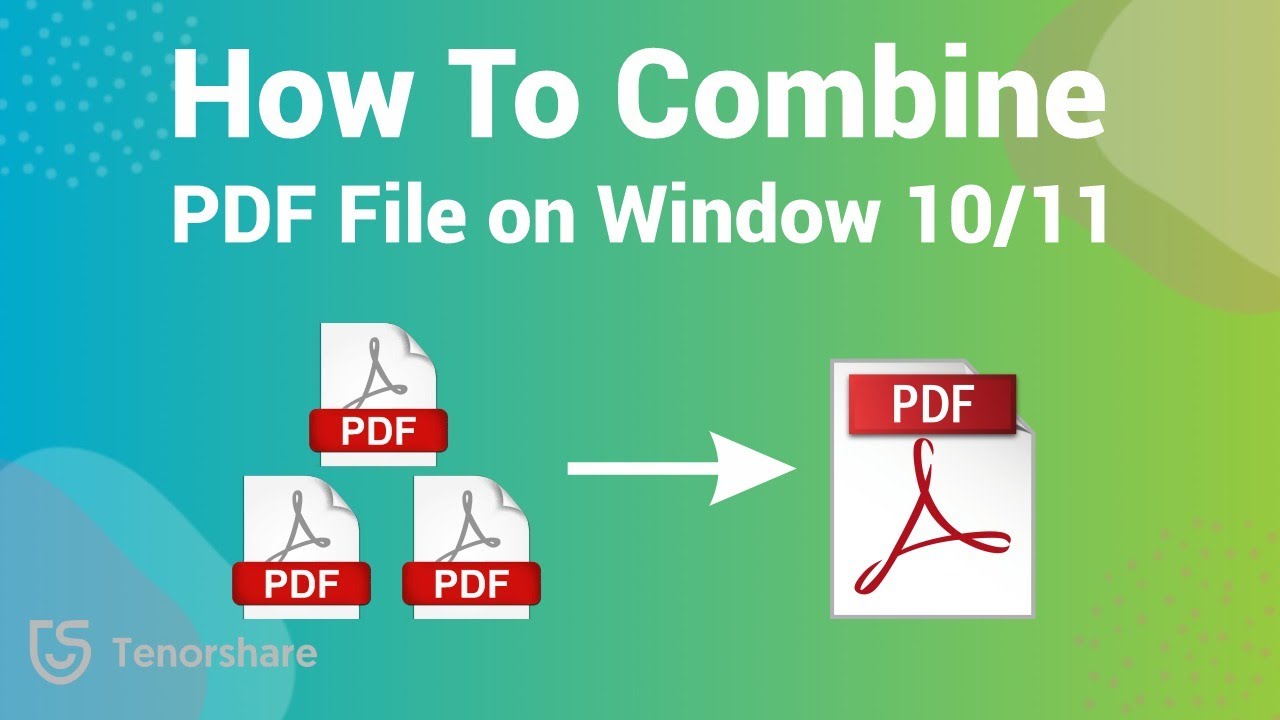
How to Combine PDF Files on Windows 10/11: Free, Offline, and Online Methods
Learn various ways to merge PDF files on Windows 10 and 11, including free offline and online tools. Use Tenorshare PDNob for quick and easy PDF combining without quality loss.
TenorshareOfficial
1.9K views • Mar 24, 2025
About this video
Tenorshare PDNob (https://bit.ly/41YzA81) Combine PDF Files Windows 10/11 with Just Few Clicks.
Many compression tools reduce quality, making text blurry or images pixelated. In this video, we’ll show you two easy ways to reduce PDF file size while keeping the original quality intact.
⏱ *TIMESTAMP*
00:00 Introduction
00:28 Method 1: Use Microsoft Print to PDF (Built-in, Free & Offline)
01:16 Method 2: Merge PDFs Using Tenorshare PDNob (Easy & Efficient)
02:24 Method 3: Merge PDFs Using an Online Tool (No Installation Needed)
03:13 Recap of Methods
💡 *How to Combine PDF Files Windows 10/11 Text Guide*
🛠 Method 1: Use Microsoft Print to PDF (Built-in, Free & Offline)
If you’re on Windows, you can use the built-in Microsoft Print to PDF feature to reduce file size.
✅ Steps:
1️⃣ Open the PDF in Microsoft Edge, Adobe Reader, or Chrome.
2️⃣ Click Print and select Microsoft Print to PDF as the printer.
3️⃣ Adjust settings (e.g., lower resolution).
4️⃣ Click Print, then save the new, compressed PDF.
🖥️ Method 2: Combine PDFs Using Tenorshare PDNob (Easy & Efficient)
For a faster and better compression solution, Tenorshare PDNob PDF Editor is the best choice. Unlike free built-in methods, it allows you to reduce file size while maintaining image and text quality.
🔹 Download & install: Tenorshare PDNob PDF Editor.
🔹 Steps to Combine:
1️⃣ Open Tenorshare PDNob PDF Editor.
2️⃣ Click Open File and select the first PDF.
3️⃣ Click Merge PDFs and add additional PDF files.
4️⃣ Arrange the PDFs in your preferred order.
5️⃣ Click Merge and save the final document.
👇 *You might also want to know*
How to Compress the Size of a PDF: https://youtu.be/62bNZIzsQTY
📑 *Tenorshare PDNob Official Article Links*
https://www.tenorshare.com/edit-pdf/how-to-combine-pdf-files-without-acrobat.html
⚠ *Important notice*
#tenorshare #pdnob #combinepdf
🔔 Subscribe Here (it's FREE!): https://bit.ly/30eZwvG
----------Social Media-------------
Facebook: https://www.facebook.com/TenorshareOfficial/
Twitter: https://twitter.com/Tenorshare_Inc
Pinterest: https://www.pinterest.com/Tenorshare
Instagram: https://www.instagram.com/tenorsharesoftware
TikTok: https://www.tiktok.com/@tenorshare_tech_tips
Tenorshare Official Website: https://www.tenorshare.com
Tenorshare AI Youtube: https://www.youtube.com/@TenorshareAI
Tenorshare AI PDF: https://ai.tenorshare.com/
Get more freebies on Discord: https://discord.com/invite/qDFjcjsDXe
Many compression tools reduce quality, making text blurry or images pixelated. In this video, we’ll show you two easy ways to reduce PDF file size while keeping the original quality intact.
⏱ *TIMESTAMP*
00:00 Introduction
00:28 Method 1: Use Microsoft Print to PDF (Built-in, Free & Offline)
01:16 Method 2: Merge PDFs Using Tenorshare PDNob (Easy & Efficient)
02:24 Method 3: Merge PDFs Using an Online Tool (No Installation Needed)
03:13 Recap of Methods
💡 *How to Combine PDF Files Windows 10/11 Text Guide*
🛠 Method 1: Use Microsoft Print to PDF (Built-in, Free & Offline)
If you’re on Windows, you can use the built-in Microsoft Print to PDF feature to reduce file size.
✅ Steps:
1️⃣ Open the PDF in Microsoft Edge, Adobe Reader, or Chrome.
2️⃣ Click Print and select Microsoft Print to PDF as the printer.
3️⃣ Adjust settings (e.g., lower resolution).
4️⃣ Click Print, then save the new, compressed PDF.
🖥️ Method 2: Combine PDFs Using Tenorshare PDNob (Easy & Efficient)
For a faster and better compression solution, Tenorshare PDNob PDF Editor is the best choice. Unlike free built-in methods, it allows you to reduce file size while maintaining image and text quality.
🔹 Download & install: Tenorshare PDNob PDF Editor.
🔹 Steps to Combine:
1️⃣ Open Tenorshare PDNob PDF Editor.
2️⃣ Click Open File and select the first PDF.
3️⃣ Click Merge PDFs and add additional PDF files.
4️⃣ Arrange the PDFs in your preferred order.
5️⃣ Click Merge and save the final document.
👇 *You might also want to know*
How to Compress the Size of a PDF: https://youtu.be/62bNZIzsQTY
📑 *Tenorshare PDNob Official Article Links*
https://www.tenorshare.com/edit-pdf/how-to-combine-pdf-files-without-acrobat.html
⚠ *Important notice*
#tenorshare #pdnob #combinepdf
🔔 Subscribe Here (it's FREE!): https://bit.ly/30eZwvG
----------Social Media-------------
Facebook: https://www.facebook.com/TenorshareOfficial/
Twitter: https://twitter.com/Tenorshare_Inc
Pinterest: https://www.pinterest.com/Tenorshare
Instagram: https://www.instagram.com/tenorsharesoftware
TikTok: https://www.tiktok.com/@tenorshare_tech_tips
Tenorshare Official Website: https://www.tenorshare.com
Tenorshare AI Youtube: https://www.youtube.com/@TenorshareAI
Tenorshare AI PDF: https://ai.tenorshare.com/
Get more freebies on Discord: https://discord.com/invite/qDFjcjsDXe
Video Information
Views
1.9K
Likes
7
Duration
4:01
Published
Mar 24, 2025
User Reviews
3.9
(1) Related Trending Topics
LIVE TRENDSRelated trending topics. Click any trend to explore more videos.
No specific trending topics match this video yet.
Explore All Trends