Block Websites on Chrome in 2 Seconds 🛡️
Learn how to quickly block websites on Google Chrome in Windows 10 using built-in settings, no extra software needed.

Discover You
358.3K views • Jan 29, 2024
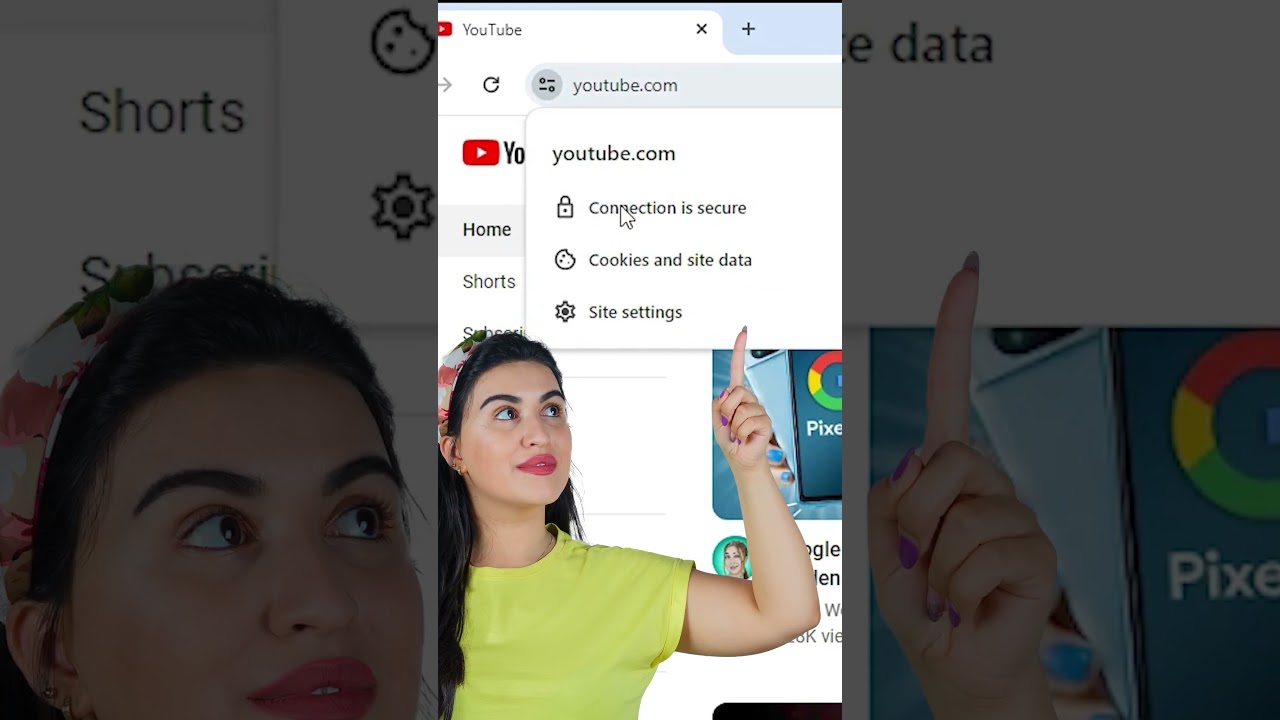
About this video
In this speedy tutorial, learn how to block websites on Google Chrome without any third-party software. Using built-in site settings, we'll show you how to disable JavaScript and more in just a couple of seconds. Take control of your browsing experience on Windows 10 effortlessly!
🚀 Steps Covered in This Video:
Introduction:
Brief overview of the tutorial and the simplicity of blocking websites without using any additional software.
Accessing Chrome Settings:
Open Google Chrome and click on the three dots menu in the top-right corner.
Go to Settings:
Select "Settings" from the dropdown menu.
Advanced Settings:
Scroll down and click on "Advanced" to reveal additional settings.
Content Settings:
Under "Privacy and security," find and click on "Site settings."
JavaScript:
Locate the "JavaScript" setting and toggle it off to block JavaScript on all websites.
Additional Settings (Optional):
Explore other site settings for more granular control, including cookies, images, and more.
Testing:
Visit a website to confirm that the settings are in effect and the website is blocked.
👍 Why Watch This Video?
Block websites on Google Chrome without the need for any software.
Customize your site settings for enhanced control over your browsing experience.
Instantly implement website restrictions in just a couple of seconds.
If you find this tutorial helpful, please give it a thumbs up, subscribe for more tech tips, and leave any questions or feedback in the comments section below. Thank you for watching, and enjoy a more personalized browsing experience on Google Chrome! 🌐🔒
🚀 Steps Covered in This Video:
Introduction:
Brief overview of the tutorial and the simplicity of blocking websites without using any additional software.
Accessing Chrome Settings:
Open Google Chrome and click on the three dots menu in the top-right corner.
Go to Settings:
Select "Settings" from the dropdown menu.
Advanced Settings:
Scroll down and click on "Advanced" to reveal additional settings.
Content Settings:
Under "Privacy and security," find and click on "Site settings."
JavaScript:
Locate the "JavaScript" setting and toggle it off to block JavaScript on all websites.
Additional Settings (Optional):
Explore other site settings for more granular control, including cookies, images, and more.
Testing:
Visit a website to confirm that the settings are in effect and the website is blocked.
👍 Why Watch This Video?
Block websites on Google Chrome without the need for any software.
Customize your site settings for enhanced control over your browsing experience.
Instantly implement website restrictions in just a couple of seconds.
If you find this tutorial helpful, please give it a thumbs up, subscribe for more tech tips, and leave any questions or feedback in the comments section below. Thank you for watching, and enjoy a more personalized browsing experience on Google Chrome! 🌐🔒
Tags and Topics
Browse our collection to discover more content in these categories.
Video Information
Views
358.3K
Likes
3.1K
Duration
0:36
Published
Jan 29, 2024
User Reviews
4.4
(71) Related Trending Topics
LIVE TRENDSRelated trending topics. Click any trend to explore more videos.
No specific trending topics match this video yet.
Explore All Trends