Excel Guide: Hide or Unhide Worksheets Automatically Based on Cell Values 📊
Learn how to easily hide or unhide specific worksheets in Excel based on cell content in another sheet using VBA. Simplify your workflow with this step-by-step tutorial!

Excel 10 tutorial
7.1K views • Jan 22, 2024
About this video
*Showing or Hiding Worksheets Based on Specific Text in Microsoft Excel Using VBA*
Microsoft Excel provides a powerful scripting language called VBA (Visual Basic for Applications) that allows users to automate tasks and enhance the functionality of their spreadsheets. One common requirement is the ability to show or hide worksheets based on specific criteria. In this advance excel tutorial, we'll explore how to achieve this using VBA code.
*Understanding the VBA Code*
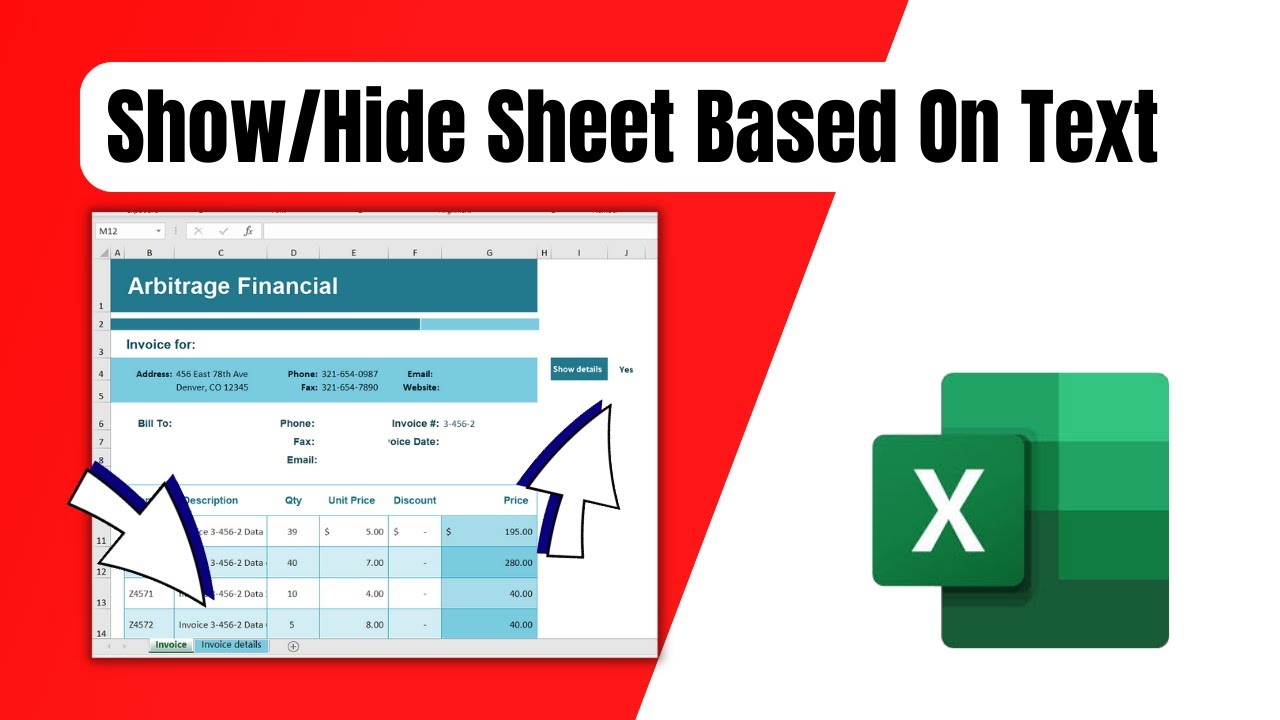
The code is placed within a specific worksheet, and it is triggered whenever there is a change on that particular sheet. The code checks if the value in cell J4 is equal to "Yes." If it is, the worksheet named "Invoice details" is set to be visible; otherwise, it is set to be hidden.
*Step-by-Step Guide:*
1. Open Excel and Access the Visual Basic for Applications (VBA) Editor
- Right-click on the main worksheet name and select “View code”.
2. Insert the VBA Code
- Copy and paste the provided VBA code into the module.
Here is the code: https://www.patreon.com/posts/96968188
3. Adjust the Code for Your Worksheet
- Modify the code according to your specific requirements. In the provided code, the condition checks if the value in cell J4 is "Yes." You can change this to any other cell or criteria based on your needs.
4. Test the Code
- Close the VBA editor and return to your Excel workbook.
- Change the value in the specified cell (in this case, J4) to see the worksheet visibility change accordingly.
- In our video we created a dropdown list to change the value of J4
*Additional Tips:*
a. Case Sensitivity
Keep in mind that VBA is case-sensitive. "Yes" is not the same as "yes." Ensure that your code matches the case of the text in the cell.
By following these steps and customizing the code to fit your specific needs, you can efficiently show or hide worksheets in Microsoft Excel based on the content of a particular cell using VBA.
Thanks for watching.
#Worksheet #Hide #Show #exceltutorial
----------------------------------------------------------------------------------------
Support the channel with as low as $5
https://www.patreon.com/excel10tutorial
----------------------------------------------------------------------------------------
Please subscribe to #excel10tutorial
https://goo.gl/uL8fqQ
Here goes the most recent video of the channel:
https://bit.ly/2UngIwS
Playlists:
Excel Tutorial for Beginners: https://goo.gl/UDrDcA
Intermediate Excel Tutorial: https://tinyurl.com/59a837py
Advance Excel Tutorial: https://goo.gl/ExYy7v
Excel Text Case Conversion Techniques: https://goo.gl/xiP3tv
Combine Workbook & Worksheets: https://bit.ly/2Tpf7DB
All About Comments in Excel: https://bit.ly/excelcomments
Excel VBA Programming Course: http://bit.ly/excelvbacourse
ChatGPT Excel Mastermind: https://tinyurl.com/46kn7tmd
Social media:
Facebook: https://facebook.com/excel10tutorial
Twitter: https://twitter.com/excel10tutorial
Blogger: https://excel10tutorial.blogspot.com
Tumblr: https://excel10tutorial.tumblr.com
Instagram: https://www.instagram.com/excel_10_tutorial
Hubpages: https://hubpages.com/@excel10tutorial
Quora: https://bit.ly/3bxB8JG
Website: https://msexceltutorial.com/ *Become a member and enjoy exclusive perks while supporting the channel you love!*
https://www.youtube.com/@Excel10tutorial/join
Microsoft Excel provides a powerful scripting language called VBA (Visual Basic for Applications) that allows users to automate tasks and enhance the functionality of their spreadsheets. One common requirement is the ability to show or hide worksheets based on specific criteria. In this advance excel tutorial, we'll explore how to achieve this using VBA code.
*Understanding the VBA Code*
The code is placed within a specific worksheet, and it is triggered whenever there is a change on that particular sheet. The code checks if the value in cell J4 is equal to "Yes." If it is, the worksheet named "Invoice details" is set to be visible; otherwise, it is set to be hidden.
*Step-by-Step Guide:*
1. Open Excel and Access the Visual Basic for Applications (VBA) Editor
- Right-click on the main worksheet name and select “View code”.
2. Insert the VBA Code
- Copy and paste the provided VBA code into the module.
Here is the code: https://www.patreon.com/posts/96968188
3. Adjust the Code for Your Worksheet
- Modify the code according to your specific requirements. In the provided code, the condition checks if the value in cell J4 is "Yes." You can change this to any other cell or criteria based on your needs.
4. Test the Code
- Close the VBA editor and return to your Excel workbook.
- Change the value in the specified cell (in this case, J4) to see the worksheet visibility change accordingly.
- In our video we created a dropdown list to change the value of J4
*Additional Tips:*
a. Case Sensitivity
Keep in mind that VBA is case-sensitive. "Yes" is not the same as "yes." Ensure that your code matches the case of the text in the cell.
By following these steps and customizing the code to fit your specific needs, you can efficiently show or hide worksheets in Microsoft Excel based on the content of a particular cell using VBA.
Thanks for watching.
#Worksheet #Hide #Show #exceltutorial
----------------------------------------------------------------------------------------
Support the channel with as low as $5
https://www.patreon.com/excel10tutorial
----------------------------------------------------------------------------------------
Please subscribe to #excel10tutorial
https://goo.gl/uL8fqQ
Here goes the most recent video of the channel:
https://bit.ly/2UngIwS
Playlists:
Excel Tutorial for Beginners: https://goo.gl/UDrDcA
Intermediate Excel Tutorial: https://tinyurl.com/59a837py
Advance Excel Tutorial: https://goo.gl/ExYy7v
Excel Text Case Conversion Techniques: https://goo.gl/xiP3tv
Combine Workbook & Worksheets: https://bit.ly/2Tpf7DB
All About Comments in Excel: https://bit.ly/excelcomments
Excel VBA Programming Course: http://bit.ly/excelvbacourse
ChatGPT Excel Mastermind: https://tinyurl.com/46kn7tmd
Social media:
Facebook: https://facebook.com/excel10tutorial
Twitter: https://twitter.com/excel10tutorial
Blogger: https://excel10tutorial.blogspot.com
Tumblr: https://excel10tutorial.tumblr.com
Instagram: https://www.instagram.com/excel_10_tutorial
Hubpages: https://hubpages.com/@excel10tutorial
Quora: https://bit.ly/3bxB8JG
Website: https://msexceltutorial.com/ *Become a member and enjoy exclusive perks while supporting the channel you love!*
https://www.youtube.com/@Excel10tutorial/join
Tags and Topics
Browse our collection to discover more content in these categories.
Video Information
Views
7.1K
Likes
59
Duration
4:14
Published
Jan 22, 2024
User Reviews
4.2
(1) Related Trending Topics
LIVE TRENDSRelated trending topics. Click any trend to explore more videos.
No specific trending topics match this video yet.
Explore All Trends