Easily Hide Worksheets with Filter Actions in Tableau 🚀
Learn how to quickly hide worksheets using filter actions in Tableau with this simple, step-by-step silent tutorial. Perfect for streamlining your dashboards!

Tableau
43.4K views • Aug 26, 2019
About this video
In this silent video you’ll learn how to hide a worksheet with a Filter Action in Tableau.
Read the full article here: Hide a Worksheet with a Filter Action — https://kb.tableau.com/articles/howto/hide-a-worksheet-with-a-filter-action
- - - - - - - - - - - - - -
OPTION 1 - Exclude All Value
++++++ Step 1 - Build the views ++++++
1. Drag [Region] to the Rows shelf and another instance of [Region] on Color.
2. Create a new sheet, and drag [Sales] to the Columns shelf.
3. Drag [Segment] to the Rows shelf.
++++++ Step 2 - Create the Dashboard ++++++
1. Create a new Dashboard and drag the newly created sheets to it.
2. Navigate to Dashboard and then Actions…
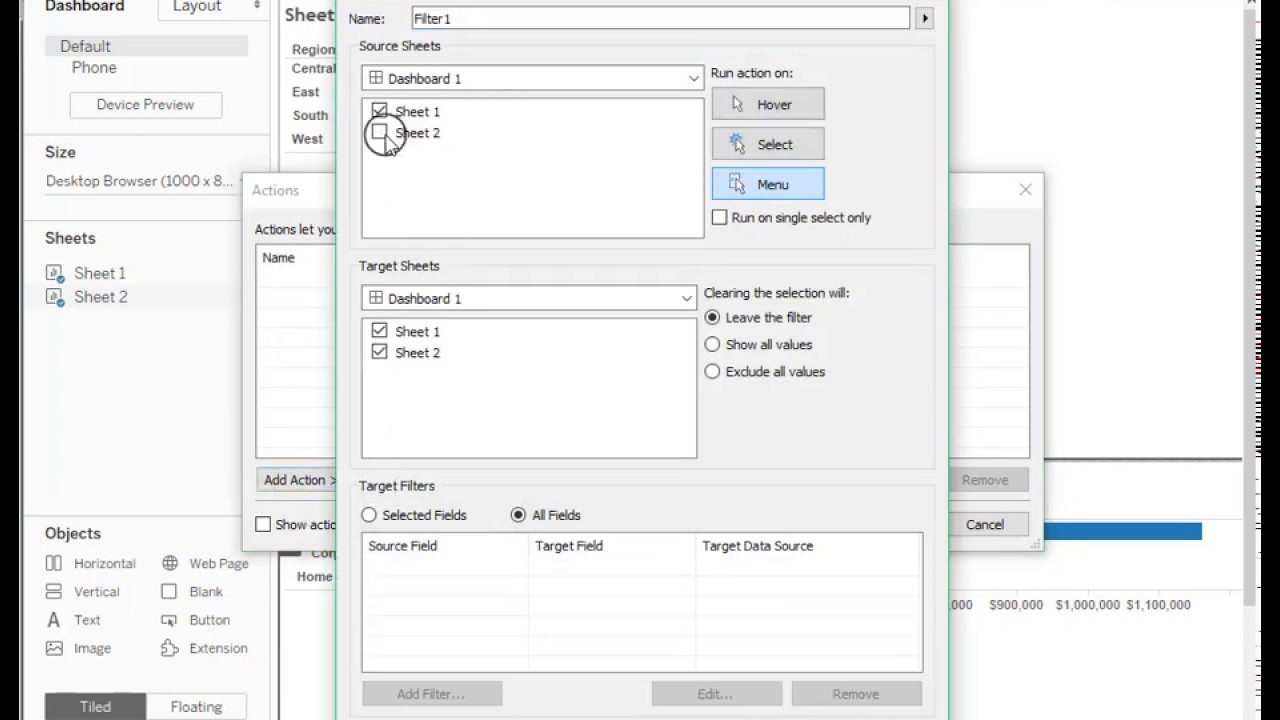
3. In the Actions dialog, click Add Action and then Filter…
4. In the Edit Filter Action dialog, do the following:
5. For Source Sheets, check only Sheet 1.
6. For Run Action on, choose Select.
7. For Target Sheets, check only Sheet 2.
8. For Clearing the selection will: select the option "Exclude Value"
9. Click OK to close all dialogs.
OPTION 2 - Use a filtered view
++++++ Step 1 - Build the views ++++++
1 Drag [Region] to the Rows shelf and another instance of [Region] on Color.
2. Select Analysis and then Create Calculated Field
3. Name the calculated field "Blank", enter the following formula and click OK: ""
4. Drag [Blank] to Detail.
5. Create a new sheet, and drag [Sales] to the Columns shelf.
6. Drag [Segment] to the Rows shelf.
++++++ Step 2 - Create the Dashboard ++++++
1. Create a new Dashboard and drag the newly created sheets to it.
2. Navigate to Dashboard and then Actions…
3. In the Actions dialog, click Add Action and then Filter…
4. In the Edit Filter Action dialog, do the following:
5. For Source Sheets, check only Sheet 1.
6. For Run Action on, choose Select.
7. For Target Sheets, check only Sheet 2.
8. For Target Filters, select the Selected Fields radio button.
9. Click Add Filter…
10. In the Add Filter dialog, do the following:
11. For the First Field dropdown, select Blank.
12. For the Second Field dropdown, select Segment.
13. Click OK three times to close all dialogs.
Related
Filter Actions - https://help.tableau.com/current/pro/desktop/en-us/actions_filter.htm
- - - - - - - - - - - - - -
Subscribe to the Tableau YouTube channel here: http://www.youtube.com/subscription_center?add_user=tableausoftware
Free Trial of Tableau: https://www.tableau.com/products/trial
Read the full article here: Hide a Worksheet with a Filter Action — https://kb.tableau.com/articles/howto/hide-a-worksheet-with-a-filter-action
- - - - - - - - - - - - - -
OPTION 1 - Exclude All Value
++++++ Step 1 - Build the views ++++++
1. Drag [Region] to the Rows shelf and another instance of [Region] on Color.
2. Create a new sheet, and drag [Sales] to the Columns shelf.
3. Drag [Segment] to the Rows shelf.
++++++ Step 2 - Create the Dashboard ++++++
1. Create a new Dashboard and drag the newly created sheets to it.
2. Navigate to Dashboard and then Actions…
3. In the Actions dialog, click Add Action and then Filter…
4. In the Edit Filter Action dialog, do the following:
5. For Source Sheets, check only Sheet 1.
6. For Run Action on, choose Select.
7. For Target Sheets, check only Sheet 2.
8. For Clearing the selection will: select the option "Exclude Value"
9. Click OK to close all dialogs.
OPTION 2 - Use a filtered view
++++++ Step 1 - Build the views ++++++
1 Drag [Region] to the Rows shelf and another instance of [Region] on Color.
2. Select Analysis and then Create Calculated Field
3. Name the calculated field "Blank", enter the following formula and click OK: ""
4. Drag [Blank] to Detail.
5. Create a new sheet, and drag [Sales] to the Columns shelf.
6. Drag [Segment] to the Rows shelf.
++++++ Step 2 - Create the Dashboard ++++++
1. Create a new Dashboard and drag the newly created sheets to it.
2. Navigate to Dashboard and then Actions…
3. In the Actions dialog, click Add Action and then Filter…
4. In the Edit Filter Action dialog, do the following:
5. For Source Sheets, check only Sheet 1.
6. For Run Action on, choose Select.
7. For Target Sheets, check only Sheet 2.
8. For Target Filters, select the Selected Fields radio button.
9. Click Add Filter…
10. In the Add Filter dialog, do the following:
11. For the First Field dropdown, select Blank.
12. For the Second Field dropdown, select Segment.
13. Click OK three times to close all dialogs.
Related
Filter Actions - https://help.tableau.com/current/pro/desktop/en-us/actions_filter.htm
- - - - - - - - - - - - - -
Subscribe to the Tableau YouTube channel here: http://www.youtube.com/subscription_center?add_user=tableausoftware
Free Trial of Tableau: https://www.tableau.com/products/trial
Tags and Topics
Browse our collection to discover more content in these categories.
Video Information
Views
43.4K
Likes
83
Duration
2:07
Published
Aug 26, 2019
User Reviews
4.0
(8) Related Trending Topics
LIVE TRENDSRelated trending topics. Click any trend to explore more videos.
No specific trending topics match this video yet.
Explore All Trends