Disabling BitLocker on Windows 10
This guide explains the steps to turn off BitLocker, a disk encryption feature available in Windows 10 Pro, Education, Enterprise editions, and some Home editions.

EvilComp
197.8K views • Feb 26, 2023
About this video
How to Turn Off BitLocker
BitLocker is a feature that's built into most Windows 10 Pro, Education, and Enterprise editions, as well as some Windows 10 Home PCs. If you can't decrypt your hard drive in order to turn off BitLocker, you'll need to use your BitLocker recovery key to unlock the drive before you can turn off BitLocker.
steps
1-Open Start. Click the Windows logo in the bottom-left corner of the screen. The Start menu will pop up.
2-Search for BitLocker. Type in bitlocker to do so. A list of matching search results will appear in the Start menu.
3-Click Manage BitLocker. It should be at the top of the Start menu. Doing so opens the BitLocker Control Panel page.
4-Find the correct hard drive. Scroll down until you find the drive for which you want to disable BitLocker.
5-Click Turn Off BitLocker. It's a link below and to the right of the BitLocker heading.
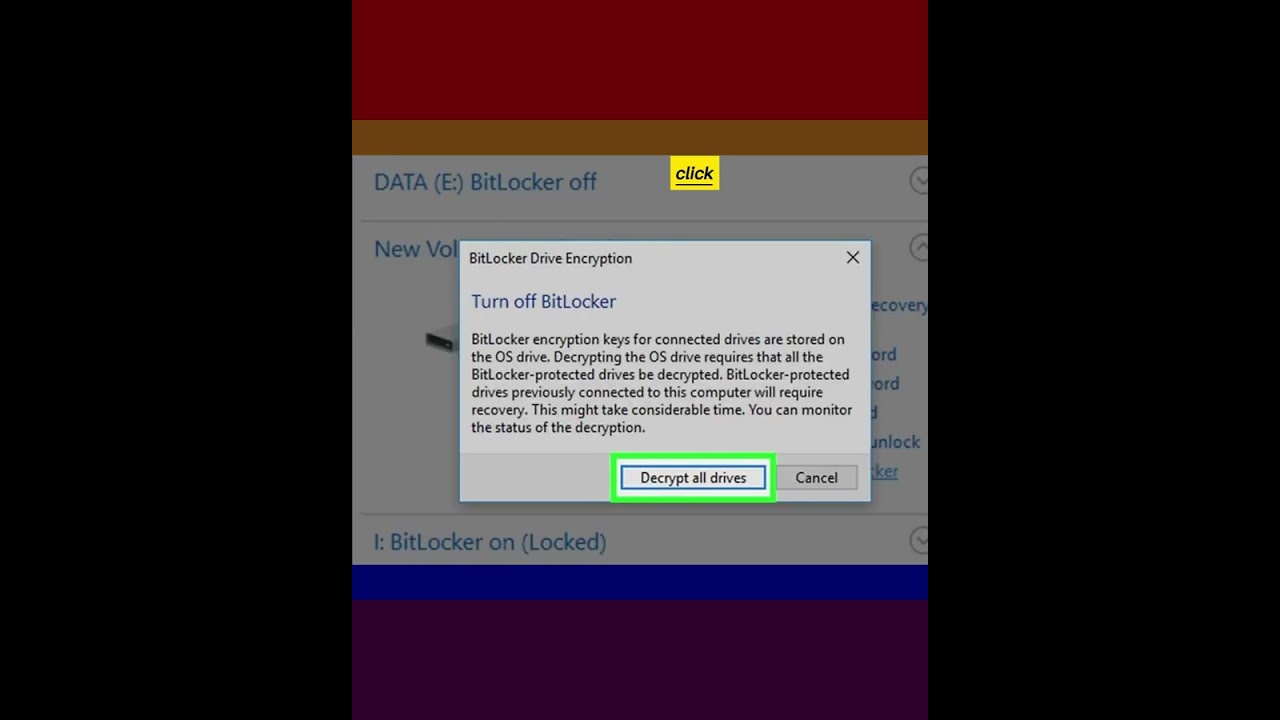
6-Click Turn Off BitLocker when prompted. Doing so causes BitLocker to begin decrypting your drive. This can take several hours to complete.
You may be asked to enter your Administrator password or PIN before BitLocker will begin turning off.
#windows #bitlocker #turnoff #BitLocker #bitlocker #bitlocker裝置加密 #bitlocker_key #bitlocker取回資料 #bitlockerkeys #bitlockersucks #bitlockerissues #bitlockerrecovery #bitlockerdriveencryptiondownload #howtoturnoff
BitLocker is a feature that's built into most Windows 10 Pro, Education, and Enterprise editions, as well as some Windows 10 Home PCs. If you can't decrypt your hard drive in order to turn off BitLocker, you'll need to use your BitLocker recovery key to unlock the drive before you can turn off BitLocker.
steps
1-Open Start. Click the Windows logo in the bottom-left corner of the screen. The Start menu will pop up.
2-Search for BitLocker. Type in bitlocker to do so. A list of matching search results will appear in the Start menu.
3-Click Manage BitLocker. It should be at the top of the Start menu. Doing so opens the BitLocker Control Panel page.
4-Find the correct hard drive. Scroll down until you find the drive for which you want to disable BitLocker.
5-Click Turn Off BitLocker. It's a link below and to the right of the BitLocker heading.
6-Click Turn Off BitLocker when prompted. Doing so causes BitLocker to begin decrypting your drive. This can take several hours to complete.
You may be asked to enter your Administrator password or PIN before BitLocker will begin turning off.
#windows #bitlocker #turnoff #BitLocker #bitlocker #bitlocker裝置加密 #bitlocker_key #bitlocker取回資料 #bitlockerkeys #bitlockersucks #bitlockerissues #bitlockerrecovery #bitlockerdriveencryptiondownload #howtoturnoff
Tags and Topics
Browse our collection to discover more content in these categories.
Video Information
Views
197.8K
Likes
4.5K
Duration
0:39
Published
Feb 26, 2023
User Reviews
4.7
(39) Related Trending Topics
LIVE TRENDSRelated trending topics. Click any trend to explore more videos.
No specific trending topics match this video yet.
Explore All Trends