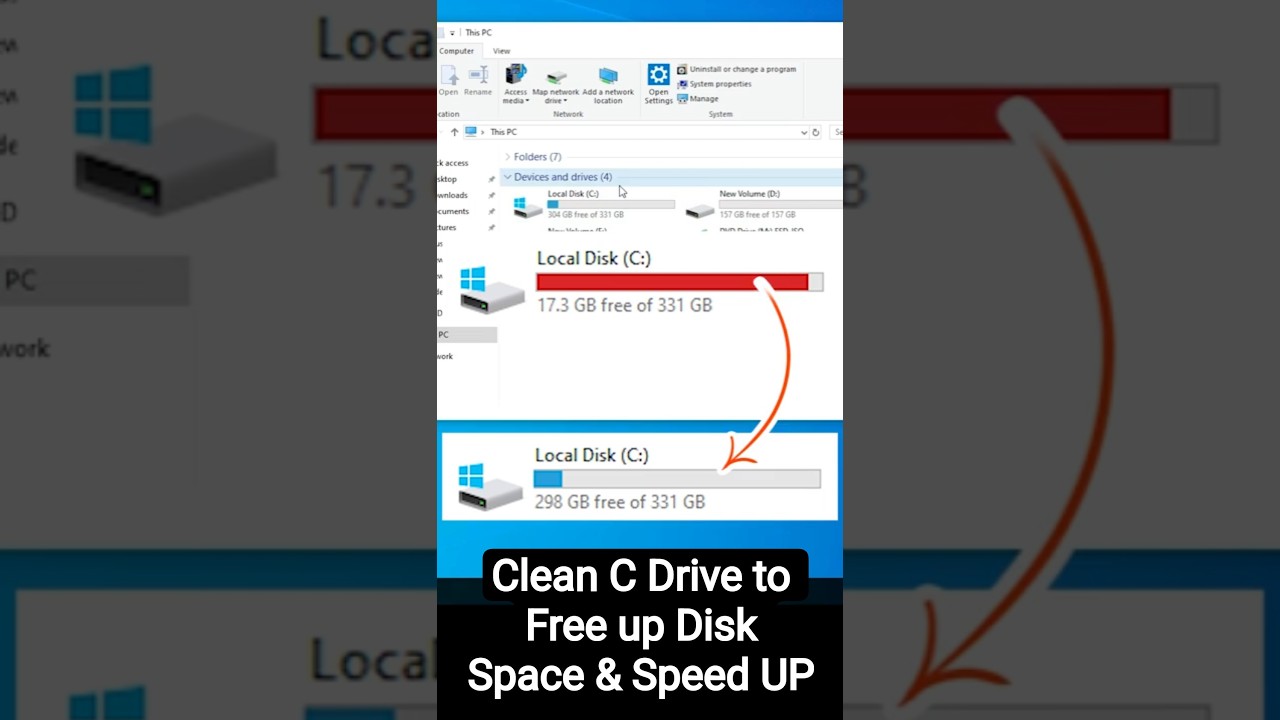
Clean C Drive in Windows 10 to Free up Disk Space & Speed UP PC or Laptop
🔥 Is your Windows 10 PC or laptop running slow because the C drive is full? You're not alone! In this quick 3-minute guide, I'll show you the built-in Disk ...
Discover You
315.9K views • Sep 22, 2025
About this video
🔥 Is your Windows 10 PC or laptop running slow because the C drive is full? You're not alone! In this quick 3-minute guide, I'll show you the built-in Disk Cleanup tool to safely delete junk files, free up gigabytes of space, and boost your computer's speed. No downloads needed—works on any Windows 10 device! 💨🖥️
Step-by-Step Guide to Clean C Drive in Windows 10:
1 Right-Click on C Drive – Open File Explorer (Windows key + E), find "This PC" on the left, right-click the C: drive (usually labeled "Local Disk (C:)").
2 Click Properties – From the menu, select "Properties" at the bottom.
3 Click Disk Cleanup – In the Properties window, hit the "Disk Cleanup" button under the General tab.
4 Click Clean Up System Files – For a deeper clean, click "Clean up system files" (it scans for more hidden junk like old updates).
5 Select Files to Delete – Review the list and check boxes for safe items:
1 Temporary files (safe cache junk)
2 Recycle Bin (deleted files you don't need)
3 Downloaded Program Files (old browser add-ons)
4 Windows Update Cleanup (leftover update files—huge space saver!)
5 Thumbnails (image previews you can regenerate)
Pro Tip: Uncheck anything important like recent documents—review carefully to avoid deleting critical data.
6 Confirm Deletion – Click "OK" to start. In the confirmation dialog, hit "Delete Files" to permanently remove them and reclaim space instantly!
Bonus Tips for Maximum Speed:
Run Monthly: Schedule Disk Cleanup to keep things tidy.
Storage Sense: Enable it in Settings → System → Storage for automatic cleanup.
Empty Recycle Bin Manually: Right-click the bin icon and select "Empty Recycle Bin."
Uninstall Unused Apps: Go to Settings → Apps to remove bloatware.
For SSDs: This is safe, but avoid defragging—use Optimize Drives instead.
This method is 100% free and official from Microsoft. Works on Windows 10 PCs, laptops, and even older versions like 7/8 (steps similar). If you're on Windows 11, check my other video!
Why This Works:
Removes temporary junk without harming your files
Speeds up boot times and app loading
Prevents "low disk space" errors
👍 Loved this? Smash LIKE, SUBSCRIBE for more Windows 10 hacks, and comment: How much space did you free up? Hit the bell 🔔 for weekly PC tips!
Hashtags: #Windows10 #CleanCDrive #FreeUpSpace #PCSpeedUp #DiskCleanup #LaptopTips #WindowsTutorial #TechHacks
Disclaimer: Always double-check files before deleting. Back up important data first. This is for educational use only.
Your PC will thank you—clean drive, faster life! 🚀
Step-by-Step Guide to Clean C Drive in Windows 10:
1 Right-Click on C Drive – Open File Explorer (Windows key + E), find "This PC" on the left, right-click the C: drive (usually labeled "Local Disk (C:)").
2 Click Properties – From the menu, select "Properties" at the bottom.
3 Click Disk Cleanup – In the Properties window, hit the "Disk Cleanup" button under the General tab.
4 Click Clean Up System Files – For a deeper clean, click "Clean up system files" (it scans for more hidden junk like old updates).
5 Select Files to Delete – Review the list and check boxes for safe items:
1 Temporary files (safe cache junk)
2 Recycle Bin (deleted files you don't need)
3 Downloaded Program Files (old browser add-ons)
4 Windows Update Cleanup (leftover update files—huge space saver!)
5 Thumbnails (image previews you can regenerate)
Pro Tip: Uncheck anything important like recent documents—review carefully to avoid deleting critical data.
6 Confirm Deletion – Click "OK" to start. In the confirmation dialog, hit "Delete Files" to permanently remove them and reclaim space instantly!
Bonus Tips for Maximum Speed:
Run Monthly: Schedule Disk Cleanup to keep things tidy.
Storage Sense: Enable it in Settings → System → Storage for automatic cleanup.
Empty Recycle Bin Manually: Right-click the bin icon and select "Empty Recycle Bin."
Uninstall Unused Apps: Go to Settings → Apps to remove bloatware.
For SSDs: This is safe, but avoid defragging—use Optimize Drives instead.
This method is 100% free and official from Microsoft. Works on Windows 10 PCs, laptops, and even older versions like 7/8 (steps similar). If you're on Windows 11, check my other video!
Why This Works:
Removes temporary junk without harming your files
Speeds up boot times and app loading
Prevents "low disk space" errors
👍 Loved this? Smash LIKE, SUBSCRIBE for more Windows 10 hacks, and comment: How much space did you free up? Hit the bell 🔔 for weekly PC tips!
Hashtags: #Windows10 #CleanCDrive #FreeUpSpace #PCSpeedUp #DiskCleanup #LaptopTips #WindowsTutorial #TechHacks
Disclaimer: Always double-check files before deleting. Back up important data first. This is for educational use only.
Your PC will thank you—clean drive, faster life! 🚀
Tags and Topics
Browse our collection to discover more content in these categories.
Video Information
Views
315.9K
Likes
2.7K
Duration
0:39
Published
Sep 22, 2025
User Reviews
4.4
(63) Related Trending Topics
LIVE TRENDSRelated trending topics. Click any trend to explore more videos.
No specific trending topics match this video yet.
Explore All Trends