Next Steps After Building Your Gaming PC 🎮
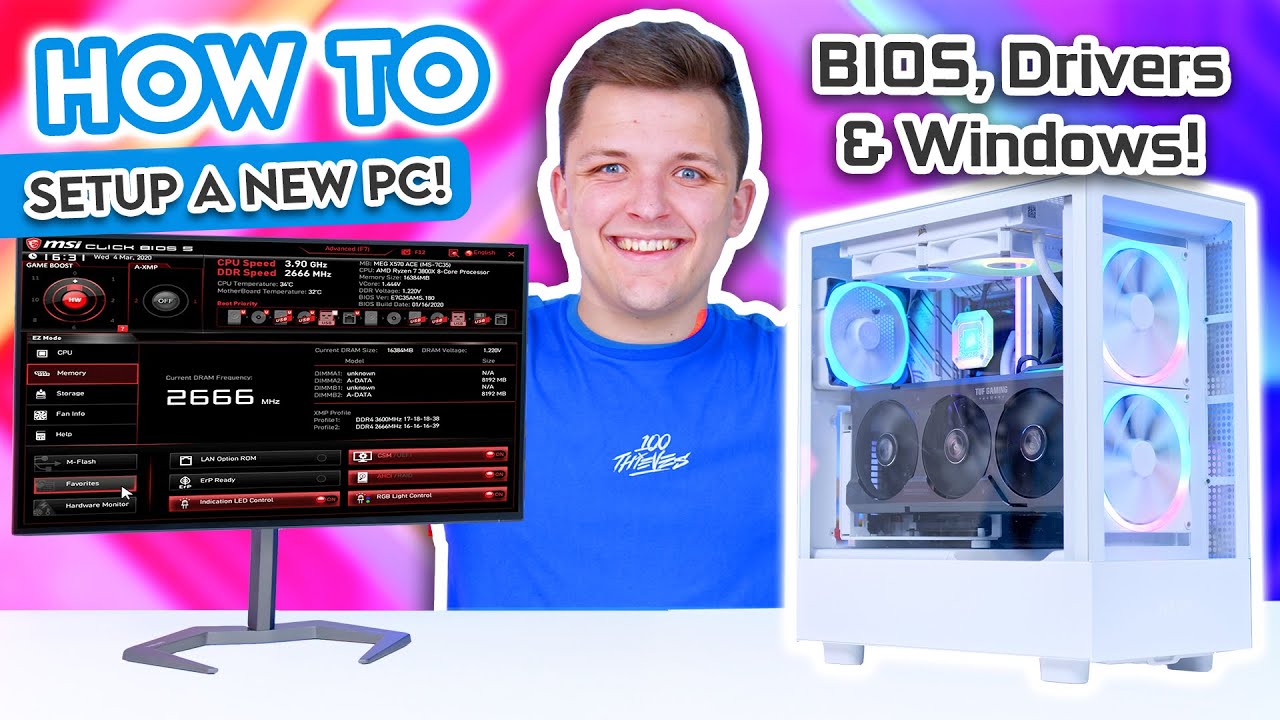
Learn how to set up BIOS, install drivers, and Windows 11 after building your gaming PC for optimal performance.

GeekaWhat
2.5M views • Mar 20, 2023
About this video
If you've just build a gaming PC, you're probably wondering what to do next! In this video I'll be guiding you through how exactly to configure the right BIOS settings, install the right drivers and get Windows 11 up and running!
⬇️ GPU Drivers:
NVIDIA GeForce Experience: https://www.nvidia.com/en-gb/geforce/geforce-experience/
AMD Radeon Software:: https://www.amd.com/en/support
⬇️ Useful Tools to Download:
Windows 11 Bootable USB Tool: https://www.microsoft.com/en-us/software-download/windows11
NZXT CAM: https://nzxt.com/software/cam
MSI Afterburner: https://www.msi.com/Landing/afterburner/graphics-cards
NVIDIA FrameView: https://www.nvidia.com/en-gb/geforce/technologies/frameview/
RivaTuner: https://www.guru3d.com/content-page/rivatuner.html
Check out our Website!
Written Reviews: https://geekawhat.com/category/reviews/
PC Builds: https://geekawhat.com/category/pc-builds/
Please send any business enquiries (including review samples and sponsorship) to my Business Email: james@geekawhat.com
GeekaWhat is a participant in the in the Amazon EU Associates Programme & Amazon Services LLC Associates, an affiliate advertising programme designed to provide a means for sites to earn advertising fees by advertising and linking to linking to Amazon.co.uk & Amazon.com.
00:00 Intro
00:30 Before you switch the PC on
00:53 How to load into BIOS
01:28 BIOS Checks and Setup
02:23 Creating a Bootable Windows USB Stick
02:58 Installing Windows 11
04:35 Windows 11 Initial Setup
05:15 Graphics Drivers
06:28 Motherboard Drivers
07:36 RGB Control Software (NZXT Cam)
08:55 Optional Software Recommendations
09:12 Hardware Monitor Pro
10:23 Checking RAM Speed
⬇️ GPU Drivers:
NVIDIA GeForce Experience: https://www.nvidia.com/en-gb/geforce/geforce-experience/
AMD Radeon Software:: https://www.amd.com/en/support
⬇️ Useful Tools to Download:
Windows 11 Bootable USB Tool: https://www.microsoft.com/en-us/software-download/windows11
NZXT CAM: https://nzxt.com/software/cam
MSI Afterburner: https://www.msi.com/Landing/afterburner/graphics-cards
NVIDIA FrameView: https://www.nvidia.com/en-gb/geforce/technologies/frameview/
RivaTuner: https://www.guru3d.com/content-page/rivatuner.html
Check out our Website!
Written Reviews: https://geekawhat.com/category/reviews/
PC Builds: https://geekawhat.com/category/pc-builds/
Please send any business enquiries (including review samples and sponsorship) to my Business Email: james@geekawhat.com
GeekaWhat is a participant in the in the Amazon EU Associates Programme & Amazon Services LLC Associates, an affiliate advertising programme designed to provide a means for sites to earn advertising fees by advertising and linking to linking to Amazon.co.uk & Amazon.com.
00:00 Intro
00:30 Before you switch the PC on
00:53 How to load into BIOS
01:28 BIOS Checks and Setup
02:23 Creating a Bootable Windows USB Stick
02:58 Installing Windows 11
04:35 Windows 11 Initial Setup
05:15 Graphics Drivers
06:28 Motherboard Drivers
07:36 RGB Control Software (NZXT Cam)
08:55 Optional Software Recommendations
09:12 Hardware Monitor Pro
10:23 Checking RAM Speed
Video Information
Views
2.5M
Likes
60.4K
Duration
11:10
Published
Mar 20, 2023
User Reviews
4.8
(492) Related Trending Topics
LIVE TRENDSRelated trending topics. Click any trend to explore more videos.
No specific trending topics match this video yet.
Explore All Trends