Use E-Signature in microsoft word! (Wow.. It only takes 10 seconds!!)
When using Word or Excel, there are times when you need to put a e--signature on a document. In that case, try the method I'm introducing today! Anyone can e...
SD Motion
817.8K views • Mar 21, 2023
About this video
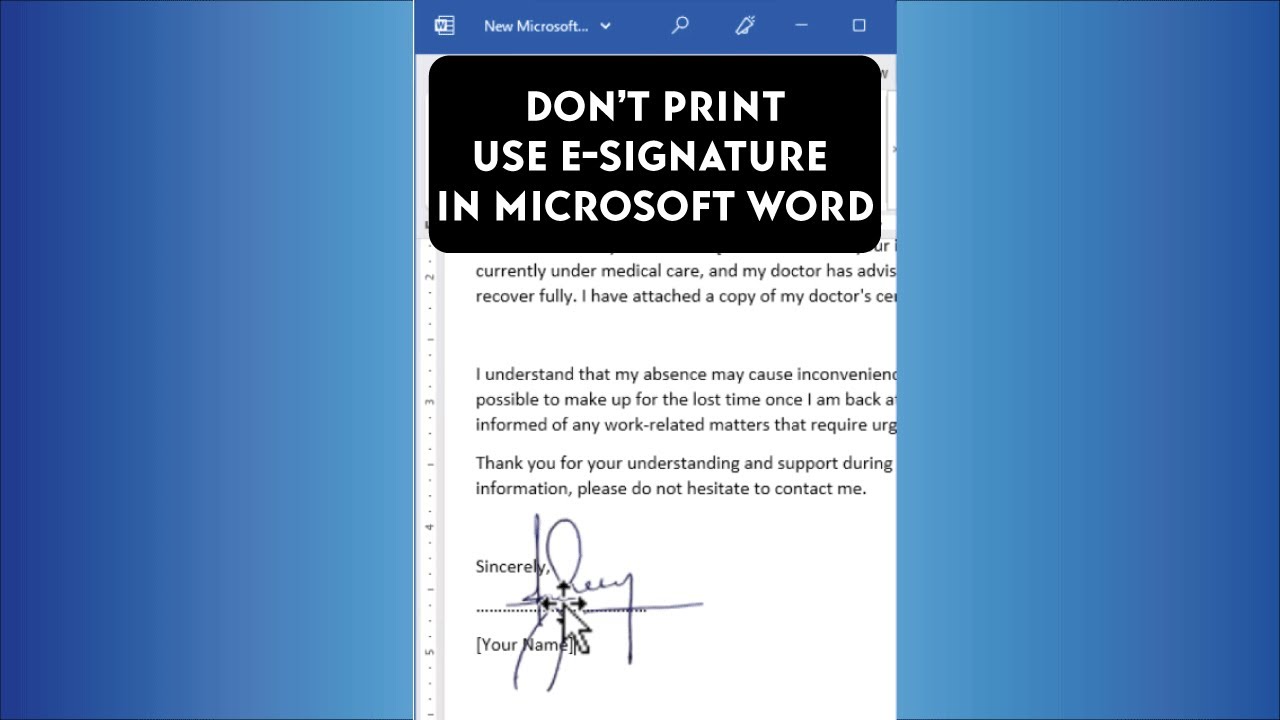
When using Word or Excel, there are times when you need to put a e--signature on a document. In that case, try the method I'm introducing today!
Anyone can easily create a transparent sign by taking a simple mobile phone photo.
① Take a picture of A4 paper with a stamp (or signature) on your mobile phone.
② Then, insert the captured picture into Word. In the case of Word, after selecting the picture, select [Layout] - [Text in front] to move the picture to the top level.
③ Now, after selecting the picture, select [Crop] in the [Picture Format] tab and appropriately crop the picture according to the size of the signature, and everything is ready!👏
④ After selecting [Edit] in the [Picture Format] tab, change the brightness to the brightest color. Next, click the [Color] button and change the [Color Saturation] to the highest!
⑤ Finally, after clicking the remove background to create a transparent signature!👍
Now, save this signature in a document and save it as a file by right-clicking the picture - Save it as a picture to use it conveniently in other files later.
#shorts #esignature #microsoftword
Anyone can easily create a transparent sign by taking a simple mobile phone photo.
① Take a picture of A4 paper with a stamp (or signature) on your mobile phone.
② Then, insert the captured picture into Word. In the case of Word, after selecting the picture, select [Layout] - [Text in front] to move the picture to the top level.
③ Now, after selecting the picture, select [Crop] in the [Picture Format] tab and appropriately crop the picture according to the size of the signature, and everything is ready!👏
④ After selecting [Edit] in the [Picture Format] tab, change the brightness to the brightest color. Next, click the [Color] button and change the [Color Saturation] to the highest!
⑤ Finally, after clicking the remove background to create a transparent signature!👍
Now, save this signature in a document and save it as a file by right-clicking the picture - Save it as a picture to use it conveniently in other files later.
#shorts #esignature #microsoftword
Tags and Topics
Browse our collection to discover more content in these categories.
Video Information
Views
817.8K
Likes
22.3K
Duration
1:00
Published
Mar 21, 2023
User Reviews
4.8
(163) Related Trending Topics
LIVE TRENDSRelated trending topics. Click any trend to explore more videos.
No specific trending topics match this video yet.
Explore All Trends