Master Bevel Profiles in Blender ✨
Learn how to unlock stunning bevel profiles in Blender with interactive guides and presets. Enhance your models easily! https://blenderforge.com/
Pantheon
7.1M views • Oct 17, 2024
About this video
my website for detailed blender tutorials:
https://blenderforge.com/
. Want to instantly improve your bevels in Blender beyond the default rounded look? This quick Blender tutorial reveals how to easily change your bevel profile, giving you access to amazing predefined shapes and interactive control for truly custom, realistic, or stylized edges on your 3D models.
In this step-by-step guide, you'll discover exactly how to:
Master Interactive Profile Cycling (The 'P' Key Secret):
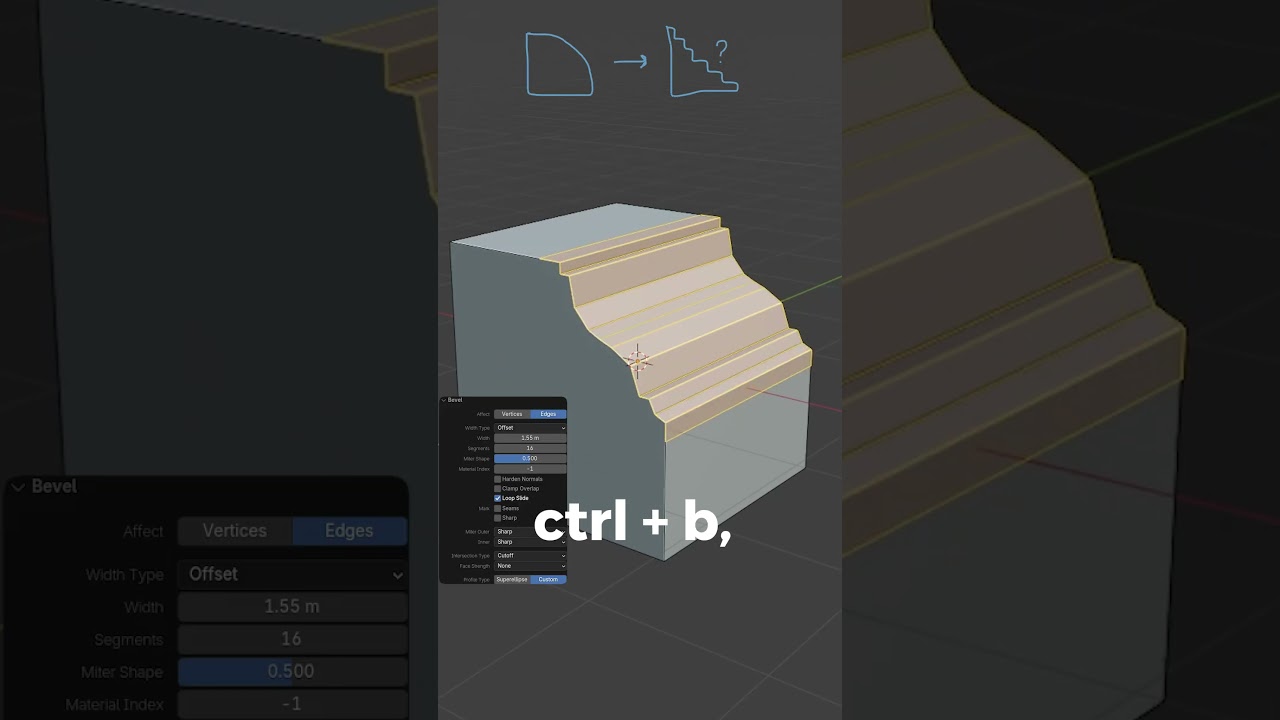
After initiating a bevel (Ctrl+B), learn to press the 'P' key repeatedly while still in the bevel operation. This allows you to cycle through different profile shapes on the fly, getting immediate visual feedback on your model.
Unlock Presets & Custom Profiles via the Operator Panel:
Once a bevel is active (Ctrl+B), locate the Bevel operator panel (usually at the bottom-left of your 3D Viewport).
Click the "Profile Type" dropdown menu.
Explore and select from various powerful built-in presets such as "Steps" or "Support Loops" to quickly create complex edge details.
Choose the "Custom" profile type to gain ultimate control by defining your own unique bevel shape using an intuitive curve editor.
Using these techniques, you can significantly elevate your 3D modeling work, adding intricate details and professional polish to your edges. Stop settling for basic bevels and start creating truly unique shapes in your Blender workflow, whether you're using the Bevel tool or the Bevel modifier.
#BlenderBevel #BevelProfile #BlenderTips #3DModeling #BlenderTutorial #EdgeModeling #CustomBevel read a detailed explanation here: read a detailed explanation here:
https://blenderforge.com/
. Want to instantly improve your bevels in Blender beyond the default rounded look? This quick Blender tutorial reveals how to easily change your bevel profile, giving you access to amazing predefined shapes and interactive control for truly custom, realistic, or stylized edges on your 3D models.
In this step-by-step guide, you'll discover exactly how to:
Master Interactive Profile Cycling (The 'P' Key Secret):
After initiating a bevel (Ctrl+B), learn to press the 'P' key repeatedly while still in the bevel operation. This allows you to cycle through different profile shapes on the fly, getting immediate visual feedback on your model.
Unlock Presets & Custom Profiles via the Operator Panel:
Once a bevel is active (Ctrl+B), locate the Bevel operator panel (usually at the bottom-left of your 3D Viewport).
Click the "Profile Type" dropdown menu.
Explore and select from various powerful built-in presets such as "Steps" or "Support Loops" to quickly create complex edge details.
Choose the "Custom" profile type to gain ultimate control by defining your own unique bevel shape using an intuitive curve editor.
Using these techniques, you can significantly elevate your 3D modeling work, adding intricate details and professional polish to your edges. Stop settling for basic bevels and start creating truly unique shapes in your Blender workflow, whether you're using the Bevel tool or the Bevel modifier.
#BlenderBevel #BevelProfile #BlenderTips #3DModeling #BlenderTutorial #EdgeModeling #CustomBevel read a detailed explanation here: read a detailed explanation here:
Tags and Topics
Browse our collection to discover more content in these categories.
Video Information
Views
7.1M
Duration
0:17
Published
Oct 17, 2024
User Reviews
4.1
(1410) Related Trending Topics
LIVE TRENDSRelated trending topics. Click any trend to explore more videos.
No specific trending topics match this video yet.
Explore All Trends