The Scary Good Way to Automate Outlook with a Copilot Agent
Are you tired of typing the same email replies over and over? In this video, I show you how to build a personal AI Auto-Reply Agent using the new Microsoft C...

Teacher's Tech
25.5K views • Dec 10, 2025
About this video
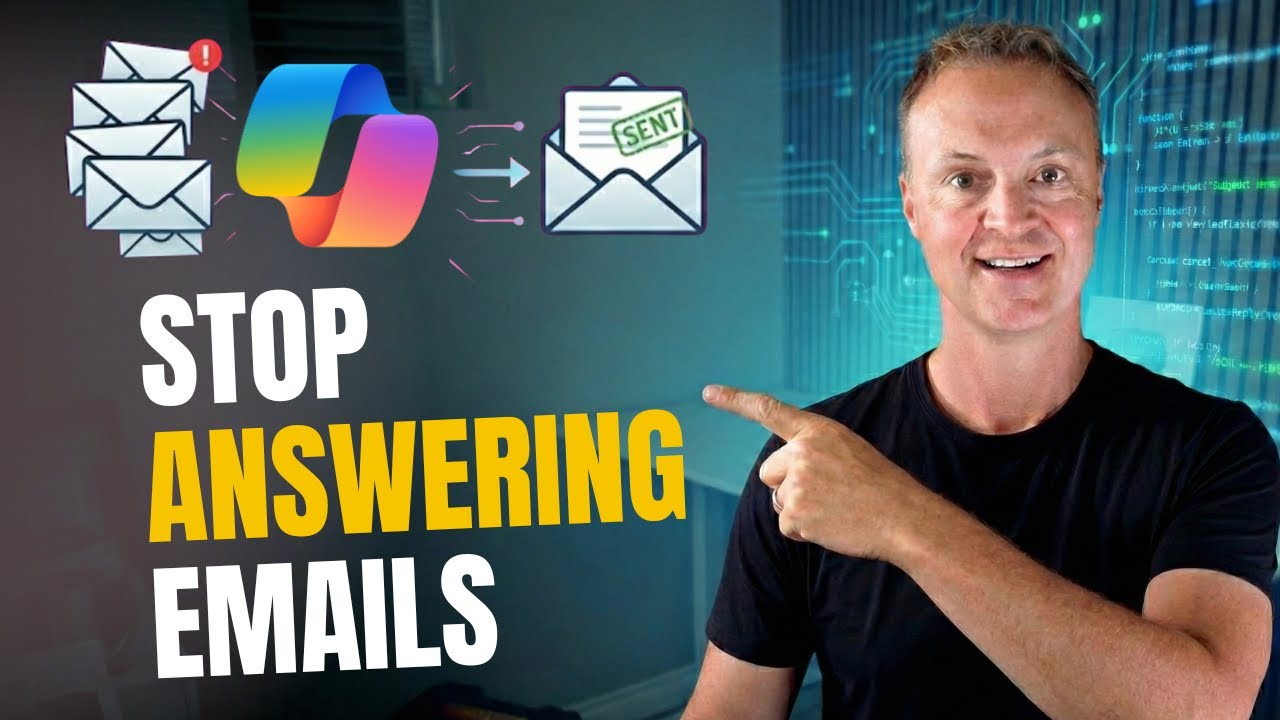
Are you tired of typing the same email replies over and over? In this video, I show you how to build a personal AI Auto-Reply Agent using the new Microsoft Copilot Workflow Agents.
In my previous video, I showed you how to build a complex customer service bot using the full power of Copilot Studio. While powerful, that method requires a lot of setup. Today, we are looking at the "Fast Lane." I’ll show you how to use the "Lite" version of Copilot agents to automate your inbox in under 5 minutes—no coding required.
We will build an agent that acts as your personal researcher: it reads your incoming emails, finds the answers on a specific website you choose, and writes a professional, formatted email response for you instantly.
⚠️ IMPORTANT REQUIREMENTS: To follow this tutorial, you currently need:
A commercial Microsoft 365 Copilot license.
Your IT Admin must have "Frontier" (Preview) features enabled on your tenant.
🛑 A NOTE ON SAFETY & LIMITATIONS: During the testing of this "Lite" builder, I found that it struggled to reliably read internal OneDrive documents (unlike the full Copilot Studio). For this reason, this demo focuses on Public Web Search which works flawlessly. Additionally, I highly recommend instructing your agent to "Create a Draft" rather than "Reply Automatically" to keep a human in the loop and avoid AI hallucinations.
In this video, you will learn:
The difference between Copilot Studio and Workflow Agents.
How to write a prompt that forces the AI to search a specific website for answers.
How to prevent "ugly" AI email formatting (No HTML vs. Plain Text).
Why "Draft Mode" is the safest way to start automating your business communications.
0:00 The "Email Grind" & The Solution
0:44 Copilot Studio vs. Workflow Agents (The Difference)
1:33 Adding Workflows Agent in M365 Copilot
2:08 Shaping your prompt
4:06 Save and test your workflow
5:59 Editing your workflow
8:54 Internal Files, Hallucinations & Safety
In my previous video, I showed you how to build a complex customer service bot using the full power of Copilot Studio. While powerful, that method requires a lot of setup. Today, we are looking at the "Fast Lane." I’ll show you how to use the "Lite" version of Copilot agents to automate your inbox in under 5 minutes—no coding required.
We will build an agent that acts as your personal researcher: it reads your incoming emails, finds the answers on a specific website you choose, and writes a professional, formatted email response for you instantly.
⚠️ IMPORTANT REQUIREMENTS: To follow this tutorial, you currently need:
A commercial Microsoft 365 Copilot license.
Your IT Admin must have "Frontier" (Preview) features enabled on your tenant.
🛑 A NOTE ON SAFETY & LIMITATIONS: During the testing of this "Lite" builder, I found that it struggled to reliably read internal OneDrive documents (unlike the full Copilot Studio). For this reason, this demo focuses on Public Web Search which works flawlessly. Additionally, I highly recommend instructing your agent to "Create a Draft" rather than "Reply Automatically" to keep a human in the loop and avoid AI hallucinations.
In this video, you will learn:
The difference between Copilot Studio and Workflow Agents.
How to write a prompt that forces the AI to search a specific website for answers.
How to prevent "ugly" AI email formatting (No HTML vs. Plain Text).
Why "Draft Mode" is the safest way to start automating your business communications.
0:00 The "Email Grind" & The Solution
0:44 Copilot Studio vs. Workflow Agents (The Difference)
1:33 Adding Workflows Agent in M365 Copilot
2:08 Shaping your prompt
4:06 Save and test your workflow
5:59 Editing your workflow
8:54 Internal Files, Hallucinations & Safety
Video Information
Views
25.5K
Likes
226
Duration
10:15
Published
Dec 10, 2025
User Reviews
4.3
(5) Related Trending Topics
LIVE TRENDSRelated trending topics. Click any trend to explore more videos.
No specific trending topics match this video yet.
Explore All Trends