Step-by-Step Guide to Creating a Corridor Assembly in Civil 3D 🚧
Learn how to efficiently create a corridor assembly in Civil 3D with our detailed tutorial. Perfect for civil engineers and designers looking to streamline their workflow!
Autodesk786
250 views • Jan 25, 2025
About this video
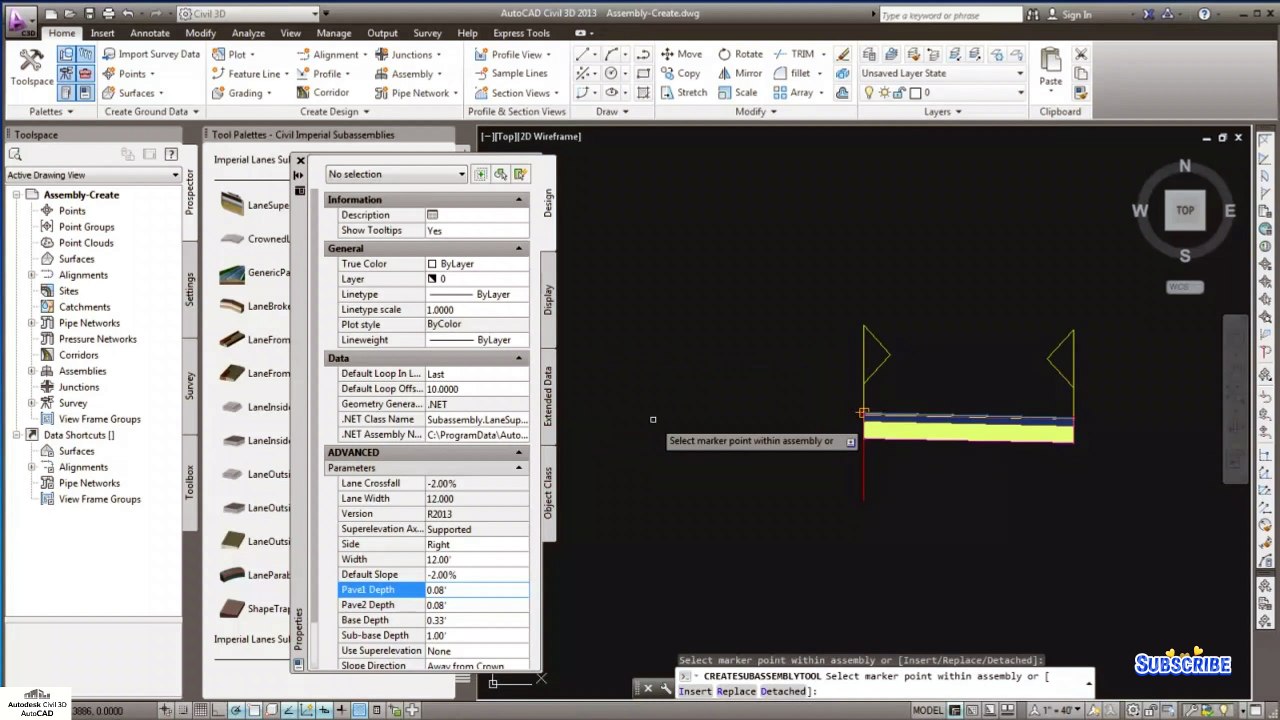
https://dai.ly/x9cytxm<br />https://dai.ly/x9cyqdo<br />https://dai.ly/x9cyhh4<br />https://dai.ly/x9cvrfi<br />https://dai.ly/x9cvf16<br />Creating a corridor assembly in Civil 3D involves defining the cross-sectional components (like lanes, shoulders, curbs, etc.) that will be applied to an alignment and profile to build the corridor model. Here's a step-by-step guide:<br /><br />1. Open the Tool Palette<br />Go to the Home tab on the ribbon.<br />In the Palettes panel, click Tool Palettes (shortcut: CTRL+3).<br />2. Set the Assembly Tool<br />On the Tool Palettes, go to the Assemblies tab.<br />If you don't see it, right-click the tab area and load the Civil Imperial Subassemblies or Civil Metric Subassemblies based on your project standards.<br />Review the available subassemblies (lane, curb, ditch, etc.) in the palette.<br />3. Create a New Assembly<br />Go to the Home tab on the ribbon.<br />In the Create Design panel, click Assembly.<br />In the Create Assembly dialog box:<br />Provide a name for the assembly (e.g., "Urban Road").<br />Choose a layer for the assembly.<br />Specify the assembly type (e.g., Roadway, Railway, Channel, etc.).<br />Click OK.<br />4. Place the Assembly Baseline<br />After creating the assembly, click in the drawing area to place the baseline marker (the origin of the assembly).<br />5. Add Subassemblies<br />Select Subassemblies:<br />On the Tool Palettes, select the desired subassembly (e.g., Lane, Shoulder, Curb, Side Slope).<br />Attach Subassemblies:<br />Click on the assembly baseline marker and attach the subassembly to the left or right side.<br />Repeat this process for all required components to build your assembly.<br />6. Configure Subassembly Parameters<br />After placing a subassembly, you can adjust its properties:<br />Select the subassembly in the drawing.<br />Open the Properties palette (shortcut: CTRL+1).<br />Modify parameters such as:<br />Lane width<br />Slope or grade<br />Depths or material thicknesses<br />Save changes.<br />7. Verify the Assembly<br />Use the Preview option on the subassemblies or zoom in to verify that the cross-section matches your design intent.<br />8. Save and Use in Corridor<br />Once the assembly is complete, it’s ready to be used in a corridor:<br />Create a corridor by applying the assembly to an alignment and profile.<br />Tips:<br />Use Copy Subassemblies to replicate symmetrical sections on the opposite side.<br />Group your subassemblies logically (e.g., lanes, shoulders, ditches) to make it easier to modify later.<br />Save commonly used assemblies as templates for future projects.
Video Information
Views
250
Duration
4:39
Published
Jan 25, 2025
Related Trending Topics
LIVE TRENDSRelated trending topics. Click any trend to explore more videos.
No specific trending topics match this video yet.
Explore All Trends