Outlook Smart Replies with Microsoft Copilot ✉️
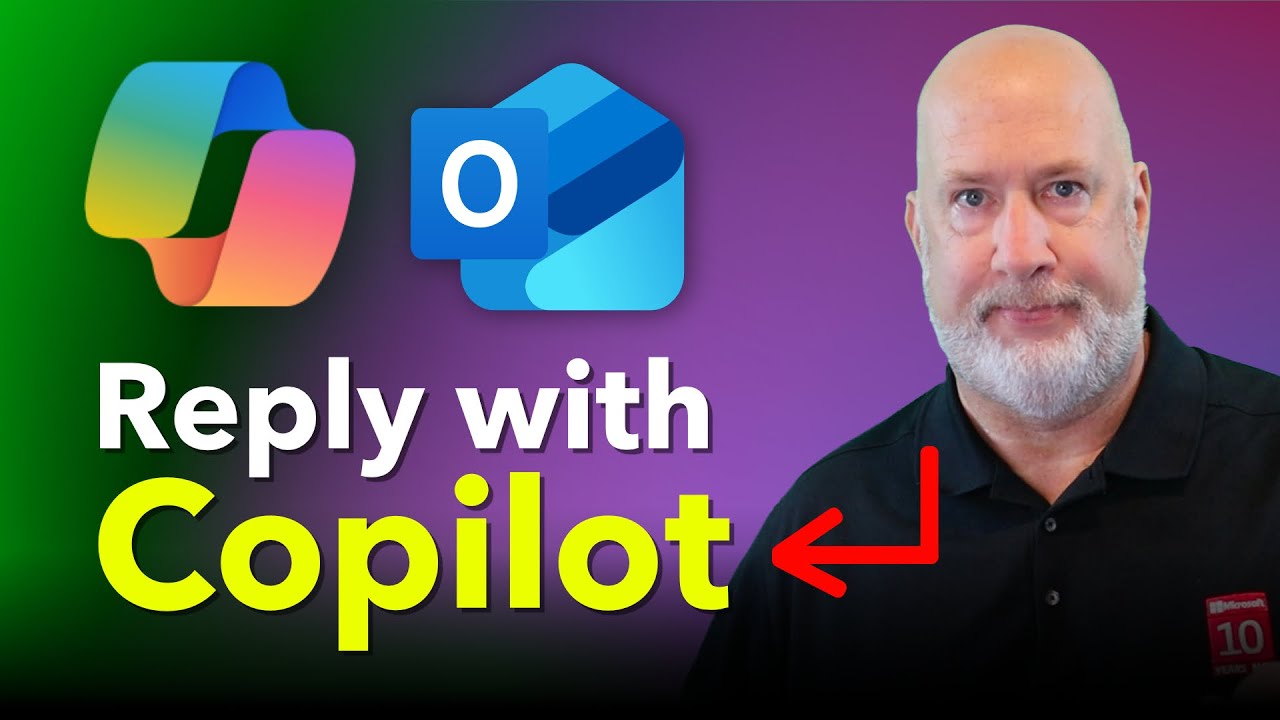
Learn how Microsoft 365 Copilot enhances Outlook with smart reply suggestions to boost your email productivity.

Chris Menard
717 views • Feb 3, 2026
About this video
Microsoft 365 Copilot includes a powerful email reply feature in Outlook on the Web that I use daily at my full-time job. In this tutorial, I show you how Copilot can draft contextual email replies based on your conversation thread.
When you hit reply or reply to all on an email, you'll see Copilot-suggested responses at the bottom of your screen. These aren't simple canned replies like "Got it" or "Thanks." Copilot actually reads the email thread and writes a relevant, detailed response for you.
How to use the suggestions effectively
Use Copilot suggestions as a starting point. Here is a simple workflow I use:
1) Click Reply on the message you want to respond to.
2) Scan the suggested replies at the bottom of the compose window.
3) Hover or click a suggestion to preview the text Copilot will insert.
4) Choose Keep It to accept the draft, or select editing options to expand or shorten the reply.
5) Tweak as needed and send.
The suggestions are often already exactly what I would write. More often than not, they are at least a solid first draft that needs only minor tweaks.
Make it longer, shorter, or customize
One of my favorite buttons is Make it longer. If the suggested reply is too concise, Copilot will expand it into a more complete response that includes context and next steps. Conversely, you can shorten or choose a custom option to tailor tone and length.
Make it longer, shorter, or customize
After expanding the draft, I almost always read it once and then either hit Keep It or edit a sentence or two. That small read-edit step takes far less time than composing from scratch.
In this video, I walk through:
- Where to find Copilot reply suggestions in Outlook
- How the suggestions adapt to your email content
- Using the "Make it longer" option to expand replies
- How to keep and edit Copilot's draft before sending
This feature requires a Microsoft 365 Copilot license. If you have one, this is a practical way to speed up your email workflow.
Blog Post https://chrismenardtraining.com/post/outlook-copilot-smart-replies/
Check out my courses:
https://courses.chrismenardtraining.com
-- EQUIPMENT USED ---------------------------------
○ My camera – https://amzn.to/3vdgF5E
○ Microphone - https://amzn.to/3gphDXh
○ Camera tripod – https://amzn.to/3veN6Rg
○ Studio lights - https://amzn.to/3vaxyy5
○ Dual monitor mount stand - https://amzn.to/3vbZSjJ
○ Web camera – https://amzn.to/2Tg75Sn
○ Shock mount - https://amzn.to/3g96FGj
○ Boom Arm - https://amzn.to/3g8cNi6
-- SOFTWARE USED ---------------------------------
○ Screen recording – Camtasia – https://chrismenardtraining.com/camtasia
○ Screenshots – Snagit – https://chrismenardtraining.com/snagit
○ YouTube keyword search – TubeBuddy – https://www.tubebuddy.com/chrismenard
DISCLAIMER: Links included in this description might be affiliate links. If you purchase a product or service with the links I provide, I may receive a small commission. There is no additional charge to you! Thank you for supporting my channel, so I can continue to provide you with free content each week!
When you hit reply or reply to all on an email, you'll see Copilot-suggested responses at the bottom of your screen. These aren't simple canned replies like "Got it" or "Thanks." Copilot actually reads the email thread and writes a relevant, detailed response for you.
How to use the suggestions effectively
Use Copilot suggestions as a starting point. Here is a simple workflow I use:
1) Click Reply on the message you want to respond to.
2) Scan the suggested replies at the bottom of the compose window.
3) Hover or click a suggestion to preview the text Copilot will insert.
4) Choose Keep It to accept the draft, or select editing options to expand or shorten the reply.
5) Tweak as needed and send.
The suggestions are often already exactly what I would write. More often than not, they are at least a solid first draft that needs only minor tweaks.
Make it longer, shorter, or customize
One of my favorite buttons is Make it longer. If the suggested reply is too concise, Copilot will expand it into a more complete response that includes context and next steps. Conversely, you can shorten or choose a custom option to tailor tone and length.
Make it longer, shorter, or customize
After expanding the draft, I almost always read it once and then either hit Keep It or edit a sentence or two. That small read-edit step takes far less time than composing from scratch.
In this video, I walk through:
- Where to find Copilot reply suggestions in Outlook
- How the suggestions adapt to your email content
- Using the "Make it longer" option to expand replies
- How to keep and edit Copilot's draft before sending
This feature requires a Microsoft 365 Copilot license. If you have one, this is a practical way to speed up your email workflow.
Blog Post https://chrismenardtraining.com/post/outlook-copilot-smart-replies/
Check out my courses:
https://courses.chrismenardtraining.com
-- EQUIPMENT USED ---------------------------------
○ My camera – https://amzn.to/3vdgF5E
○ Microphone - https://amzn.to/3gphDXh
○ Camera tripod – https://amzn.to/3veN6Rg
○ Studio lights - https://amzn.to/3vaxyy5
○ Dual monitor mount stand - https://amzn.to/3vbZSjJ
○ Web camera – https://amzn.to/2Tg75Sn
○ Shock mount - https://amzn.to/3g96FGj
○ Boom Arm - https://amzn.to/3g8cNi6
-- SOFTWARE USED ---------------------------------
○ Screen recording – Camtasia – https://chrismenardtraining.com/camtasia
○ Screenshots – Snagit – https://chrismenardtraining.com/snagit
○ YouTube keyword search – TubeBuddy – https://www.tubebuddy.com/chrismenard
DISCLAIMER: Links included in this description might be affiliate links. If you purchase a product or service with the links I provide, I may receive a small commission. There is no additional charge to you! Thank you for supporting my channel, so I can continue to provide you with free content each week!
Tags and Topics
Browse our collection to discover more content in these categories.
Video Information
Views
717
Likes
22
Duration
2:04
Published
Feb 3, 2026
Related Trending Topics
LIVE TRENDSRelated trending topics. Click any trend to explore more videos.
No specific trending topics match this video yet.
Explore All Trends