Saving a Selected Range as PDF from Excel
Learn how to convert a specific range of cells in your Excel workbook into a PDF file. This guide will help you efficiently save only the selected data, ensuring a streamlined process for sharing or printing.
Excel 10 tutorial
103.6K views • Aug 6, 2021
About this video
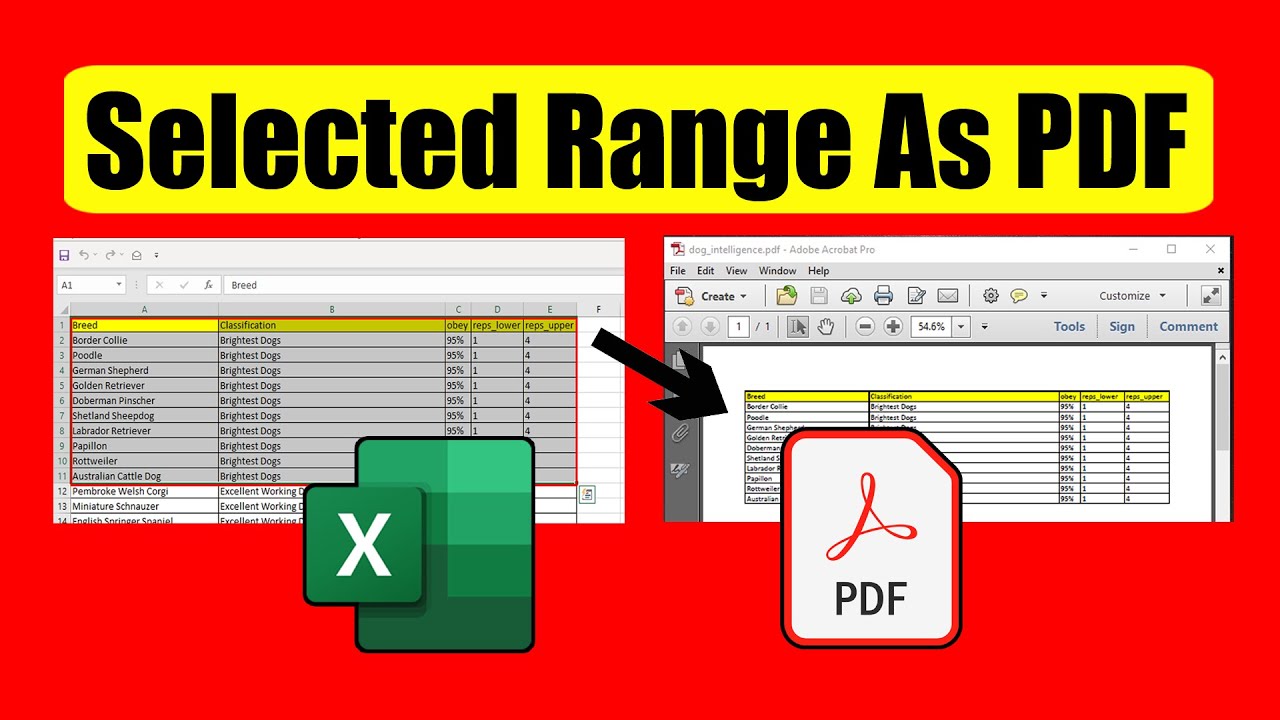
How to Save Selected Range as PDF From Excel
Suppose you have a workbook consists of several worksheets and you need to convert it into PDF. But there are confidential data also that you don’t want in the PDF. This is the situation where you need to save only selected range as pdf. In this tutorial we’ll learn to export selected cells in excel to pdf. There are four ways you can save selected cells in excel as pdf and they are as follows:
Procedure 1:
Step 1: Click on “File” Menu
Step 2: Click on “Save As”
Step 3: Select the save as location.
Step 4: Select PDF from the save as type dropdown
Step 5: Now click on “Options” and Select “Selection”
Step 6: Click Ok and done.
Your entire selection is converted as PDF. Now let’s do the same thing differently.
Procedure 2:
Step 1: Click on “File” Menu
Step 2: Click on “Export”
Step 3: Select “Create PDF/XPS Document”.
Step 4: Click on “Create PDF/XPS”
Step 5: Now click on “Options” and Select “Selection”
Step 6: Click Ok and done.
You just saved selected cells in excel as PDF. Now let’s move to the third way to convert excel to pdf. We are going to use the same technique to convert excel to pdf but in a different way.
Procedure 3:
Step 1: Click on icon from the Quick Access Toolbar and Select “More Commands”
Step 2: From the Dropdown Select “All Commands”
Step 3: From the list select “Publish as PDF or XPS” and Click Add.
Step 4: Click ok and click on “Publish as PDF or XPS” from the QAT
Step 5: Now click on “Options” and Select “Selection”
Step 6: Click Ok and done.
From the next time just follow the step 4, 5 and 6. It’ll do the job. Now let’s move to the last way to save excel as pdf.
Procedure 4:
Step 1: Click on “File” Menu
Step 2: Click on “Print”
Step 3: From the Printer option select your default PDF reader.
Step 4: From the settings option Select “Print Selection”
Step 5: Now click on “Print” and select where you need to save the pdf
Step 6: Click Ok and done.
These were the four ways on how to convert selected range into pdf file from excel. This will convert excel to pdf without losing formatting.
#Convet #Workbook #PDF
Thanks for watching.
-------------------------------------------------------------------------------------------------------------
Support the channel with as low as $5
https://www.patreon.com/excel10tutorial
-------------------------------------------------------------------------------------------------------------
Please subscribe to #excel10tutorial
https://goo.gl/uL8fqQ
Here goes the most recent video of the channel:
https://bit.ly/2UngIwS
Playlists:
Advance Excel Tutorial: https://goo.gl/ExYy7v
Excel Tutorial for Beginners: https://goo.gl/UDrDcA
Excel Case: https://goo.gl/xiP3tv
Combine Workbook & Worksheets: https://bit.ly/2Tpf7DB
All About Comments in Excel: https://bit.ly/excelcomments
Excel VBA Programming Course: http://bit.ly/excelvbacourse
Social media:
Facebook: https://facebook.com/excel10tutorial
Twitter: https://twitter.com/excel10tutorial
Blogger: https://excel10tutorial.blogspot.com
Tumblr: https://excel10tutorial.tumblr.com
Instagram: https://www.instagram.com/excel_10_tutorial
Hubpages: https://hubpages.com/@excel10tutorial
Quora: https://bit.ly/3bxB8JG *Become a member and enjoy exclusive perks while supporting the channel you love!*
https://www.youtube.com/@Excel10tutorial/join
Suppose you have a workbook consists of several worksheets and you need to convert it into PDF. But there are confidential data also that you don’t want in the PDF. This is the situation where you need to save only selected range as pdf. In this tutorial we’ll learn to export selected cells in excel to pdf. There are four ways you can save selected cells in excel as pdf and they are as follows:
Procedure 1:
Step 1: Click on “File” Menu
Step 2: Click on “Save As”
Step 3: Select the save as location.
Step 4: Select PDF from the save as type dropdown
Step 5: Now click on “Options” and Select “Selection”
Step 6: Click Ok and done.
Your entire selection is converted as PDF. Now let’s do the same thing differently.
Procedure 2:
Step 1: Click on “File” Menu
Step 2: Click on “Export”
Step 3: Select “Create PDF/XPS Document”.
Step 4: Click on “Create PDF/XPS”
Step 5: Now click on “Options” and Select “Selection”
Step 6: Click Ok and done.
You just saved selected cells in excel as PDF. Now let’s move to the third way to convert excel to pdf. We are going to use the same technique to convert excel to pdf but in a different way.
Procedure 3:
Step 1: Click on icon from the Quick Access Toolbar and Select “More Commands”
Step 2: From the Dropdown Select “All Commands”
Step 3: From the list select “Publish as PDF or XPS” and Click Add.
Step 4: Click ok and click on “Publish as PDF or XPS” from the QAT
Step 5: Now click on “Options” and Select “Selection”
Step 6: Click Ok and done.
From the next time just follow the step 4, 5 and 6. It’ll do the job. Now let’s move to the last way to save excel as pdf.
Procedure 4:
Step 1: Click on “File” Menu
Step 2: Click on “Print”
Step 3: From the Printer option select your default PDF reader.
Step 4: From the settings option Select “Print Selection”
Step 5: Now click on “Print” and select where you need to save the pdf
Step 6: Click Ok and done.
These were the four ways on how to convert selected range into pdf file from excel. This will convert excel to pdf without losing formatting.
#Convet #Workbook #PDF
Thanks for watching.
-------------------------------------------------------------------------------------------------------------
Support the channel with as low as $5
https://www.patreon.com/excel10tutorial
-------------------------------------------------------------------------------------------------------------
Please subscribe to #excel10tutorial
https://goo.gl/uL8fqQ
Here goes the most recent video of the channel:
https://bit.ly/2UngIwS
Playlists:
Advance Excel Tutorial: https://goo.gl/ExYy7v
Excel Tutorial for Beginners: https://goo.gl/UDrDcA
Excel Case: https://goo.gl/xiP3tv
Combine Workbook & Worksheets: https://bit.ly/2Tpf7DB
All About Comments in Excel: https://bit.ly/excelcomments
Excel VBA Programming Course: http://bit.ly/excelvbacourse
Social media:
Facebook: https://facebook.com/excel10tutorial
Twitter: https://twitter.com/excel10tutorial
Blogger: https://excel10tutorial.blogspot.com
Tumblr: https://excel10tutorial.tumblr.com
Instagram: https://www.instagram.com/excel_10_tutorial
Hubpages: https://hubpages.com/@excel10tutorial
Quora: https://bit.ly/3bxB8JG *Become a member and enjoy exclusive perks while supporting the channel you love!*
https://www.youtube.com/@Excel10tutorial/join
Tags and Topics
Browse our collection to discover more content in these categories.
Video Information
Views
103.6K
Likes
764
Duration
2:23
Published
Aug 6, 2021
User Reviews
4.3
(20) Related Trending Topics
LIVE TRENDSRelated trending topics. Click any trend to explore more videos.
No specific trending topics match this video yet.
Explore All Trends