Quick Guide to Hyperlinking Sheets in Excel 📊
Learn how to quickly create hyperlinks to other sheets in Excel for better navigation and data management.

Rabi Gurung
24.3K views • Feb 25, 2023
About this video
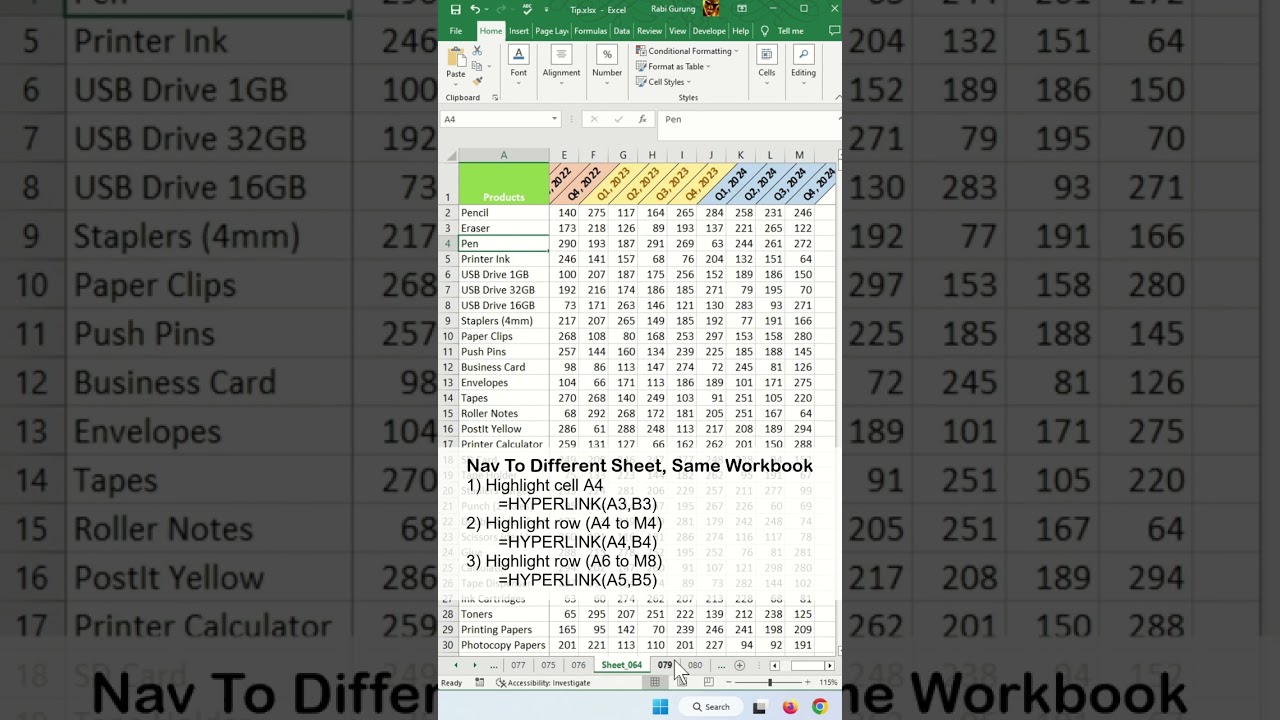
Learn how to quickly hyperlink to another sheet in Excel.
Excel is a powerful tool that is widely used for organizing, analyzing, and presenting data. One of the most useful functions in Excel is the HYPERLINK() function. As the name suggests, this function allows you to create hyperlinks within your Excel worksheets. In this article, we will take a closer look at the HYPERLINK() function and how to use it in Excel.
What is the HYPERLINK() function?
The HYPERLINK() function is a built-in function in Excel that allows you to create hyperlinks that can be used to navigate to other parts of your workbook, other Excel workbooks, or even to external websites. The function takes two arguments: the first is the URL or the location of the destination, and the second is the display text that you want to show as the hyperlink.
How to use the HYPERLINK() function in Excel
To use the HYPERLINK() function in Excel, you need to follow these steps:
Step 1: Select the cell where you want to insert the hyperlink.
Step 2: Type the HYPERLINK() function in the formula bar.
Step 3: In the first argument, enter the URL or the location of the destination. You can either type the URL directly or reference it from another cell.
Step 4: In the second argument, enter the display text that you want to show as the hyperlink. You can either type the text directly or reference it from another cell.
Step 5: Press Enter to create the hyperlink.
Here's an example of how to use the HYPERLINK() function in Excel:
Suppose you have a list of products in column A, and you want to create hyperlinks to their respective webpages in column B.
1) Select cell B2.
2) Type =HYPERLINK("https://www.xybernetics.com", "Xybernetics Inc").
3) Press Enter.
4) You will see that "Product 1" is now a clickable hyperlink that will take you to the webpage of the product.
You can repeat the same steps for the rest of the products by changing the URL and the display text.
Advanced Usage of HYPERLINK() function
You can also use the HYPERLINK() function to create dynamic hyperlinks that change based on the data in your worksheet. For example, you can use the function to create a hyperlink that jumps to a specific cell in your worksheet based on the value of another cell.
To do this, you can use the CONCATENATE() function to combine the URL with the cell reference that you want to jump to. Here's an example:
Suppose you have a list of employees in column A, and you want to create hyperlinks that jump to their respective attendance records in column B.
1) Select cell B2.
2) Type =HYPERLINK(CONCATENATE("#", A2), "Attendance").
3) Press Enter.
4) You will see that "Attendance" is now a clickable hyperlink that will take you to the cell in column A that corresponds to the employee's attendance record.
You can repeat the same steps for the rest of the employees by changing the cell reference in the CONCATENATE() function.
Conclusion
The HYPERLINK() function in Excel is a powerful tool that allows you to create hyperlinks within your worksheets. By using this function, you can create dynamic hyperlinks that change based on the data in your worksheet, making it easy to navigate to specific parts of your workbook or to external websites. With a little practice, you can use this function to create sophisticated spreadsheets that are both functional and easy to use.
#microsoft #excel #exceltips #tips #exceltricks #tricksandtips #hyperlink
Excel is a powerful tool that is widely used for organizing, analyzing, and presenting data. One of the most useful functions in Excel is the HYPERLINK() function. As the name suggests, this function allows you to create hyperlinks within your Excel worksheets. In this article, we will take a closer look at the HYPERLINK() function and how to use it in Excel.
What is the HYPERLINK() function?
The HYPERLINK() function is a built-in function in Excel that allows you to create hyperlinks that can be used to navigate to other parts of your workbook, other Excel workbooks, or even to external websites. The function takes two arguments: the first is the URL or the location of the destination, and the second is the display text that you want to show as the hyperlink.
How to use the HYPERLINK() function in Excel
To use the HYPERLINK() function in Excel, you need to follow these steps:
Step 1: Select the cell where you want to insert the hyperlink.
Step 2: Type the HYPERLINK() function in the formula bar.
Step 3: In the first argument, enter the URL or the location of the destination. You can either type the URL directly or reference it from another cell.
Step 4: In the second argument, enter the display text that you want to show as the hyperlink. You can either type the text directly or reference it from another cell.
Step 5: Press Enter to create the hyperlink.
Here's an example of how to use the HYPERLINK() function in Excel:
Suppose you have a list of products in column A, and you want to create hyperlinks to their respective webpages in column B.
1) Select cell B2.
2) Type =HYPERLINK("https://www.xybernetics.com", "Xybernetics Inc").
3) Press Enter.
4) You will see that "Product 1" is now a clickable hyperlink that will take you to the webpage of the product.
You can repeat the same steps for the rest of the products by changing the URL and the display text.
Advanced Usage of HYPERLINK() function
You can also use the HYPERLINK() function to create dynamic hyperlinks that change based on the data in your worksheet. For example, you can use the function to create a hyperlink that jumps to a specific cell in your worksheet based on the value of another cell.
To do this, you can use the CONCATENATE() function to combine the URL with the cell reference that you want to jump to. Here's an example:
Suppose you have a list of employees in column A, and you want to create hyperlinks that jump to their respective attendance records in column B.
1) Select cell B2.
2) Type =HYPERLINK(CONCATENATE("#", A2), "Attendance").
3) Press Enter.
4) You will see that "Attendance" is now a clickable hyperlink that will take you to the cell in column A that corresponds to the employee's attendance record.
You can repeat the same steps for the rest of the employees by changing the cell reference in the CONCATENATE() function.
Conclusion
The HYPERLINK() function in Excel is a powerful tool that allows you to create hyperlinks within your worksheets. By using this function, you can create dynamic hyperlinks that change based on the data in your worksheet, making it easy to navigate to specific parts of your workbook or to external websites. With a little practice, you can use this function to create sophisticated spreadsheets that are both functional and easy to use.
#microsoft #excel #exceltips #tips #exceltricks #tricksandtips #hyperlink
Tags and Topics
Browse our collection to discover more content in these categories.
Video Information
Views
24.3K
Likes
366
Duration
1:00
Published
Feb 25, 2023
User Reviews
4.6
(4) Related Trending Topics
LIVE TRENDSRelated trending topics. Click any trend to explore more videos.
No specific trending topics match this video yet.
Explore All Trends