Pygame Tutorial 3: Moving an Image
This tutorial demonstrates how to move an image using Pygame, including importing modules, setting up the display, and handling user input to animate the image.
Salty Lad
2.6K views • May 20, 2014
About this video
Showing how to move image in Pygame
-------------------------------------------------------------
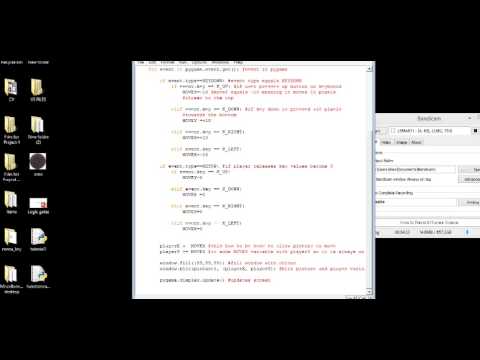
import pygame #import
from pygame.locals import *
pygame.init() #initializes pygame
size=width,height=640,600
window=pygame.display.set_mode(size) #pygame.display.set_mode creates window
MOVEX = 0
MOVEY = 150
playerX=0
playerY=0
picture1=pygame.image.load("oreo.jpg") #function used to load image
while True: #when while loop is true
for event in pygame.event.get(): #event in pygame
if event.type==KEYDOWN: #event type equals KEYDOWN
if event.key == K_UP: #if user presses up button on keyboard
MOVEY=-10 #moveY equals -10 meaning it moves 10 pixels
#closer to the top
elif event.key == K_DOWN: #if key down is pressed +10 pixels
#towards the bottom
MOVEY =+10
elif event.key == K_RIGHT:
MOVEX=+10
elif event.key == K_LEFT:
MOVEX=-10
if event.type==KEYUP: #if player releases key values become 0
if event.key == K_UP:
MOVEY=0
elif event.key == K_DOWN:
MOVEX =0
elif event.key == K_RIGHT:
MOVEY=0
elif event.key == K_LEFT:
MOVEX=0
playerX += MOVEX #this has to be here to allow picture to move
playerY += MOVEY #it adds MOVEY variable with playerY so it is always only adding 10 pixels and starts at 0X and 0Y
window.fill((55,55,55)) #fill window with colour
window.blit(picture1, (playerX, playerY)) #blit picture and player variables
pygame.display.update() #updates screen
follow me on twitter- https://twitter.com/dropdasoaps
-------------------------------------------------------------
import pygame #import
from pygame.locals import *
pygame.init() #initializes pygame
size=width,height=640,600
window=pygame.display.set_mode(size) #pygame.display.set_mode creates window
MOVEX = 0
MOVEY = 150
playerX=0
playerY=0
picture1=pygame.image.load("oreo.jpg") #function used to load image
while True: #when while loop is true
for event in pygame.event.get(): #event in pygame
if event.type==KEYDOWN: #event type equals KEYDOWN
if event.key == K_UP: #if user presses up button on keyboard
MOVEY=-10 #moveY equals -10 meaning it moves 10 pixels
#closer to the top
elif event.key == K_DOWN: #if key down is pressed +10 pixels
#towards the bottom
MOVEY =+10
elif event.key == K_RIGHT:
MOVEX=+10
elif event.key == K_LEFT:
MOVEX=-10
if event.type==KEYUP: #if player releases key values become 0
if event.key == K_UP:
MOVEY=0
elif event.key == K_DOWN:
MOVEX =0
elif event.key == K_RIGHT:
MOVEY=0
elif event.key == K_LEFT:
MOVEX=0
playerX += MOVEX #this has to be here to allow picture to move
playerY += MOVEY #it adds MOVEY variable with playerY so it is always only adding 10 pixels and starts at 0X and 0Y
window.fill((55,55,55)) #fill window with colour
window.blit(picture1, (playerX, playerY)) #blit picture and player variables
pygame.display.update() #updates screen
follow me on twitter- https://twitter.com/dropdasoaps
Tags and Topics
Browse our collection to discover more content in these categories.
Video Information
Views
2.6K
Likes
8
Duration
7:42
Published
May 20, 2014
User Reviews
3.9
(2) Related Trending Topics
LIVE TRENDSRelated trending topics. Click any trend to explore more videos.
No specific trending topics match this video yet.
Explore All Trends