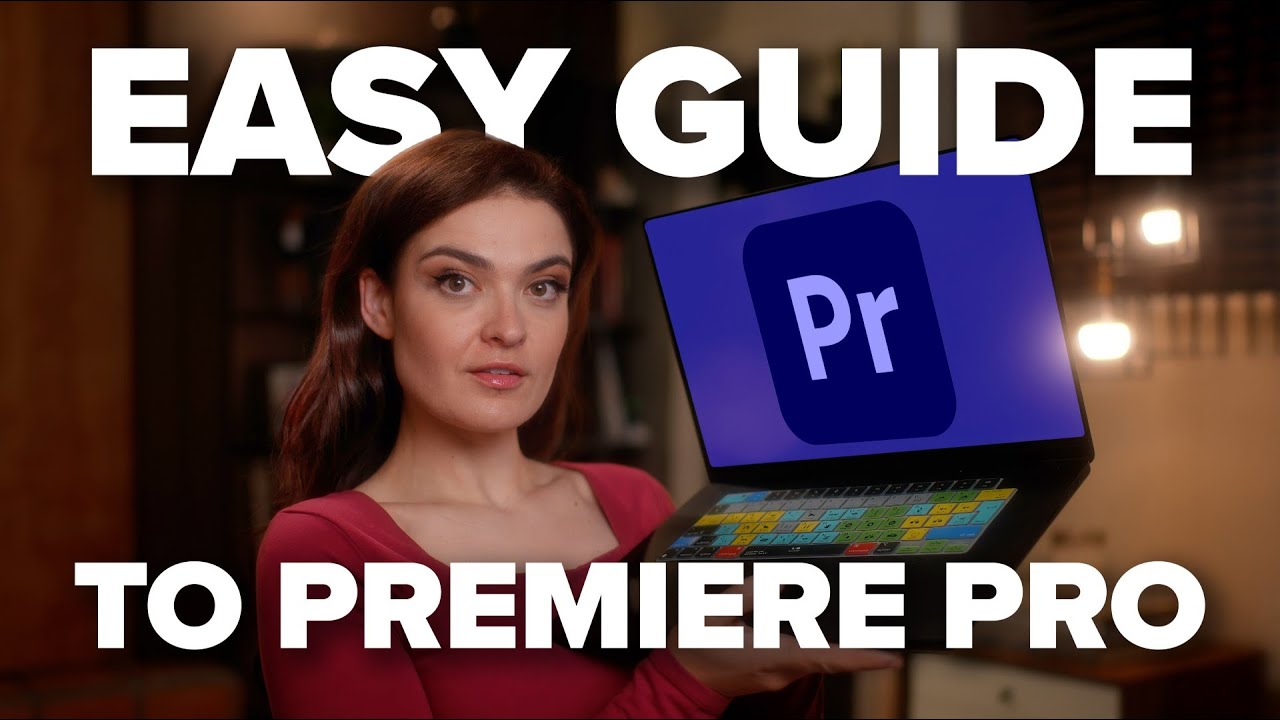
Premiere Pro Beginner Guide 2025 | Valentina Vee & Adobe 🎬
Learn Premiere Pro from launch to export in this 101 workshop with Valentina Vee, perfect for beginners in 2025.

Adobe Video
1.5M views • Jun 16, 2025
About this video
From application launch to final export, this 101 workshop taught by Valentina Vee covers everything you need to get started with our professional-grade application, whether you have spliced, cut, and color graded videos together before or not.
So let your editing journey begin. Happy learning!
💾 Download these free assets to help you follow along:
▪️ PDF Guide: https://adobe.ly/461Ex2i
▪️ Demo Video and Audio Files: https://adobe.ly/45sWEOA
Chapters
00:00:00 Introduction
00:01:27 File Organization
00:03:28 Creating a New Project
00:04:30 Setting up a Project with Import Mode
00:05:56 New Project from Scratch
00:06:30 5 Main Windows Overview
00:09:23 Import Tools & Media Management
00:11:11 Organizing the Workspace
00:15:30 Creating Sequences and Choosing Frame Rates
00:19:11 What are Frame Rates and Image Dimensions
00:21:40 Color Coding Clips
00:23:26 Putting Clips into the Timeline
00:25:42 Navigating the Timeline
00:31:44 Cutting Clips in the Timeline
00:33:29 Keyboard Shortcuts Menu
00:35:20 Fast Forward, Pause, Rewind in the Timeline
00:36:42 Timeline Shortcuts
00:40:45 Versioning Sequences
00:42:11 Silent Scrubbing
00:42:33 Save and Autosave
00:46:00 Re-order Clips in Timeline
00:49:00 Rolling Edit Tool
00:52:29 Bring Part of Clip into Timeline
00:54:58 Ripple Edit Tool
00:56:59 Slip Tool
01:01:21 Loop Playback Tool
01:03:10 Audio Fade Handles
01:04:00 Add Audio Transition to All Clips
01:06:22 Turn Down Audio across Multiple Clips
01:13:49 Clean Up Audio with Enhance Speech
01:20:56 Auto-Match Audio Loudness
01:22:00 Find and Add Music from Essential Sound
01:27:49 Audio Remix Tool for Shortening Music
01:31:00 Add Basic Text
01:33:42 Ducking and Auto-Ducking Music Tracks
01:39:00 Exporting First Video
01:40:35 FINAL FIRST VIDEO WATCH-THROUGH
01:45:10 Organizing Multiple Videos in One Project
01:47:40 Manually Synching Clips with Audio
01:55:29 Using "Synchronize" for Clips in Timeline
01:56:08 Multi-Camera Sync Workflow
02:06:30 Track Targeting to Cut Rows of Clips
02:13:00 Text Based Editing with Auto Transcript
02:19:33 Close All Gaps
02:21:00 Checker-boarding technique (Enable and Disable)
02:26:25 Re-Sizing Clips
02:28:45 Create Stringout from Clips in Bins (I/O Workflow)
02:30:59 Rate-Stretching Slow Motion Clips
02:32:44 Interpreting (Conforming) Slow-Motion Clips
02:36:45 Creating Durational Markers
02:39:20 Pancaking Technique for B-Roll
02:40:40 Generative Extend
02:44:23 Media Intelligence and Search Panel
02:45:09 Source Patching
02:49:40 Changing Opacity, Lining Up Clips
02:52:09 Warp Stabilizer
02:54:15 Lumetri Panel Basic Color Correction
02:57:33 Color Match 2 Clips
03:01:30 Remove Attributes from Multiple Clips
03:02:25 Add Effects using Adjustment Layer
03:04:35 Create and Apply Default Transition Effect
03:06:47 Find and Add Sound Effects
03:08:21 Find, Apply, and Edit Motion Graphics Templates
03:11:27 Add and Edit Captions
03:14:25 Caption Translation
03:17:49 Reframe for Social Media
03:21:11 Export with Burned-in Captions
03:22:11 FINAL VIDEO WATCH-THROUGH
Subscribe to Adobe Video & Motion: https://adobe.ly/3uoastj
Learn more about Adobe Video: https://adobe.ly/3RRZAfc
About Adobe Video & Motion:
Adobe Video and Motion is a one-stop feed for all your creative video needs. Find content and tutorials from tools such as Premiere Pro, After Effects, Premiere Rush, Character Animator, Audition and more! Adobe® Video & Motion tools provide comprehensive video editing, motion design, VFX, sound, & animation for beginners to professionals.
Connect with Adobe Video:
Twitter: https://Twitter.com/adobevideo
Facebook: https://facebook.com/adobevideo
Instagram: https://instagram.com/adobevideo
TikTok: https://www.tiktok.com/@adobevideo
Connect with Valentina:
Twitter: https://Twitter.com/valentinavee
Instagram: https://instagram.com/valentina.vee
TikTok: https://www.tiktok.com/@valentina_vee
#Adobe #AdobeVideo #AdobeYouTube
So let your editing journey begin. Happy learning!
💾 Download these free assets to help you follow along:
▪️ PDF Guide: https://adobe.ly/461Ex2i
▪️ Demo Video and Audio Files: https://adobe.ly/45sWEOA
Chapters
00:00:00 Introduction
00:01:27 File Organization
00:03:28 Creating a New Project
00:04:30 Setting up a Project with Import Mode
00:05:56 New Project from Scratch
00:06:30 5 Main Windows Overview
00:09:23 Import Tools & Media Management
00:11:11 Organizing the Workspace
00:15:30 Creating Sequences and Choosing Frame Rates
00:19:11 What are Frame Rates and Image Dimensions
00:21:40 Color Coding Clips
00:23:26 Putting Clips into the Timeline
00:25:42 Navigating the Timeline
00:31:44 Cutting Clips in the Timeline
00:33:29 Keyboard Shortcuts Menu
00:35:20 Fast Forward, Pause, Rewind in the Timeline
00:36:42 Timeline Shortcuts
00:40:45 Versioning Sequences
00:42:11 Silent Scrubbing
00:42:33 Save and Autosave
00:46:00 Re-order Clips in Timeline
00:49:00 Rolling Edit Tool
00:52:29 Bring Part of Clip into Timeline
00:54:58 Ripple Edit Tool
00:56:59 Slip Tool
01:01:21 Loop Playback Tool
01:03:10 Audio Fade Handles
01:04:00 Add Audio Transition to All Clips
01:06:22 Turn Down Audio across Multiple Clips
01:13:49 Clean Up Audio with Enhance Speech
01:20:56 Auto-Match Audio Loudness
01:22:00 Find and Add Music from Essential Sound
01:27:49 Audio Remix Tool for Shortening Music
01:31:00 Add Basic Text
01:33:42 Ducking and Auto-Ducking Music Tracks
01:39:00 Exporting First Video
01:40:35 FINAL FIRST VIDEO WATCH-THROUGH
01:45:10 Organizing Multiple Videos in One Project
01:47:40 Manually Synching Clips with Audio
01:55:29 Using "Synchronize" for Clips in Timeline
01:56:08 Multi-Camera Sync Workflow
02:06:30 Track Targeting to Cut Rows of Clips
02:13:00 Text Based Editing with Auto Transcript
02:19:33 Close All Gaps
02:21:00 Checker-boarding technique (Enable and Disable)
02:26:25 Re-Sizing Clips
02:28:45 Create Stringout from Clips in Bins (I/O Workflow)
02:30:59 Rate-Stretching Slow Motion Clips
02:32:44 Interpreting (Conforming) Slow-Motion Clips
02:36:45 Creating Durational Markers
02:39:20 Pancaking Technique for B-Roll
02:40:40 Generative Extend
02:44:23 Media Intelligence and Search Panel
02:45:09 Source Patching
02:49:40 Changing Opacity, Lining Up Clips
02:52:09 Warp Stabilizer
02:54:15 Lumetri Panel Basic Color Correction
02:57:33 Color Match 2 Clips
03:01:30 Remove Attributes from Multiple Clips
03:02:25 Add Effects using Adjustment Layer
03:04:35 Create and Apply Default Transition Effect
03:06:47 Find and Add Sound Effects
03:08:21 Find, Apply, and Edit Motion Graphics Templates
03:11:27 Add and Edit Captions
03:14:25 Caption Translation
03:17:49 Reframe for Social Media
03:21:11 Export with Burned-in Captions
03:22:11 FINAL VIDEO WATCH-THROUGH
Subscribe to Adobe Video & Motion: https://adobe.ly/3uoastj
Learn more about Adobe Video: https://adobe.ly/3RRZAfc
About Adobe Video & Motion:
Adobe Video and Motion is a one-stop feed for all your creative video needs. Find content and tutorials from tools such as Premiere Pro, After Effects, Premiere Rush, Character Animator, Audition and more! Adobe® Video & Motion tools provide comprehensive video editing, motion design, VFX, sound, & animation for beginners to professionals.
Connect with Adobe Video:
Twitter: https://Twitter.com/adobevideo
Facebook: https://facebook.com/adobevideo
Instagram: https://instagram.com/adobevideo
TikTok: https://www.tiktok.com/@adobevideo
Connect with Valentina:
Twitter: https://Twitter.com/valentinavee
Instagram: https://instagram.com/valentina.vee
TikTok: https://www.tiktok.com/@valentina_vee
#Adobe #AdobeVideo #AdobeYouTube
Tags and Topics
Browse our collection to discover more content in these categories.
Video Information
Views
1.5M
Likes
3.9K
Duration
03:27:40
Published
Jun 16, 2025
User Reviews
4.1
(305) Related Trending Topics
LIVE TRENDSRelated trending topics. Click any trend to explore more videos.
No specific trending topics match this video yet.
Explore All Trends